

The ServiceNow integration is opt-in and only available on Enterprise plans.
Contact sales@infisical.com to get access to the
ServiceNow integration.
This guide only authenticates Infisical with ServiceNow. Once the app
connection is ready, you can use it to set up
integrations.
Prerequisites
- The Infisical application installed on your ServiceNow instance (see Step 1 of the ServiceNow integration)
- Permission to create users and assign roles on the instance
- A ServiceNow instance that Infisical can reach (if your instance restricts inbound traffic, allow Infisical’s IP addresses on its IP access control list)
Step 1: Create a ServiceNow integration user
Infisical signs in to ServiceNow as a dedicated integration user. Use a new user rather than a personal account, so you can change its password without affecting anyone’s access.1
In ServiceNow, go to All > User Administration > Users.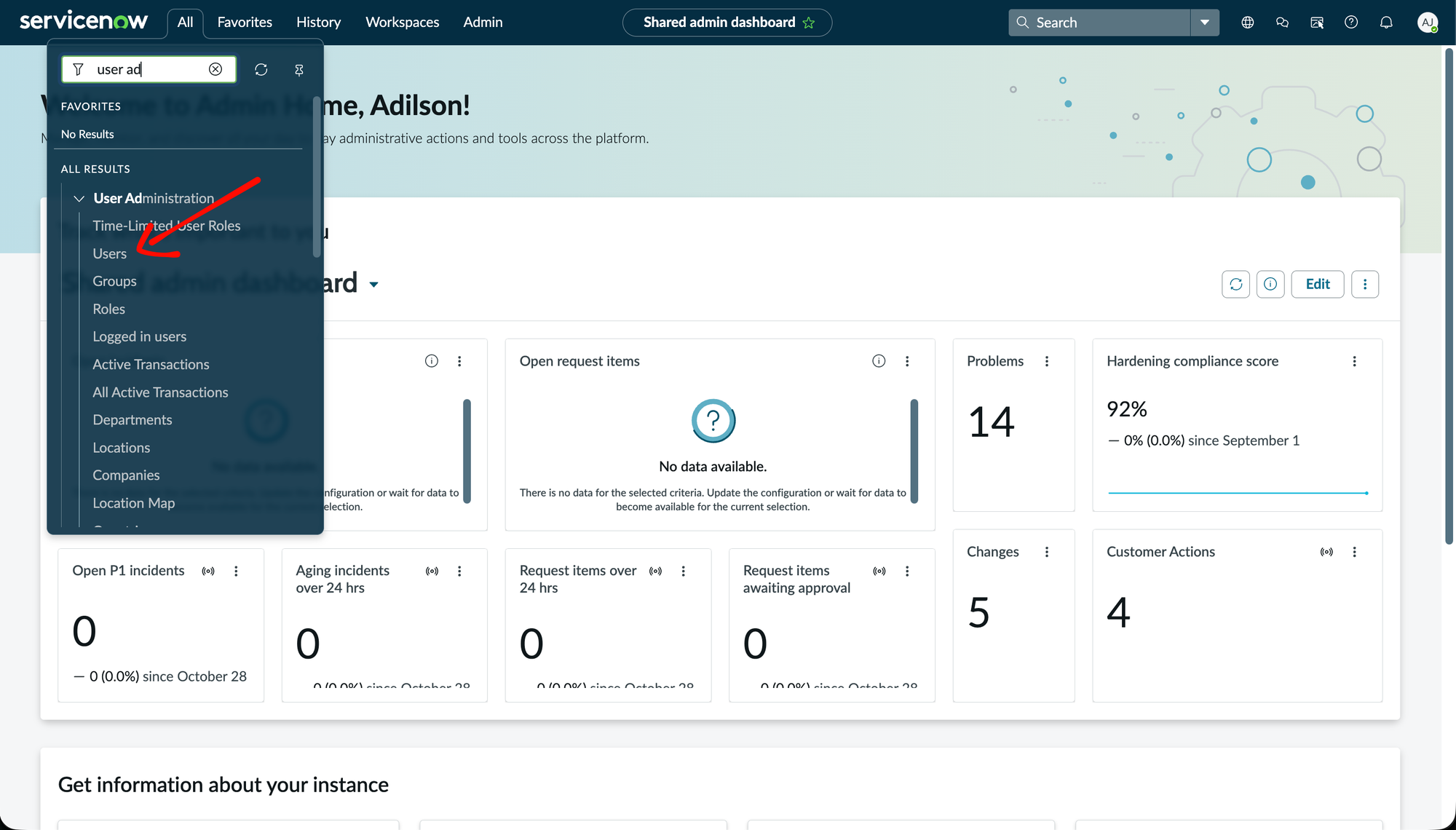
2
Select New.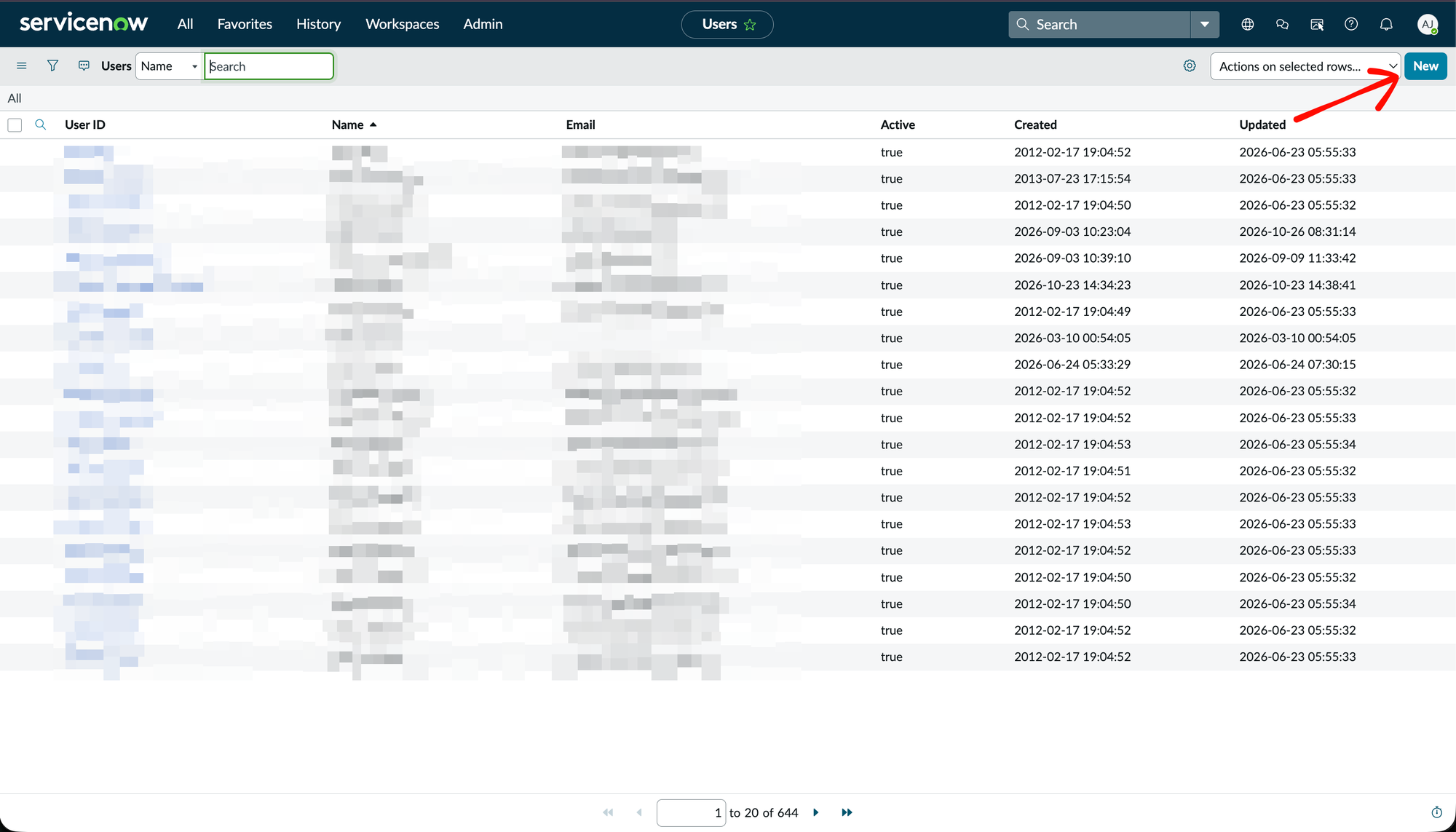
3
Fill out the user’s fields: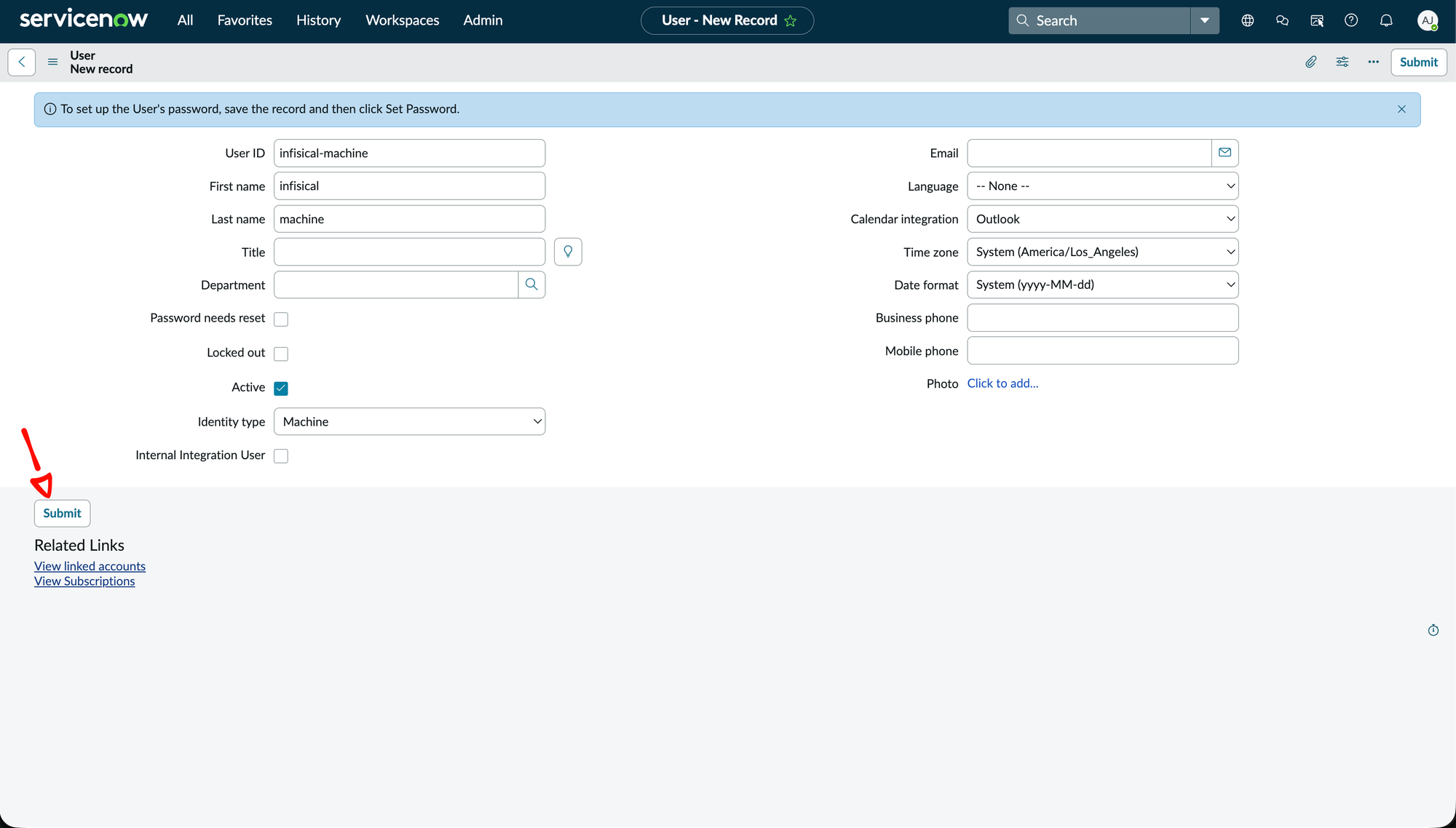
- User ID: an identifier such as
infisical-machine - First name and Last name: a recognizable name, such as
infisicalandmachine - Active: checked
- Identity type: Machine
4
Open the new user from the Users list, then select Edit… on the Roles tab.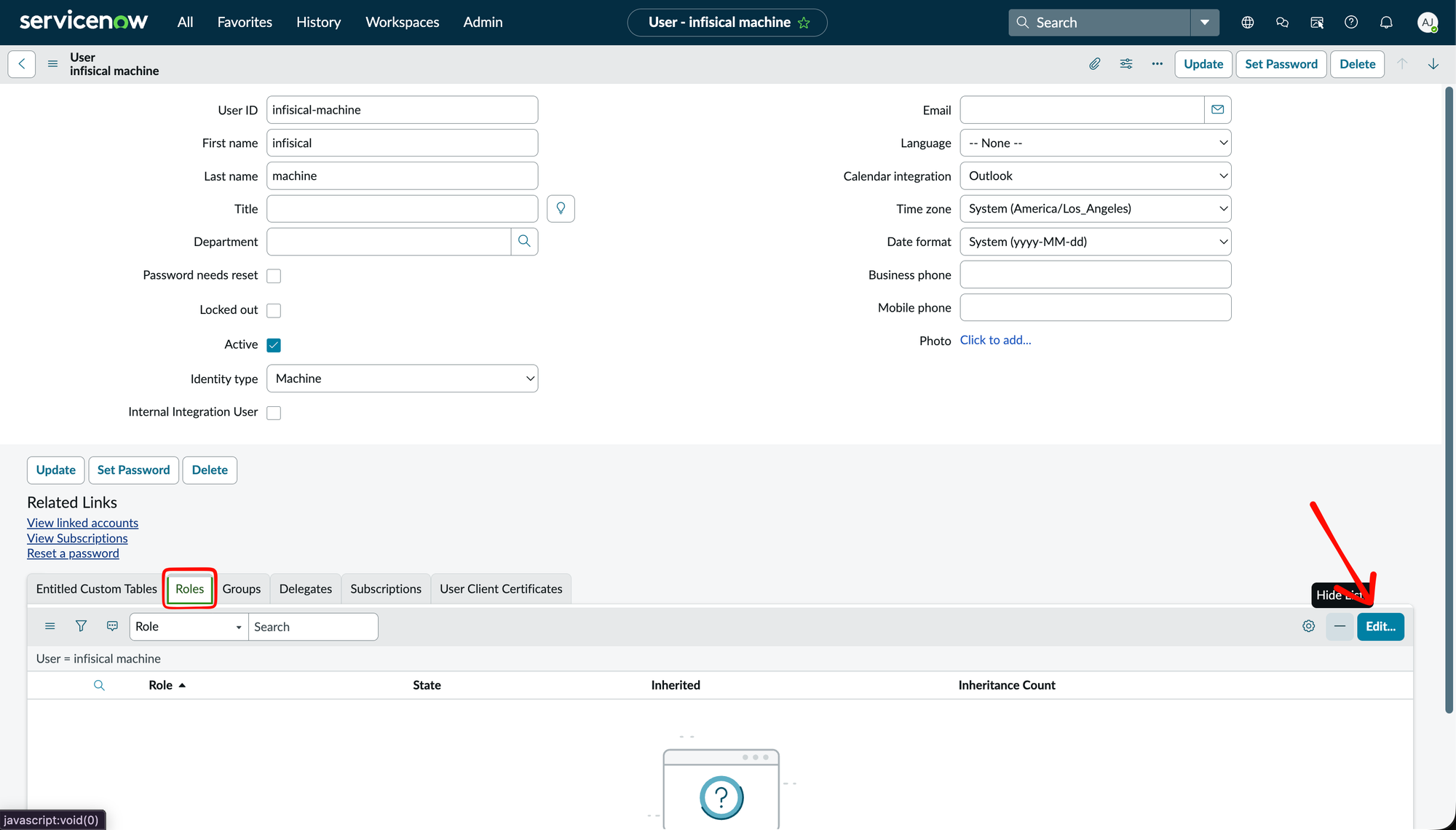
5
In Collection, search for 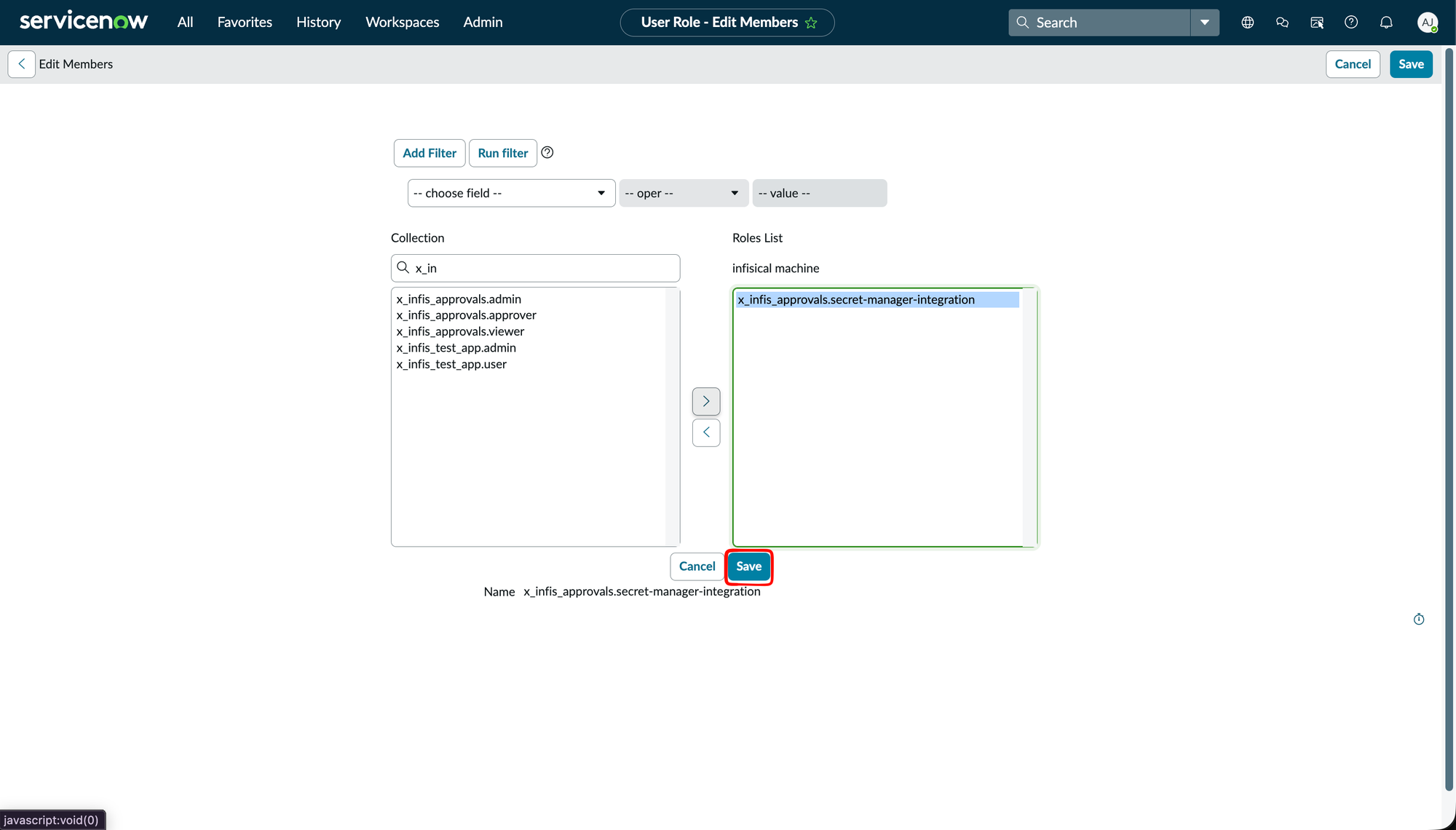
x_infis_approvals, move x_infis_approvals.secret-manager-integration to Roles List, and select Save.This role lets Infisical create access requests in the Infisical application and read their decisions. It doesn’t grant approval rights or access to anything else on the instance.6
Select Set Password.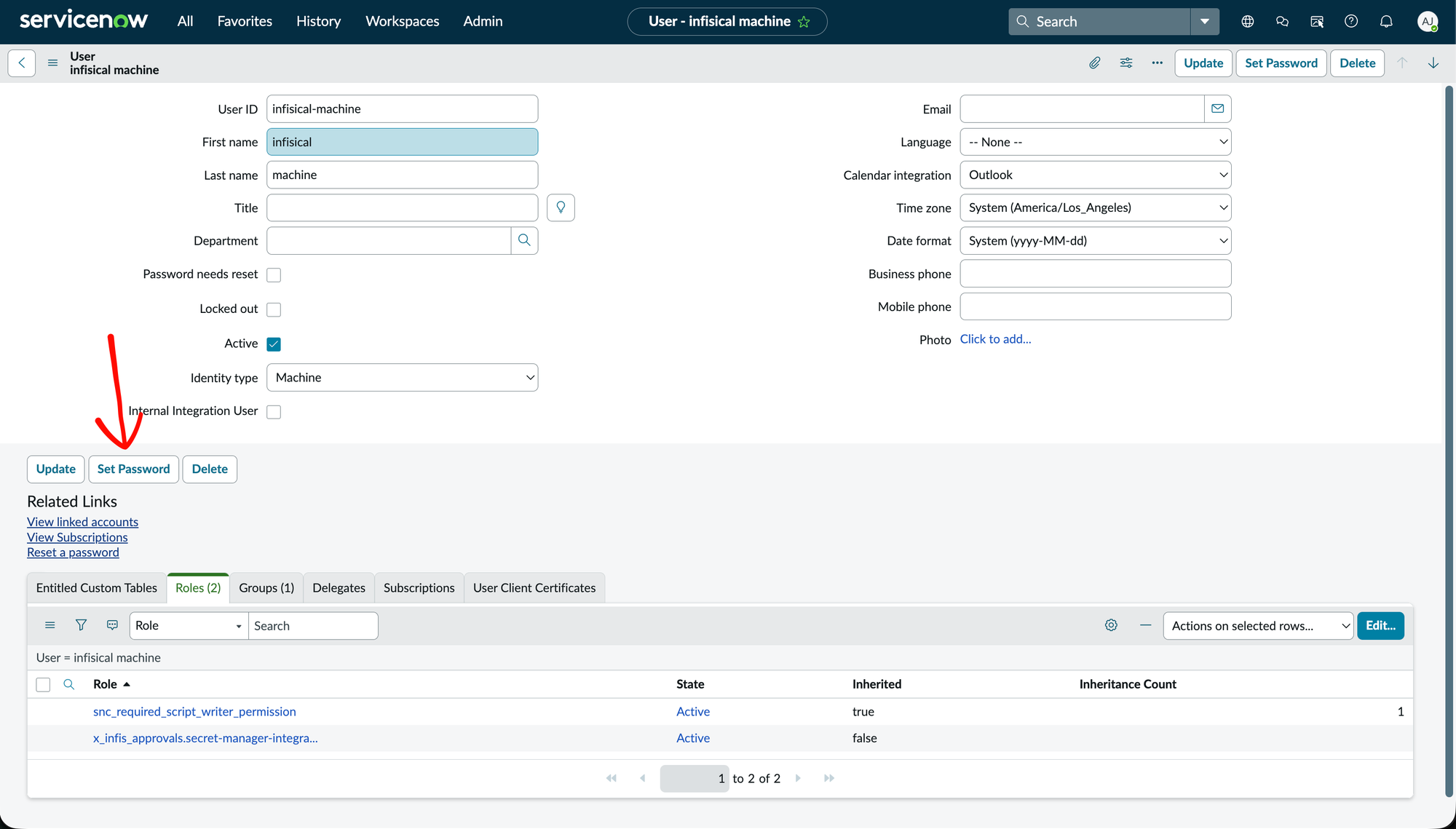
7
Select Generate, copy the password, and select Save Password. You’ll enter the password in Infisical in Step 2.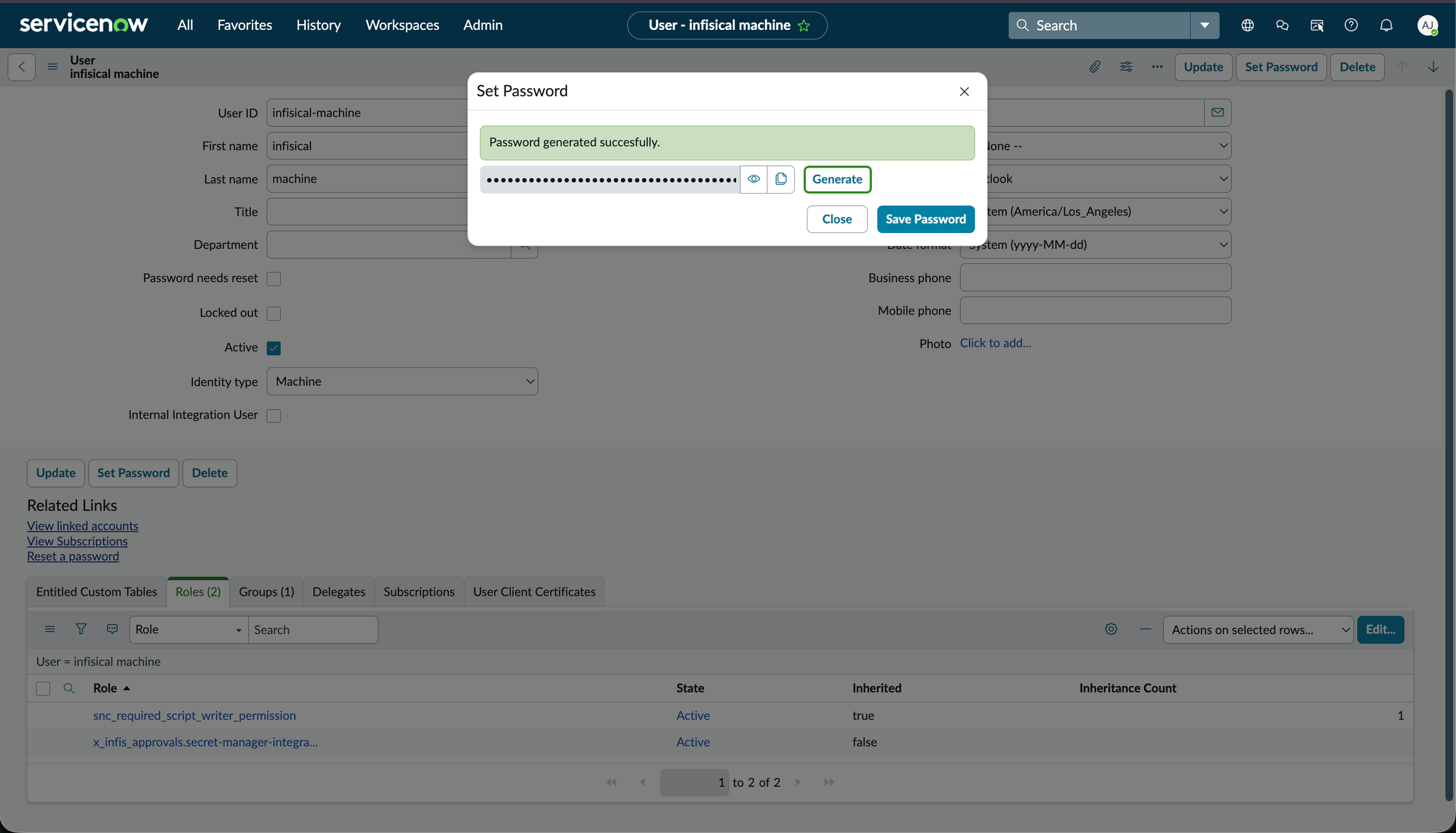
8
Copy the base URL of your instance, such as
https://dev12345.service-now.com. The URL must use HTTPS and can’t include a path or a query string.Step 2: Create the app connection
Next, create the app connection in Infisical.1
In the sidebar, select Integrations, then open the App Connections tab.
2
Select Add Connection and choose ServiceNow.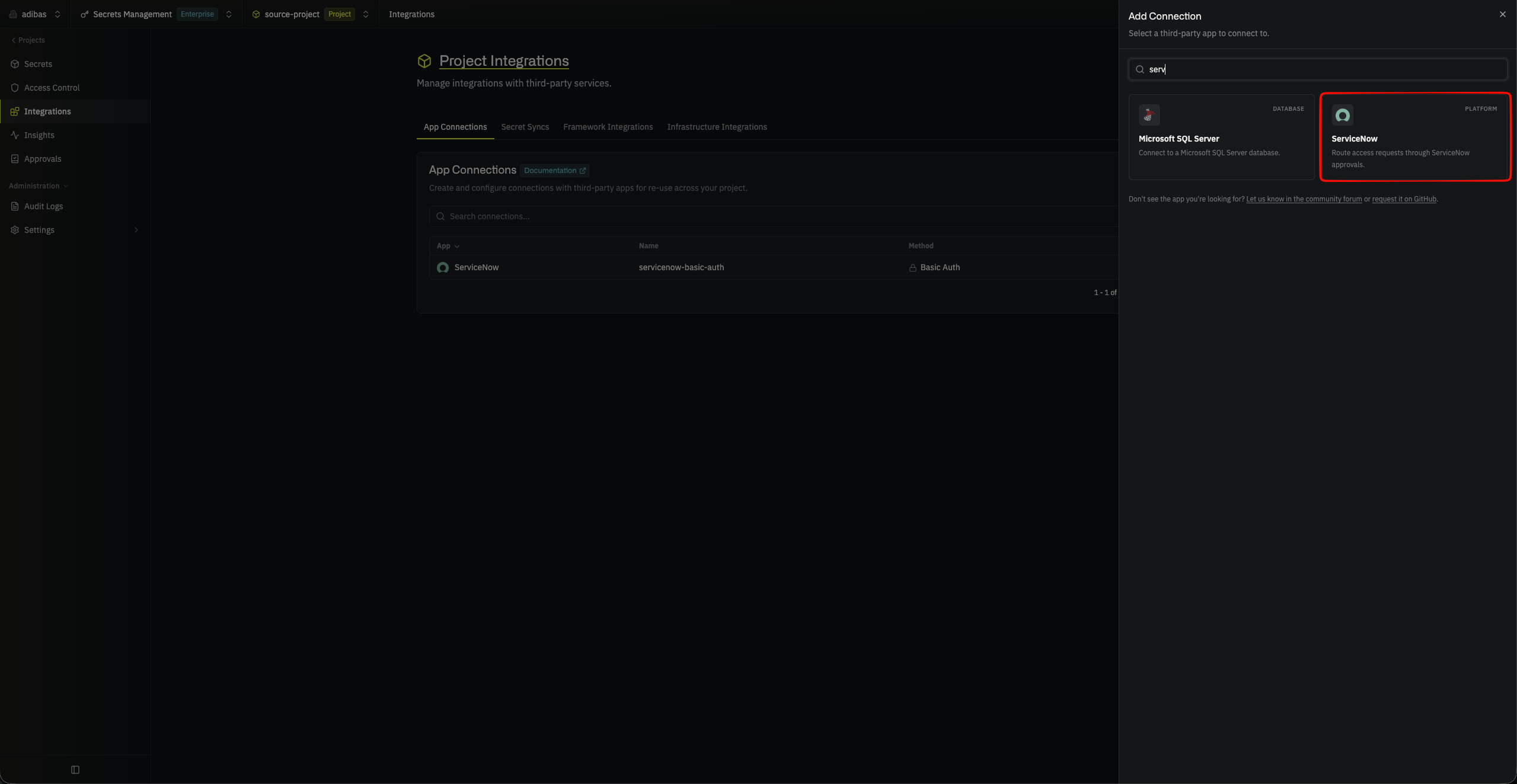
3
Fill out the form’s fields: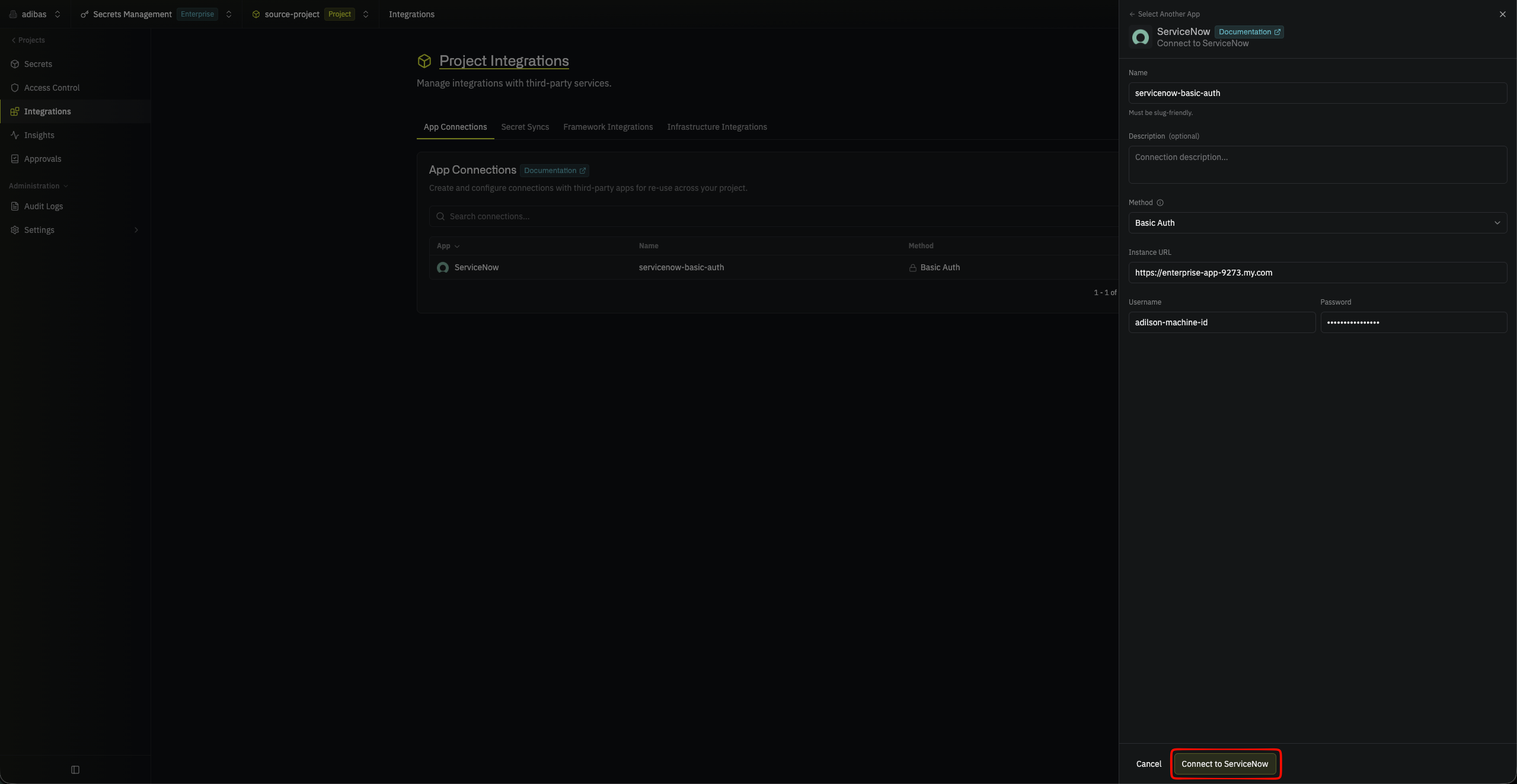
- Name: a name for the connection, such as
servicenow-prod - Description (optional): what the connection is used for
- Method: Basic Auth
- Instance URL: the base URL you copied in Step 1
- Username: the User ID of the integration user
- Password: the integration user’s password
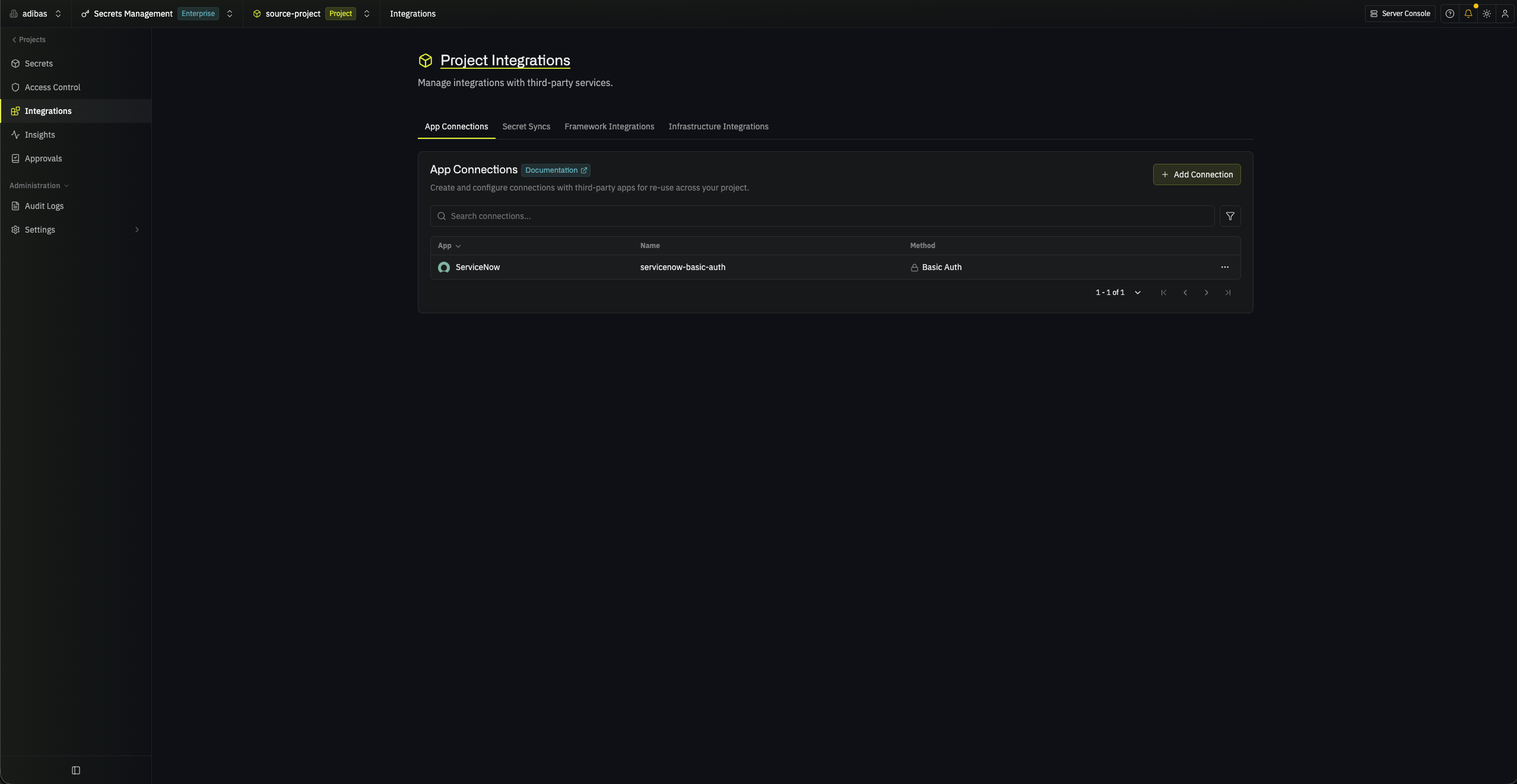
Your ServiceNow app connection is ready to use.
Step 3: Configure integrations
Now that your ServiceNow app connection is configured, you can use it to set up the following integration:ServiceNow integration
Route Infisical access requests through ServiceNow approval flows.
Troubleshooting
Infisical asks you to verify the username and password of the integration user
Infisical asks you to verify the username and password of the integration user
The username or password is wrong, or the user is locked out or inactive.
Infisical says the instance URL redirected
Infisical says the instance URL redirected
The URL isn’t the base URL of your instance, or the instance is hibernating. Wake the instance, then enter its base URL.
Infisical can't reach the instance
Infisical can't reach the instance
The instance URL is wrong, or the instance blocks traffic from Infisical. Allow Infisical’s IP addresses on the instance’s IP access control list.
An access request shows Not Submitted, and its reason says the instance has no Infisical Approvals application endpoint
An access request shows Not Submitted, and its reason says the instance has no Infisical Approvals application endpoint
The Infisical application isn’t installed or active on the instance. Install it, then select Retry on the request.
An access request shows Not Submitted, and its reason says the instance rejected the integration user's credentials
An access request shows Not Submitted, and its reason says the instance rejected the integration user's credentials
The integration user’s password changed, or the user doesn’t have the
x_infis_approvals.secret-manager-integration role. Update the connection or the user, then select Retry on the request.Infisical won't delete the connection
Infisical won't delete the connection
An access policy still uses the connection. Select another connection on the policy, or switch the policy back to Infisical approvals, then delete the connection.