

The ServiceNow integration is opt-in and only available on Enterprise plans.
Contact sales@infisical.com to get access to the
ServiceNow integration.
How it works
- A user requests access in Infisical to an environment and secret path.
- The request matches an access policy that sends its requests to ServiceNow.
- Infisical creates an Infisical Access Request record on your ServiceNow instance over the ServiceNow connection. The record includes a callback token that Infisical issued for this request alone.
- The Infisical - Default Approval flow, or a flow you build, asks your approvers to approve or reject the record.
- When the flow reaches a decision, its final step runs the Infisical - Notify Decision action. The action records the decision on the record, then sends the callback token to Infisical to say the record has a decision.
- Infisical reads the decision from the record over the ServiceNow connection, then grants the access on approval or closes the request on rejection.
Prerequisites
- A Secrets Management project on Infisical with Access Requests available
- A ServiceNow instance where you can install a scoped application, create users, edit groups, and activate flows in Flow Designer (the
flow_designerrole) - A ServiceNow instance that Infisical can reach (if your instance restricts inbound traffic, allow Infisical’s IP addresses on its IP access control list)
- Outbound HTTPS access from your ServiceNow instance to your Infisical URL
- If you self-host Infisical, a
SITE_URLthat starts withhttps://, because ServiceNow notifies Infisical at that address
Step 1: Install the Infisical application
1
Install the application package that Infisical provides on your ServiceNow instance.The application adds an Infisical menu to the navigator with these modules:
- Access Requests: every request Infisical has sent
- Pending Requests: requests waiting for a decision
- Admin Console (admins only): every request, with a Resend to Infisical button for a decision that didn’t reach Infisical
2
Assign the application’s roles:
Step 2: Connect Infisical to ServiceNow
Create a ServiceNow integration user, then create a ServiceNow connection in Infisical with that user’s credentials. Follow the ServiceNow connection guide. Infisical uses this connection to create each record and to read each decision back. If the connection’s credentials stop working, Infisical can’t complete the requests waiting in ServiceNow.Step 3: Set up the approval flow
The Infisical application includes an approval flow, Infisical - Default Approval, and a group of approvers, Infisical Approvers. The flow asks the members of the group to approve each new request, so the first member who approves or rejects the request decides it. In the final step, the flow then notifies Infisical of the decision. When you install the application, the group has no members and the flow is inactive. Add your approvers to the group, then activate the flow.Add your approvers to the group
1
In ServiceNow, go to All > System Security > Users and Groups > Groups.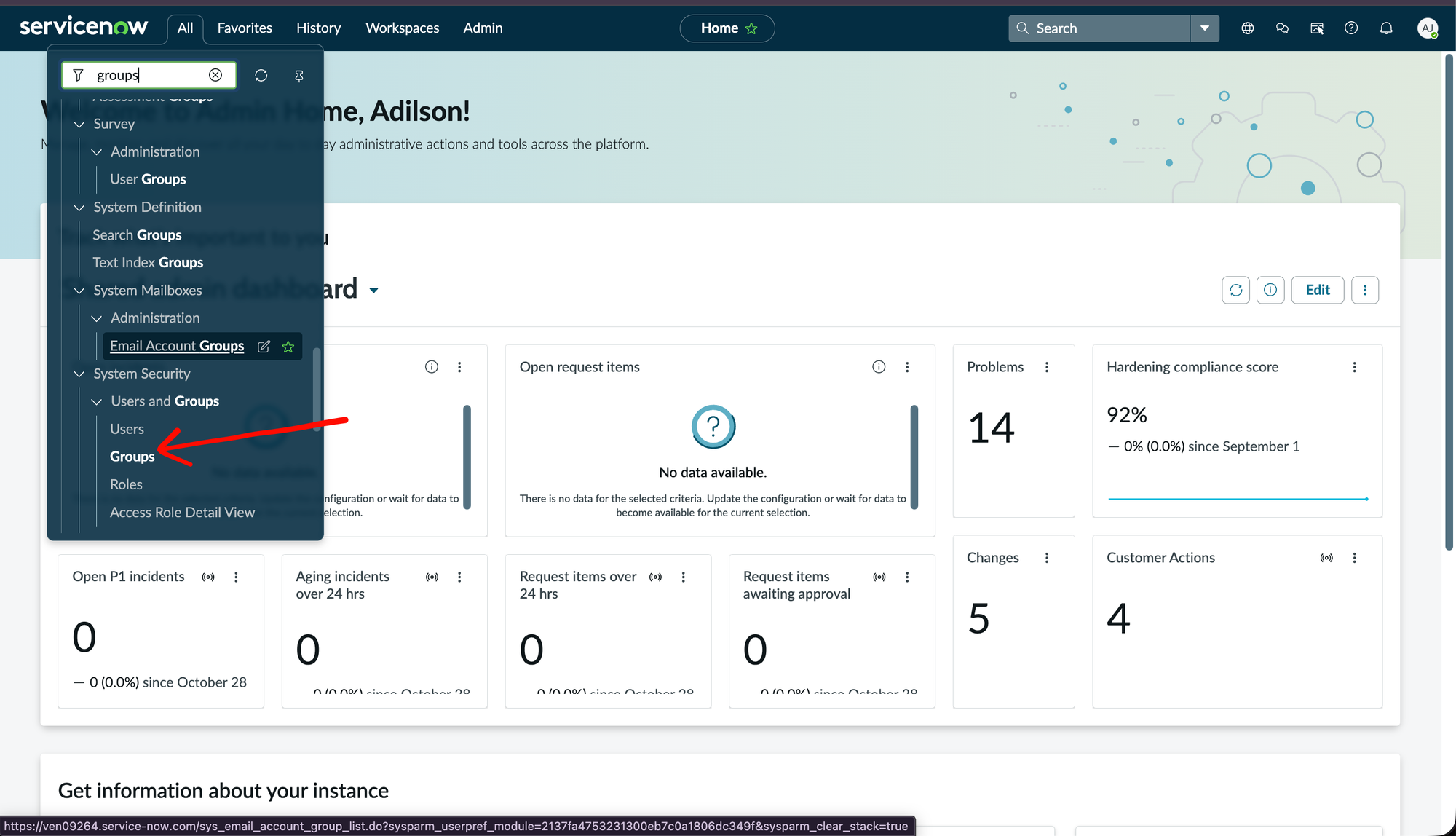
2
Search the list for 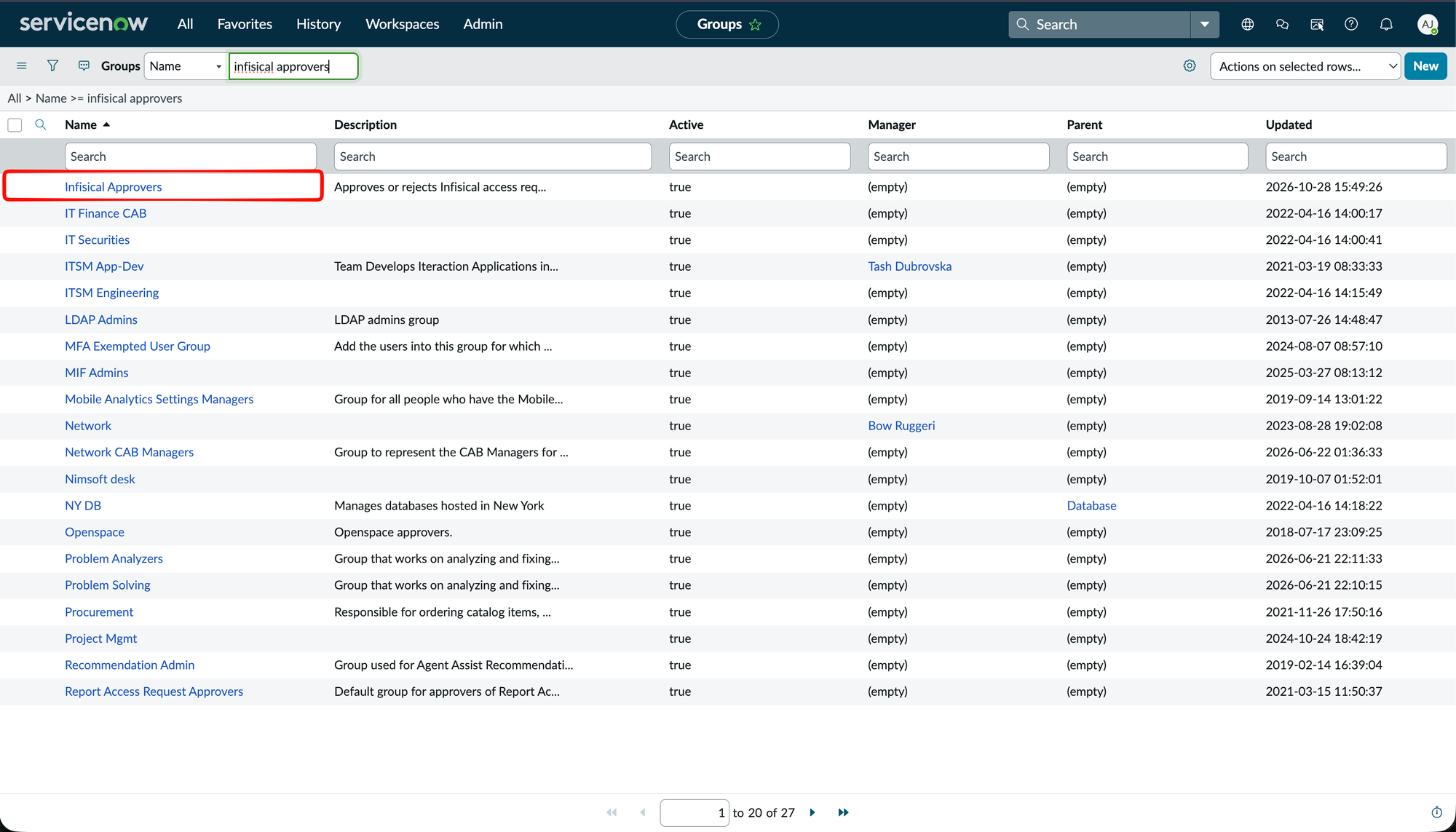
Infisical Approvers and open the group.3
Select Edit… on the Group Members tab.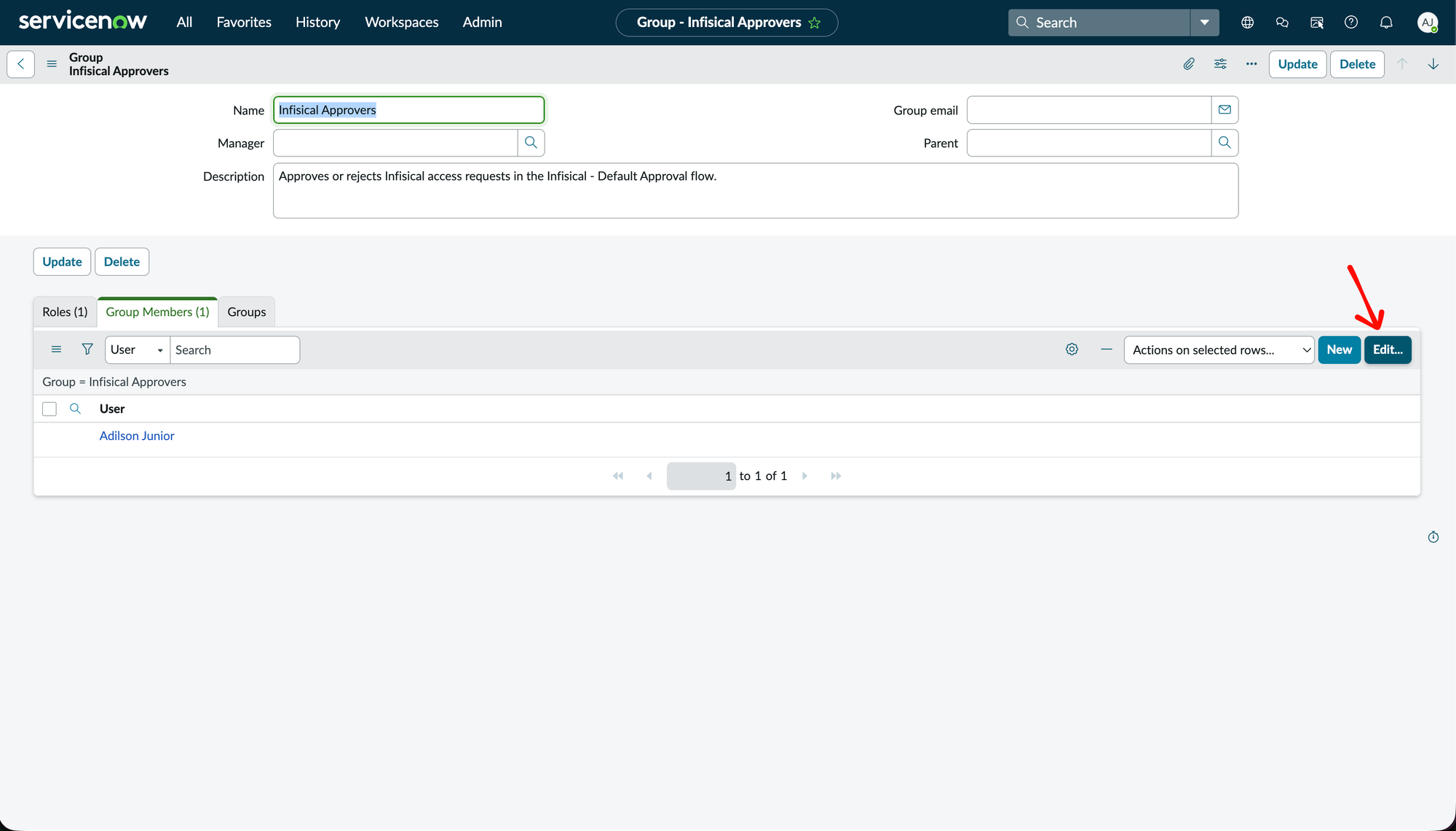
4
Move each approver from Collection to Group Members List, then select Save.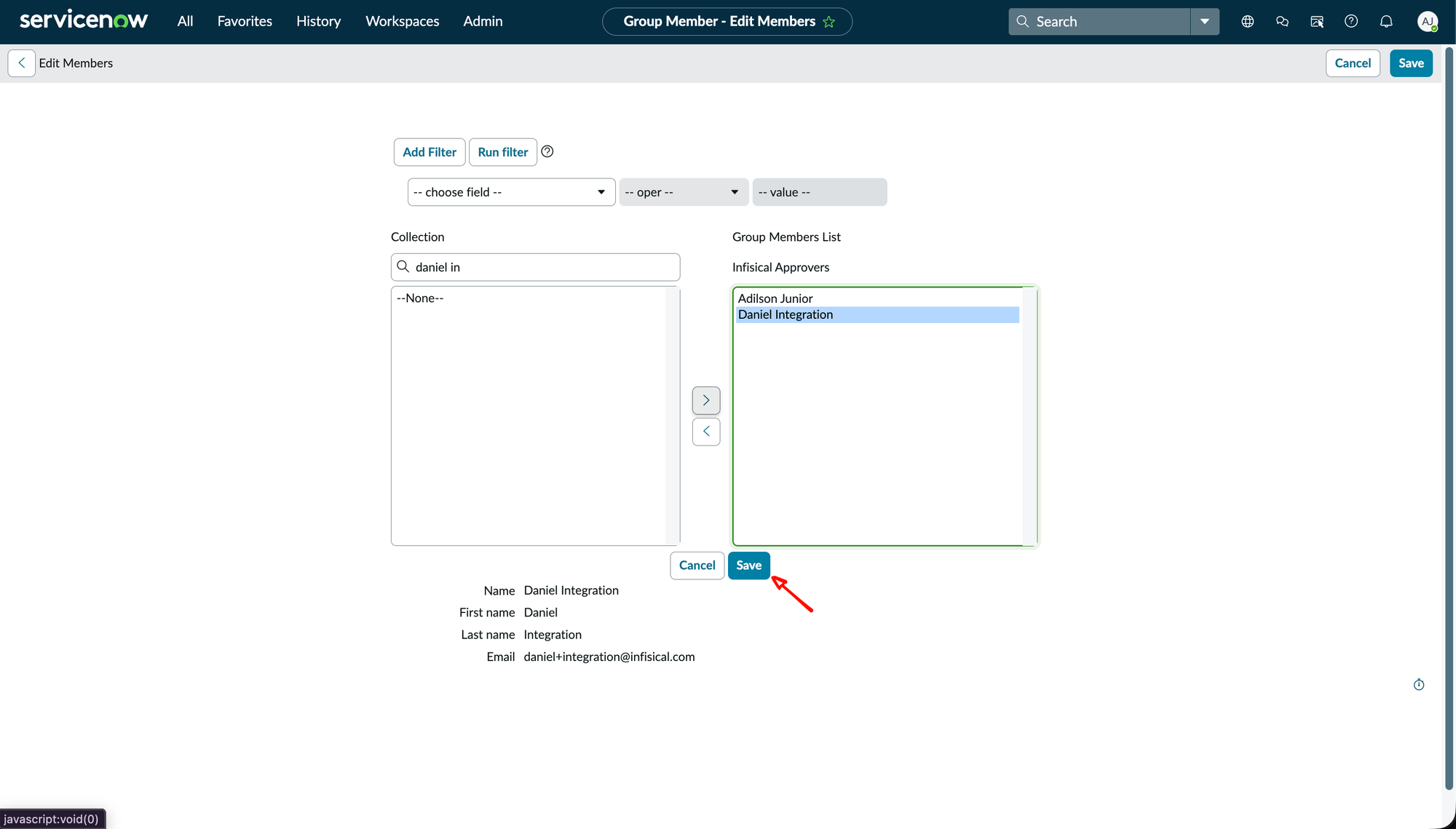
The Infisical Approvers group already has the
x_infis_approvals.approver role. Add other roles on the Roles tab if you need them.Activate the flow
1
Go to All > Process Automation > Flow Designer.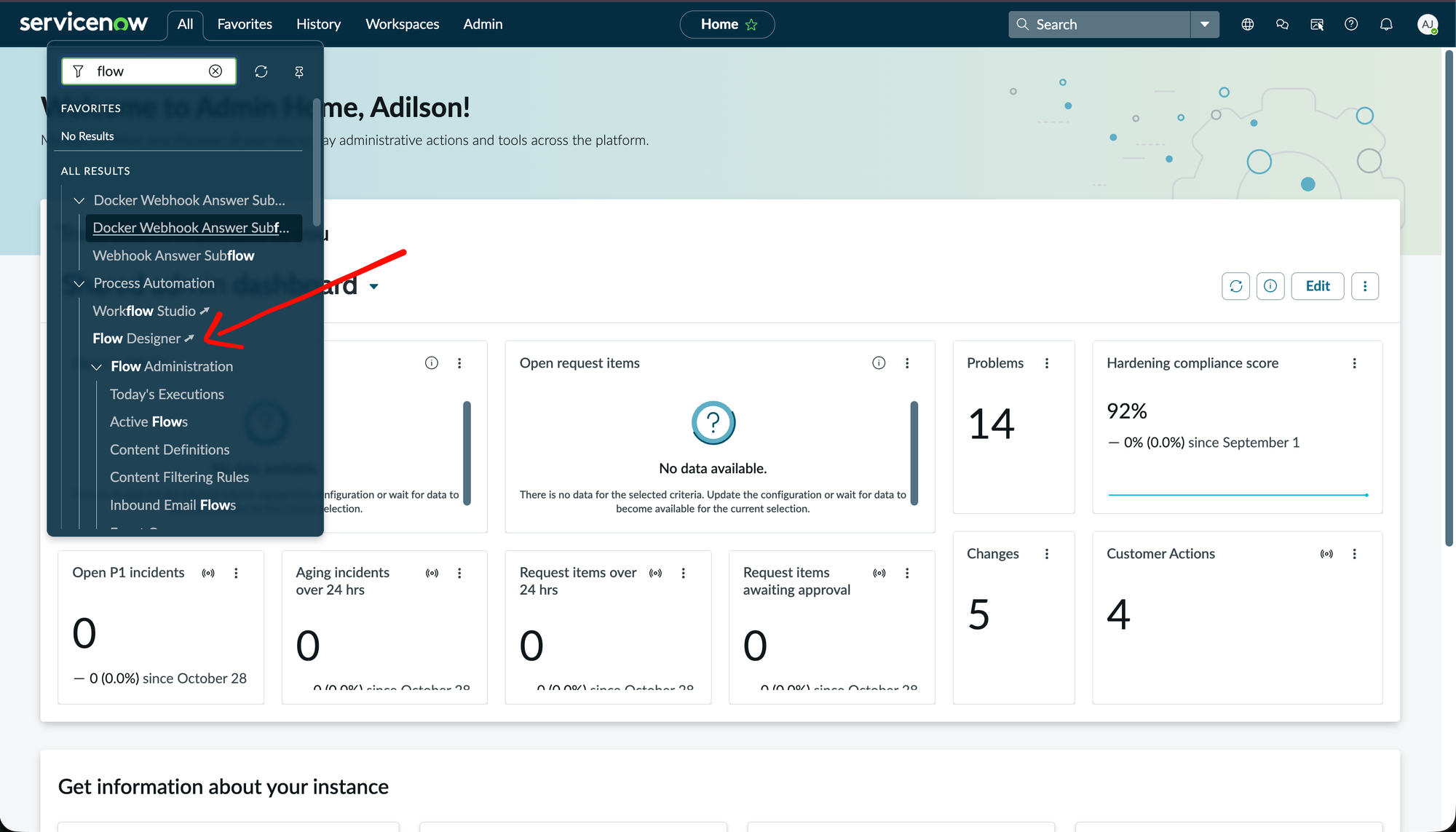
2
Open Infisical - Default Approval.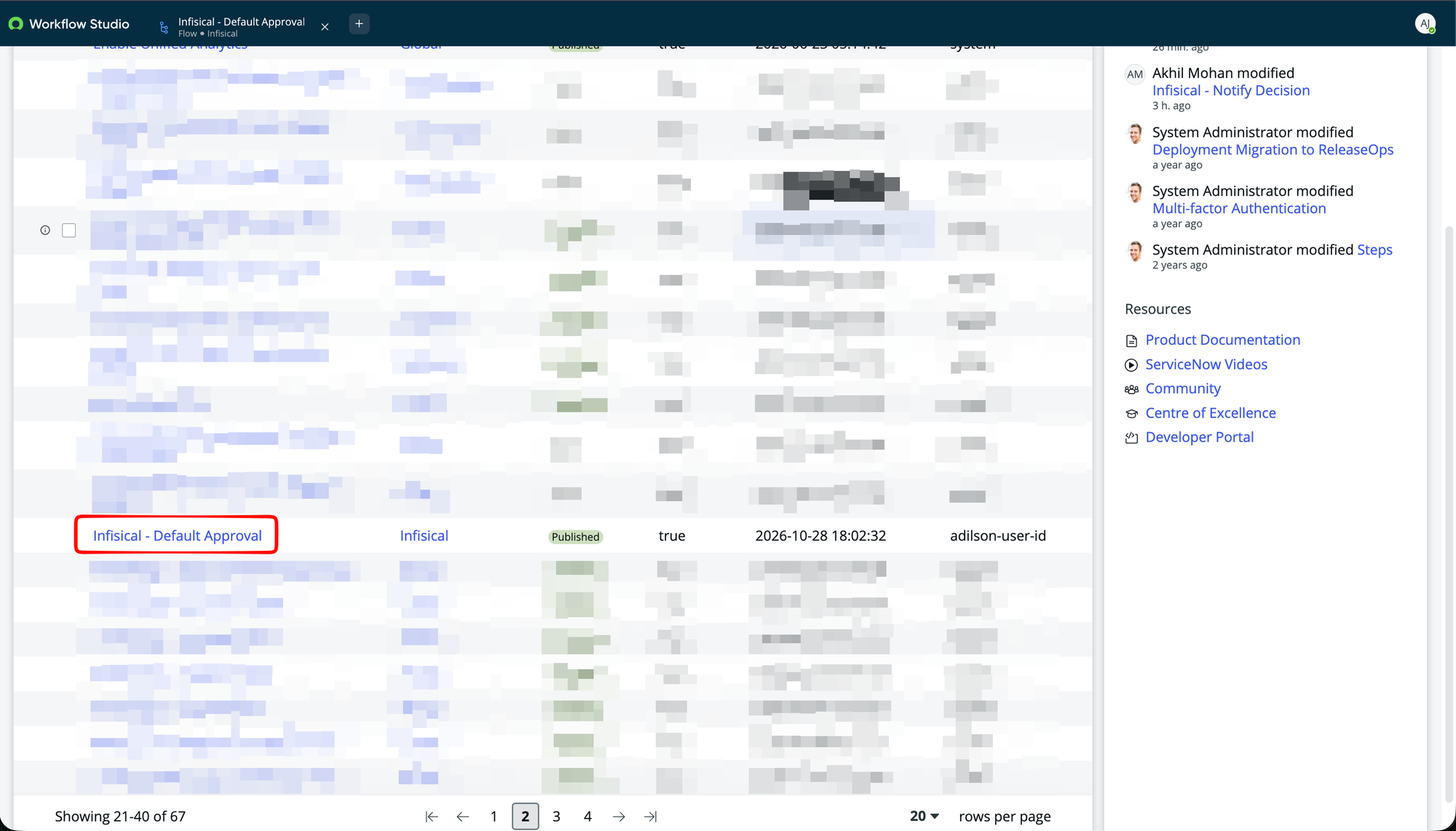
3
If the flow shows Inactive next to its name, select Activate.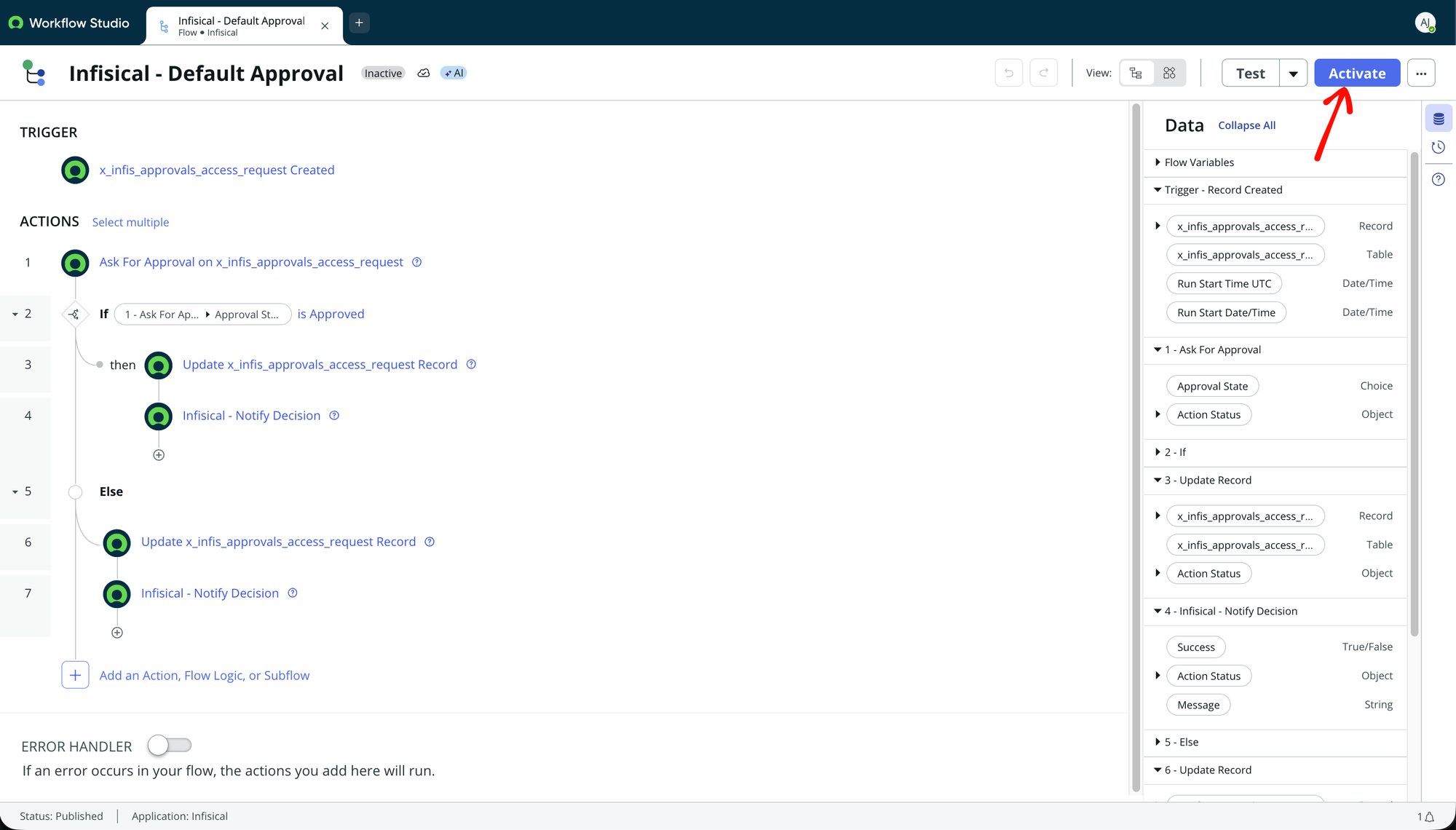
You can change the flow, for example to add approval steps or a trigger condition, as long as every branch still ends with the Infisical - Notify Decision action. See Notify Infisical of the decision.
Use your own flow instead
To route requests with a flow of your own, such as one with different approvers for each environment:1
In Flow Designer, open Infisical - Default Approval and select Copy Flow to start from a copy, or create a new flow.
2
Trigger the flow when a record is created in Infisical Access Request [x_infis_approvals_access_request]. To handle only some requests, add a trigger condition such as
Environment is prod or Secret Path contains /payments.3
Route the record with Ask for Approval steps. Every approver needs the
x_infis_approvals.approver role, which members of the Infisical Approvers group already have.4
End every branch, approved and rejected alike, with the Infisical - Notify Decision action.
5
Activate your flow. If Infisical - Default Approval is active, open it and select Deactivate, so that it doesn’t also handle the requests your flow handles.
Notify Infisical of the decision
The Infisical - Notify Decision action records the decision on the record, updates the record’s State, and notifies Infisical. It takes two inputs:
If Decision (approved/rejected) has any other value, the action records no decision and moves the record to Callback Failed.
The action returns Success and Message outputs. You can branch on them to raise an incident or notify an admin if the action can’t notify Infisical.
Step 4: Enable ServiceNow approvals on an access policy
1
In your Secrets Management project, select Approvals from the sidebar, open the Policies tab, and select Add Policy. To change an existing access policy instead, edit it from the same tab.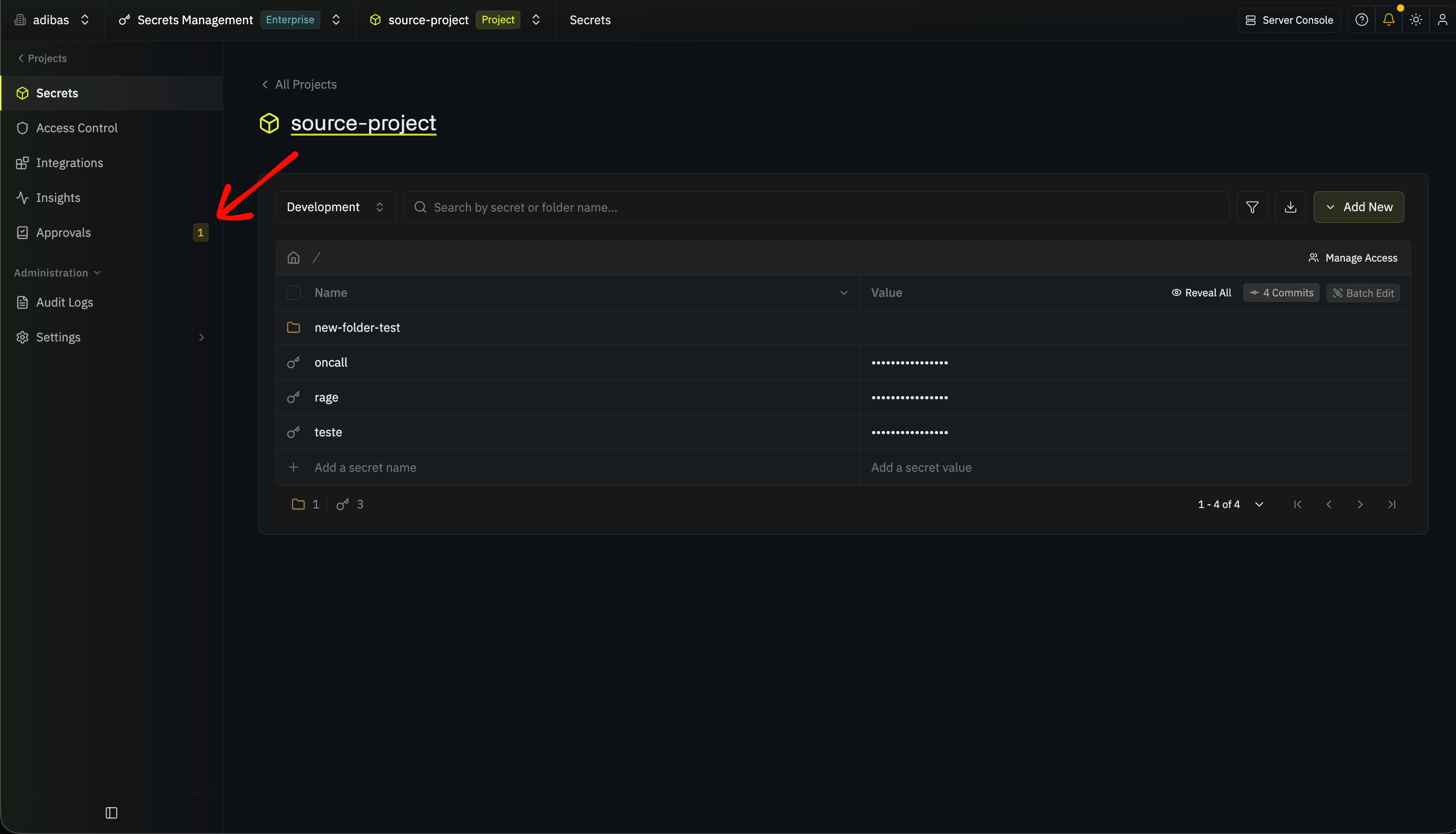
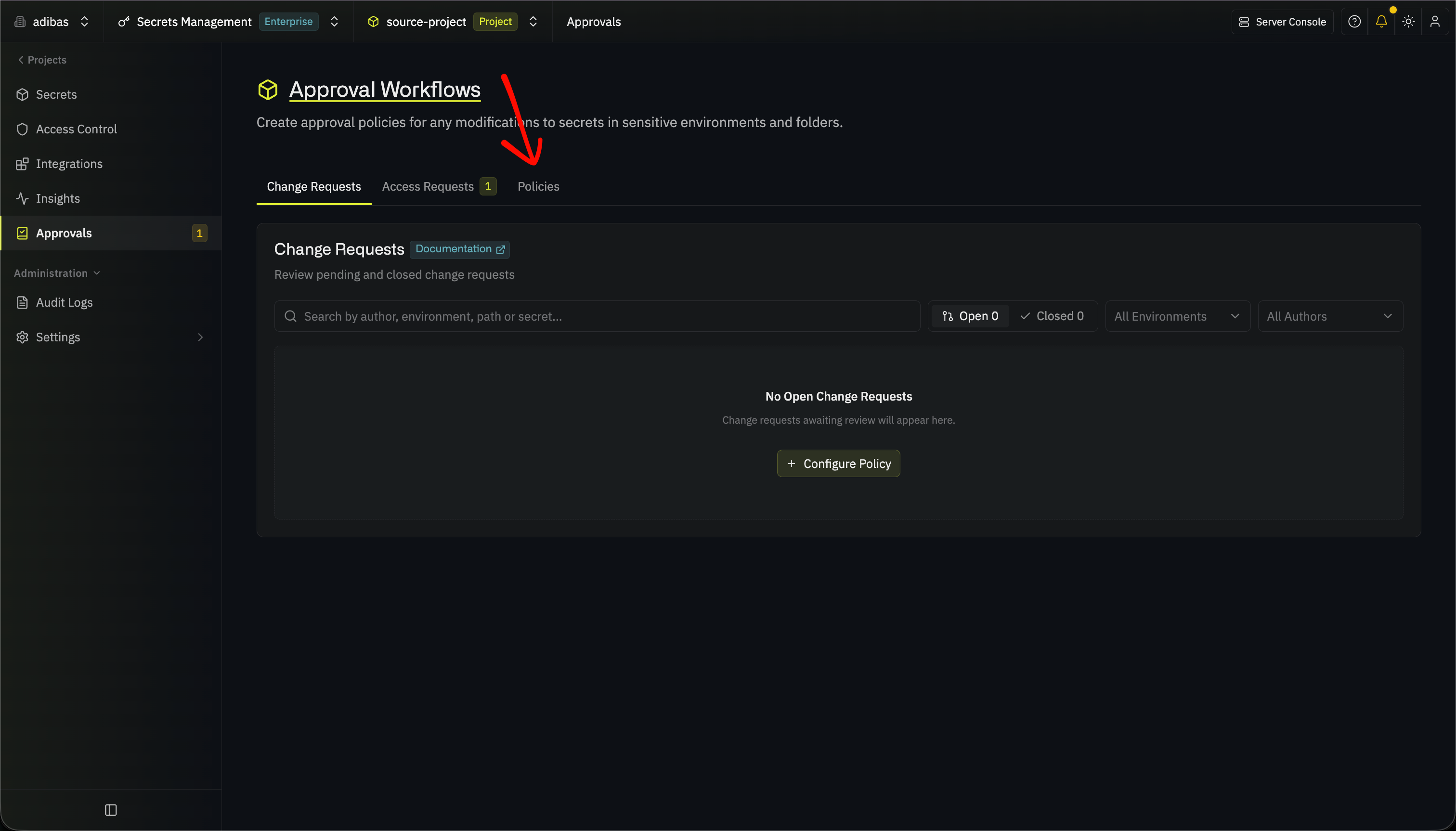
2
Set Policy Type to Access Policy, then fill out Policy Name, Secret Path, and Environments as for any access policy. Optionally, set Request Expiration to how long a request can wait in ServiceNow before Infisical closes it. If you leave it empty, requests never expire.Under Approval Workflow, select External Approval System, then set: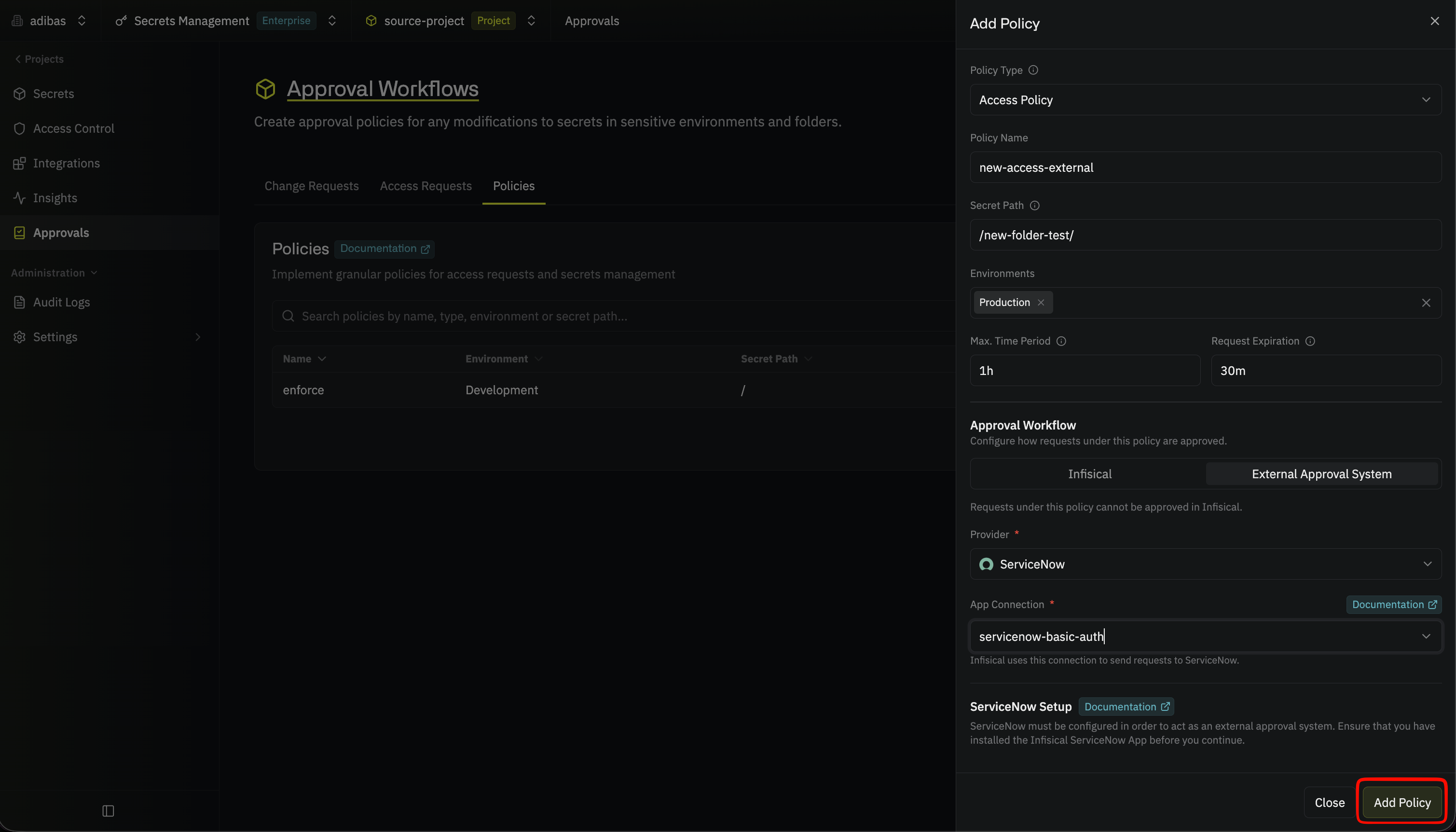
- Provider: ServiceNow
- App Connection: the connection you created in Step 2
3
The policy appears on the Policies tab.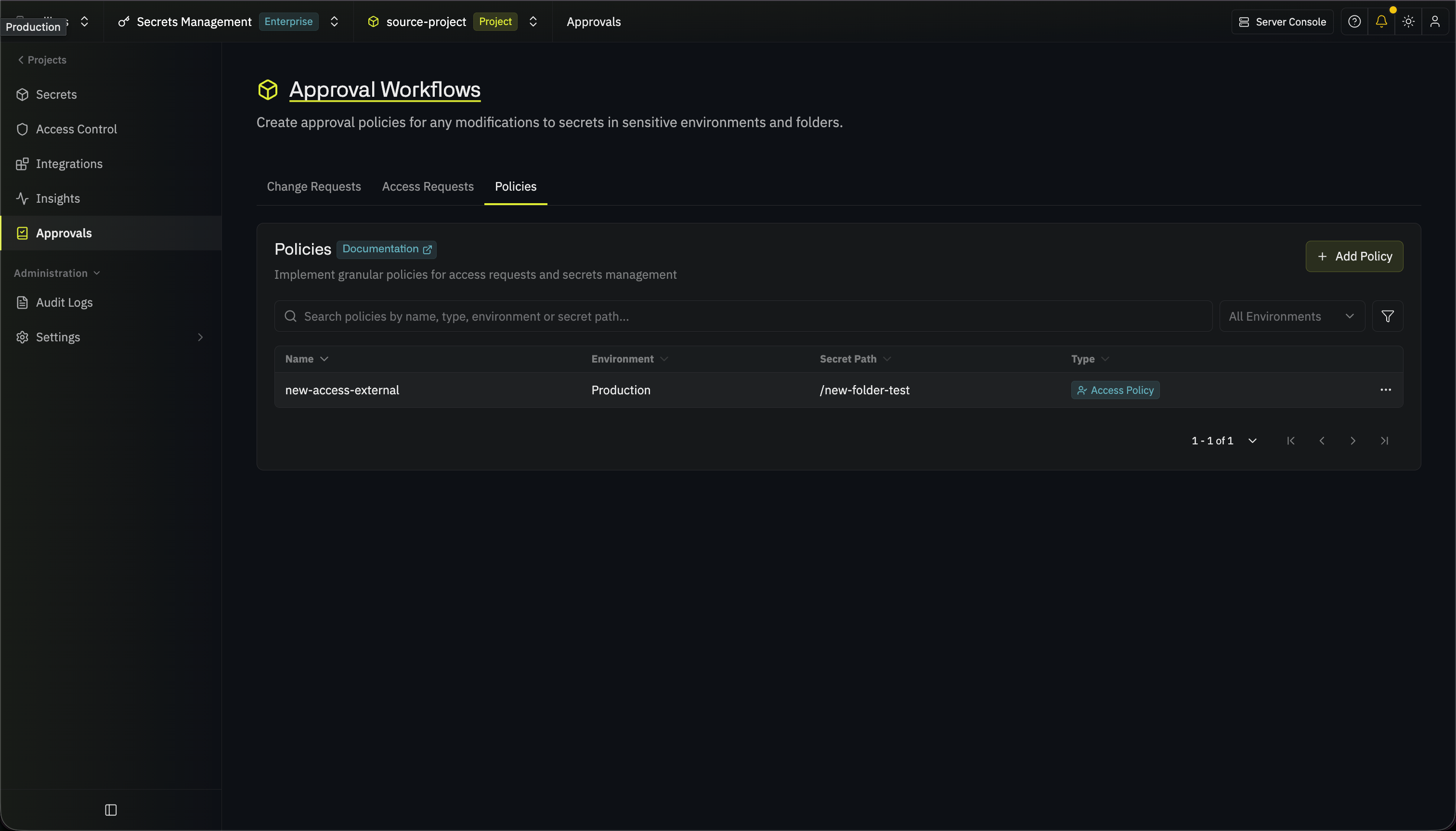
- Nobody can approve its requests in Infisical, so the policy has no approvers, bypassers, or self approval
- You can’t edit the policy while it has pending requests (cancel them first: open each request in Infisical and select Cancel Request)
Request access
Requesting access under a ServiceNow policy works like any other access request:1
In your Secrets Management project, select Approvals from the sidebar, open the Access Requests tab, and select Request Access.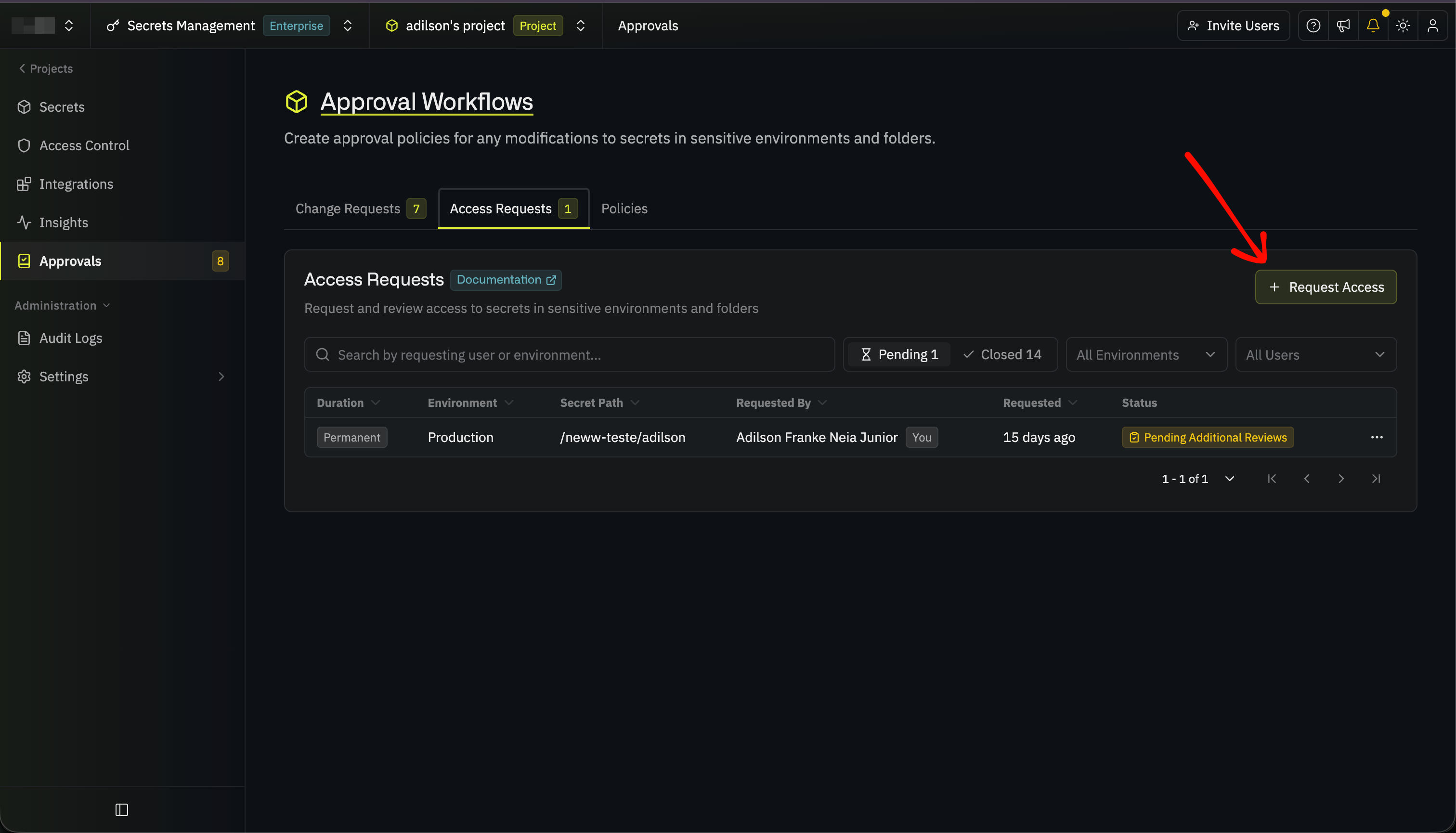
2
Choose an Environment and Secret Path that the policy covers, pick the permissions, fill out Duration and Note, then select Request Access.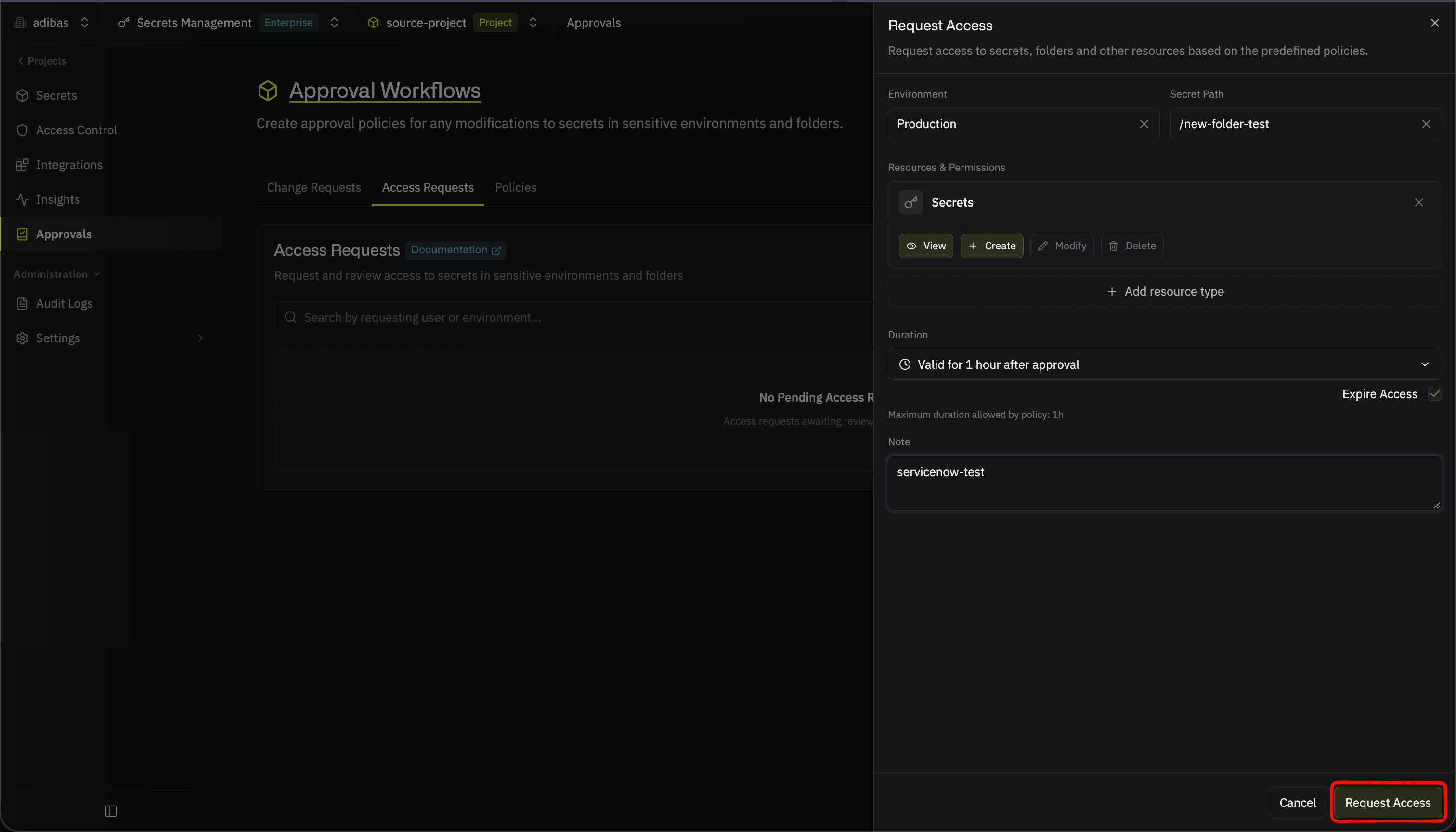
3
The request appears on the Access Requests tab as Pending in ServiceNow while your flow decides.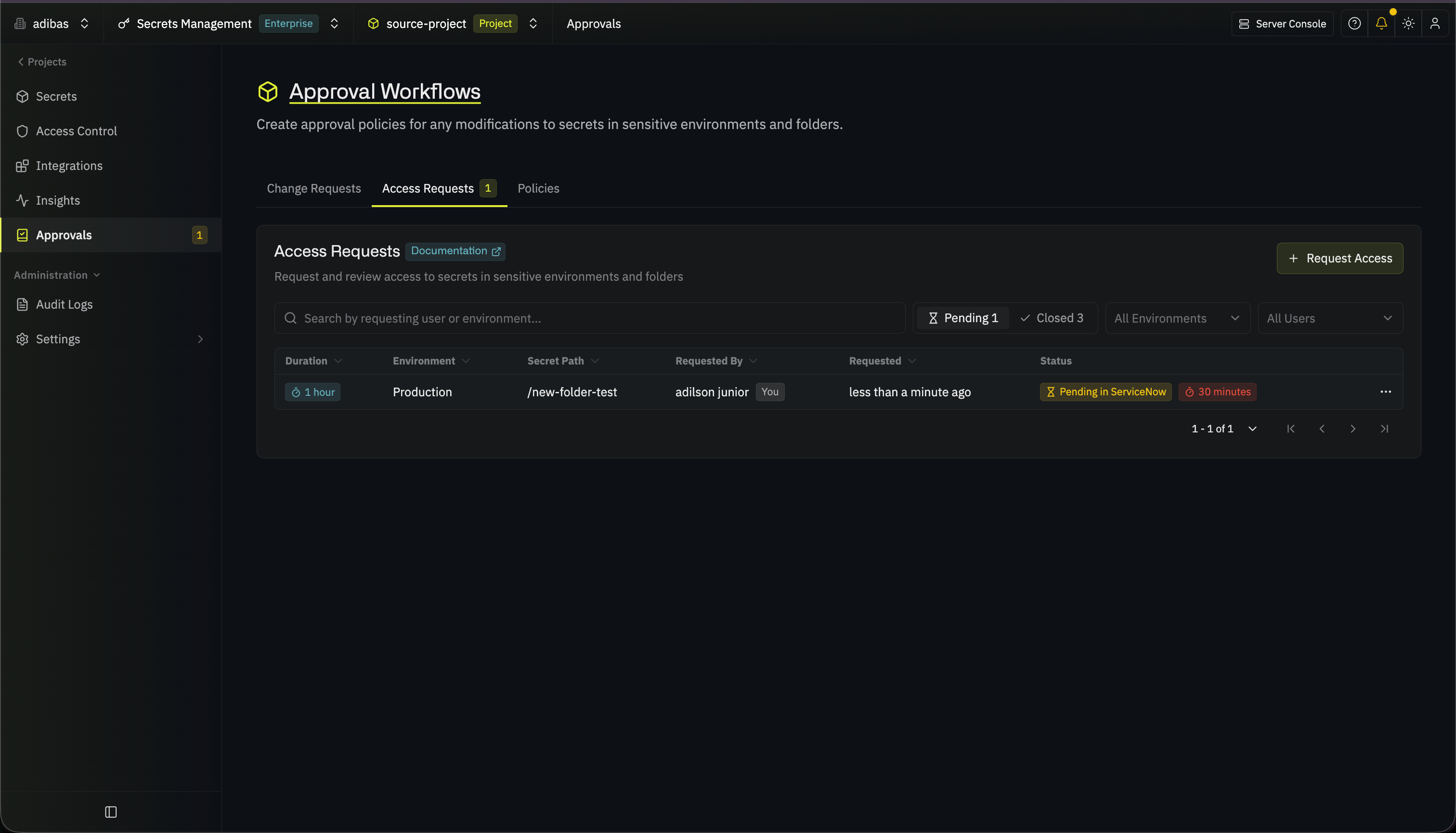
4
Select the request to open it. Under Status, it shows the number of its ServiceNow record, such as 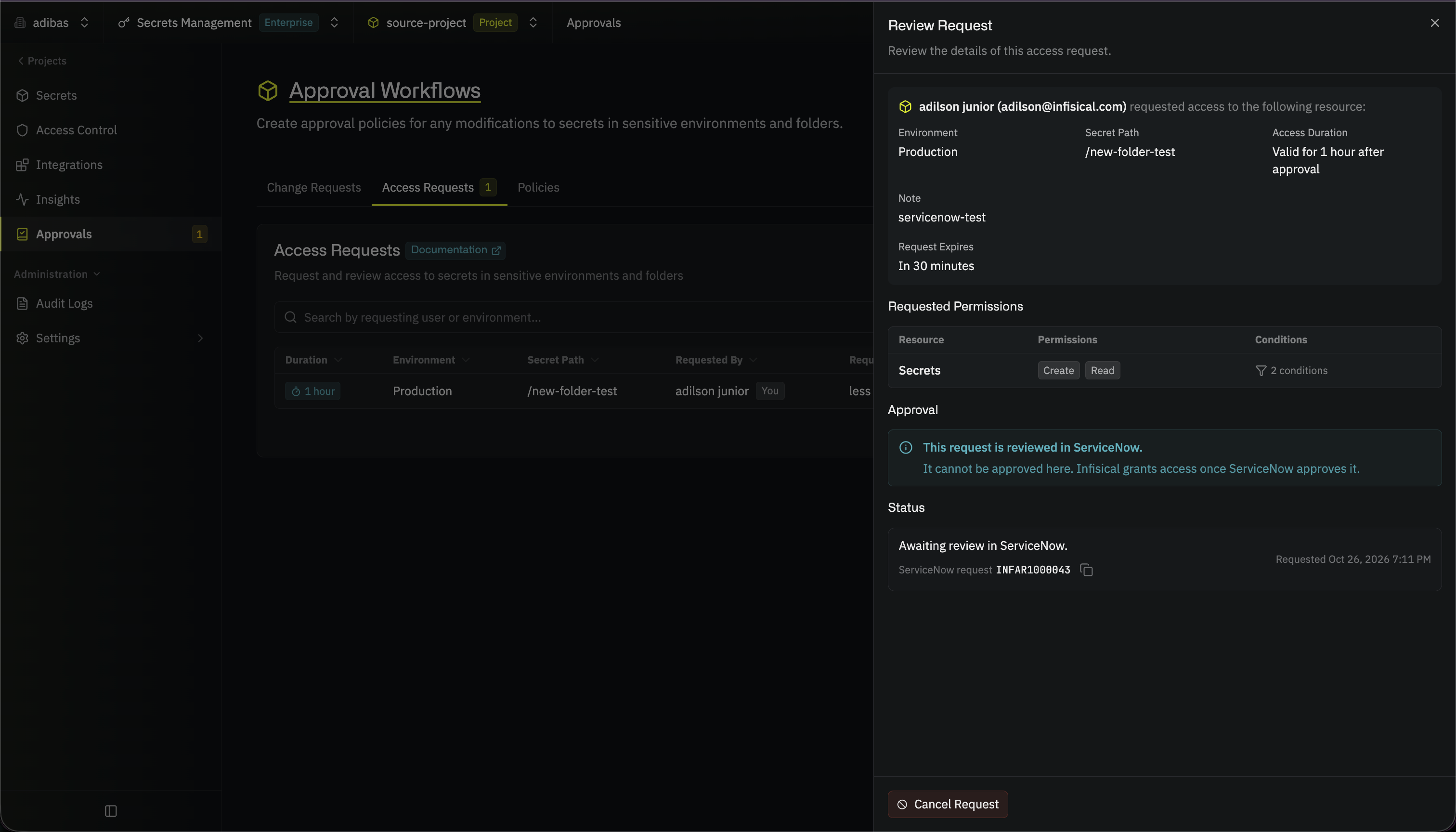
INFAR1000043, so you can find the record in ServiceNow.Auditing
Both sides keep their own record:- In ServiceNow, the access request record carries the full approval history, including who approved at each step and when, through the standard approval and audit tables
- In Infisical, the project’s audit log records the request, the decision received from ServiceNow (
access-approval-request-delegated-decision), and the resulting access grant
Troubleshooting
A request shows Not Submitted in Infisical
A request shows Not Submitted in Infisical
Infisical couldn’t create the record, and the reason on the request says
why: the integration user’s credentials or role, a missing Infisical
application, or, if you self-host, a missing
SITE_URL. Fix the cause, then
select Retry. For connection problems, see ServiceNow connection
troubleshooting.A request shows Submitting for a long time
A request shows Submitting for a long time
Infisical can’t reach the instance, or the instance returns errors.
Infisical keeps trying for about an hour, then closes the request. Check
that the instance is up and reachable from Infisical.
Record created but nothing happens
Record created but nothing happens
No active flow matches the record. Check that
Infisical - Default Approval or your own flow is active, and that the
flow’s trigger condition matches the record’s field values.
Approvers see duplicate approvals
Approvers see duplicate approvals
Two flows match the same record, such as your own flow and
Infisical - Default Approval, which matches every request. Deactivate
the flow you no longer want, or make the trigger conditions mutually
exclusive. Only the first flow to finish notifies Infisical. In the other flow, Infisical - Notify
Decision returns an error.
State stuck at Notifying Infisical
State stuck at Notifying Infisical
The flow stopped partway through Infisical - Notify Decision. Check the
flow’s Executions tab in Flow Designer.
Callback Failed with HTTP 403
Callback Failed with HTTP 403
Infisical refused the notice because it already applied a decision to this
request or closed it, the request was deleted along with its project, or
ServiceNow notified Infisical about the request more than five times. Check
the request’s status in Infisical, and create the request again if the
requester still needs access.
Callback Failed with a connection error
Callback Failed with a connection error
The ServiceNow instance can’t reach the Callback URL on the record. Fix
the instance’s outbound firewall rules, then select Resend to Infisical
on the request in the Admin Console. If the URL itself is wrong, cancel the current request, correct
SITE_URL and create the request again.Callback Failed with an invalid decision
Callback Failed with an invalid decision
The flow passed a value other than
approved or rejected to Infisical -
Notify Decision. Resend to Infisical can’t help, because no decision
was recorded. Fix the flow, then cancel the request in Infisical and create
it again.Callback Failed on a record that has no callback URL, event, or callback token
Callback Failed on a record that has no callback URL, event, or callback token
Someone created the record in ServiceNow by hand, so ServiceNow can’t notify
Infisical about it. Test your flows with requests made in Infisical.
Request expired before approval
Request expired before approval
The policy’s Request Expiration elapsed while the request sat in
ServiceNow. Extend it, or shorten your approval SLA.
Infisical says the request couldn't be completed in ServiceNow
Infisical says the request couldn't be completed in ServiceNow
Infisical closed the request without granting access. See Requests closed
by Infisical.
Requests closed by Infisical
Infisical closes a request without granting access in any of these cases, and shows the reason under the request’s Status:- Someone changed the Permissions field on the record
- Someone deleted the record from ServiceNow
- ServiceNow rejected the integration user’s credentials when Infisical read the decision
- The requester’s user was deleted, or the requester is no longer a member of the project
- The decision arrived after the request expired or was cancelled in Infisical
- ServiceNow notified Infisical about the request more than five times
- Infisical couldn’t create the record after about an hour of trying