

This guide doesn’t configure any behavior—it just authenticates Infisical with 1Password. Once the app connection is ready, you can use it to set up integrations.
Step 1: Deploy a 1Password Connect server
To sync secrets to a 1Password vault, Infisical needs to authenticate to a Connect server with access to that vault.If you already have a Connect server for your vault, you can skip this step.
Create a Connect server
In 1Password, open the Developer section and select Other. Then, select Create a Connect Server.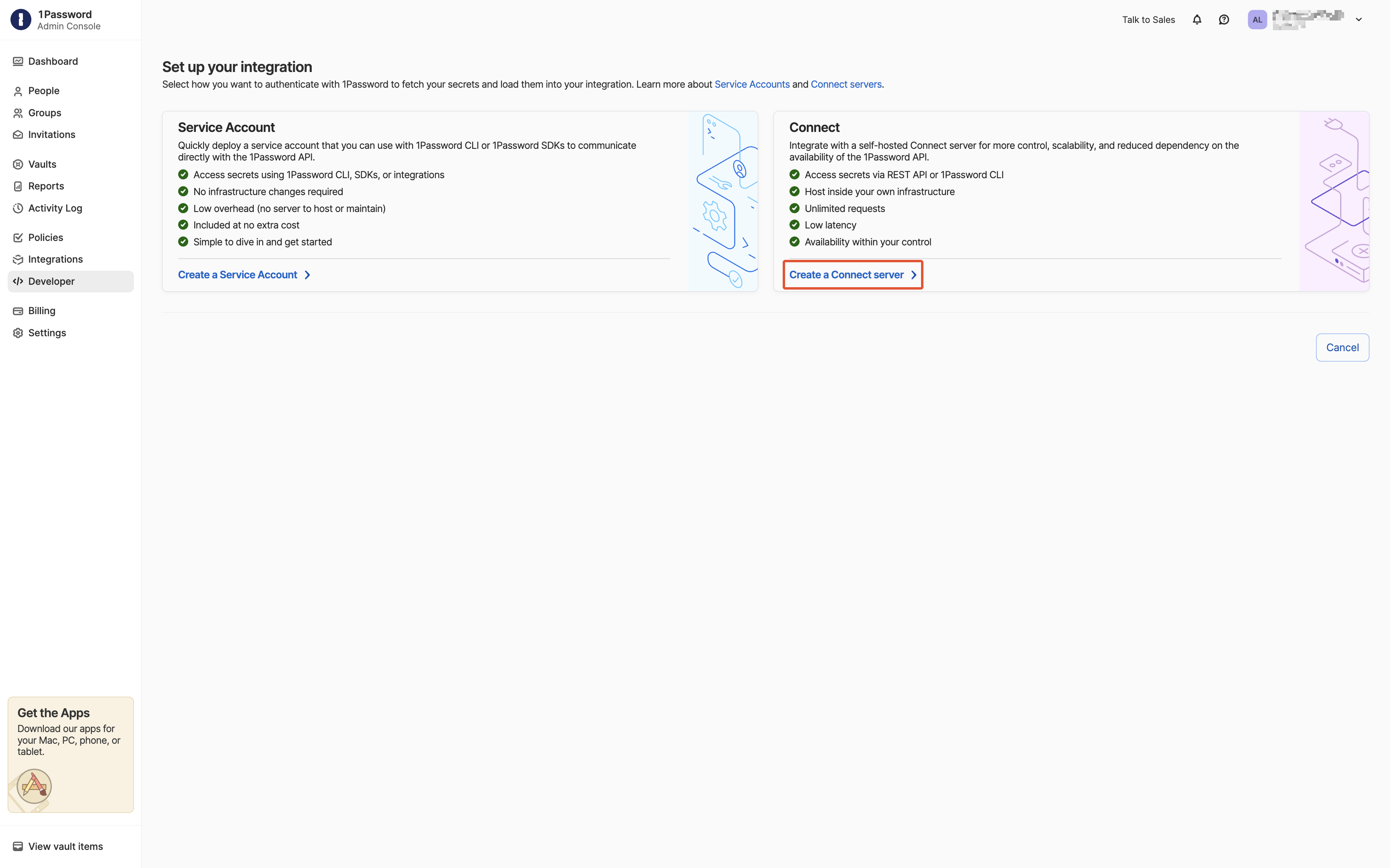
Then, select Create a Connect Server.Configure the Connect server
In the Environment Name field, enter a name for the Connect server. Then, select Choose Vaults and pick the vaults you want Infisical to reach: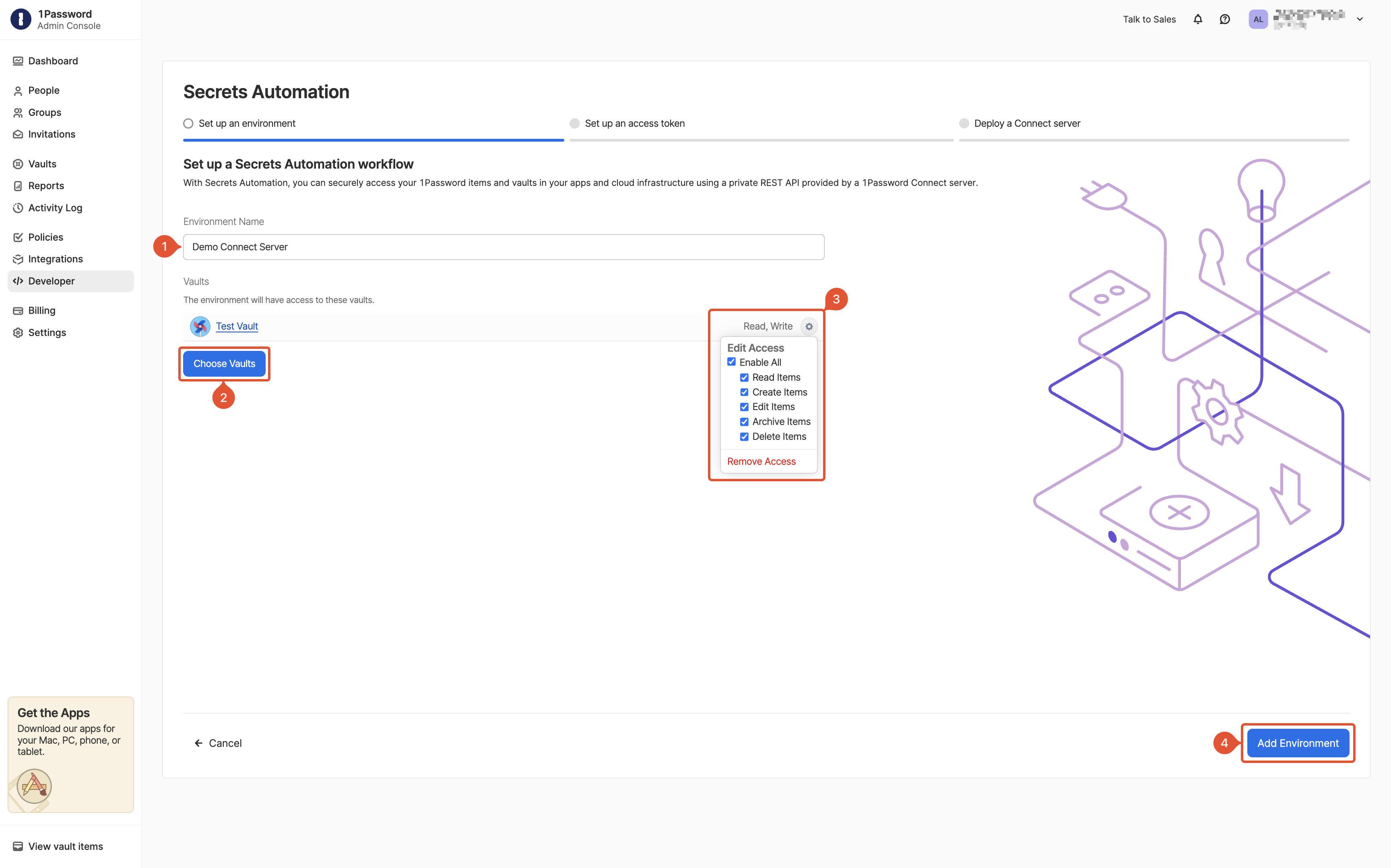 For each vault, select Edit Access > Enable All. When you’re done, select Add Environment.
For each vault, select Edit Access > Enable All. When you’re done, select Add Environment.Set up an access token
Infisical needs an access token to authenticate with the Connect server and sync your secrets.Set a name and expiration for the token in the Token Name and Expires After fields. Then, select Choose Vaults and pick the vaults you want Infisical to have access to: For each vault, select Edit Access > Enable All. When you’re done, select Issue Token.
For each vault, select Edit Access > Enable All. When you’re done, select Issue Token.Deploy the Connect server
Download the credentials file, then follow 1Password’s deployment guide to bring the server up. Save the Access Token you were shown; you’ll paste it into Infisical in the next section.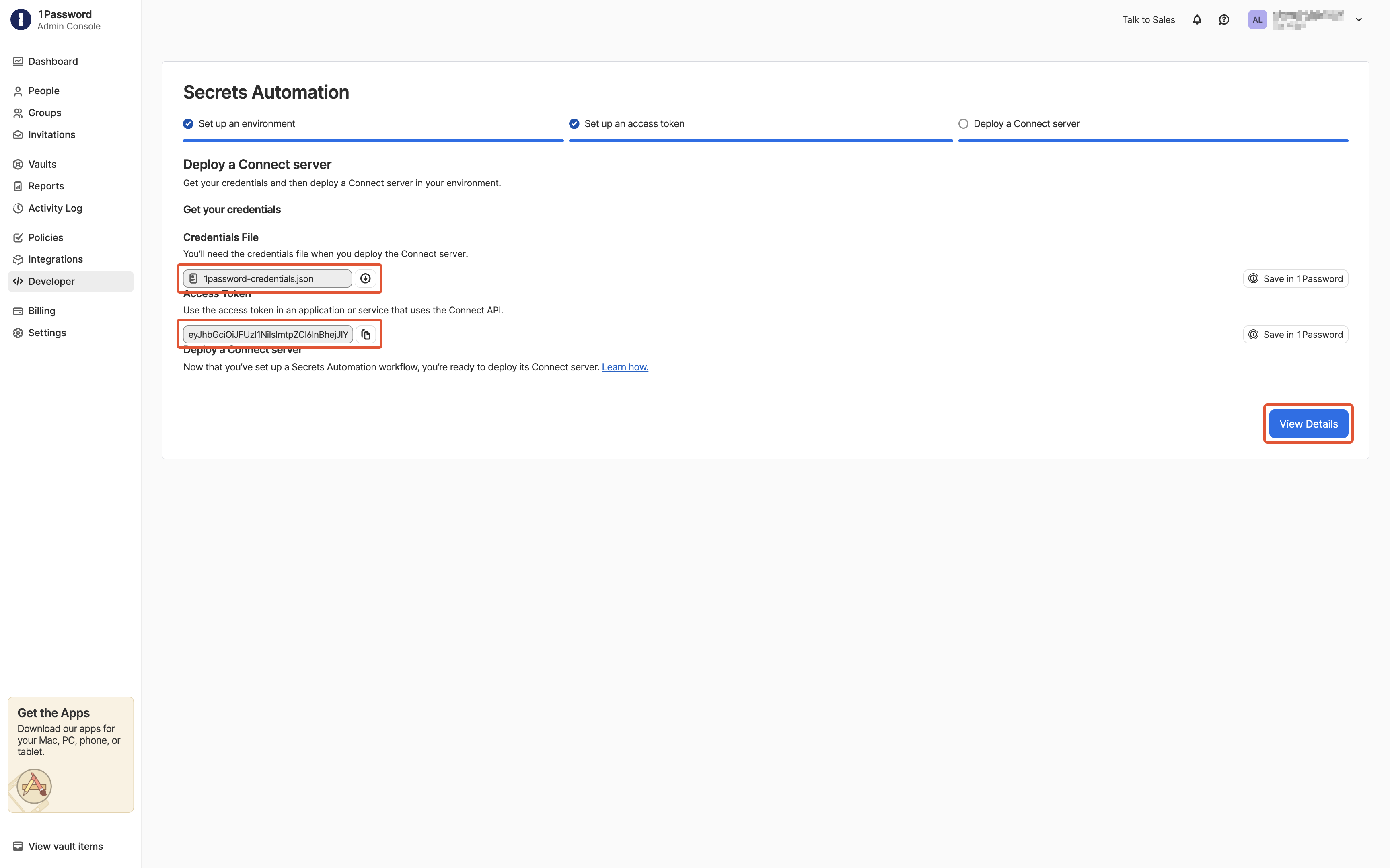
Step 2: Create the app connection
Next, create the app connection in Infisical.1
In the sidebar, select Organization Settings, then open the App Connections tab.
2
Select + Add Connection and choose 1Password Connection.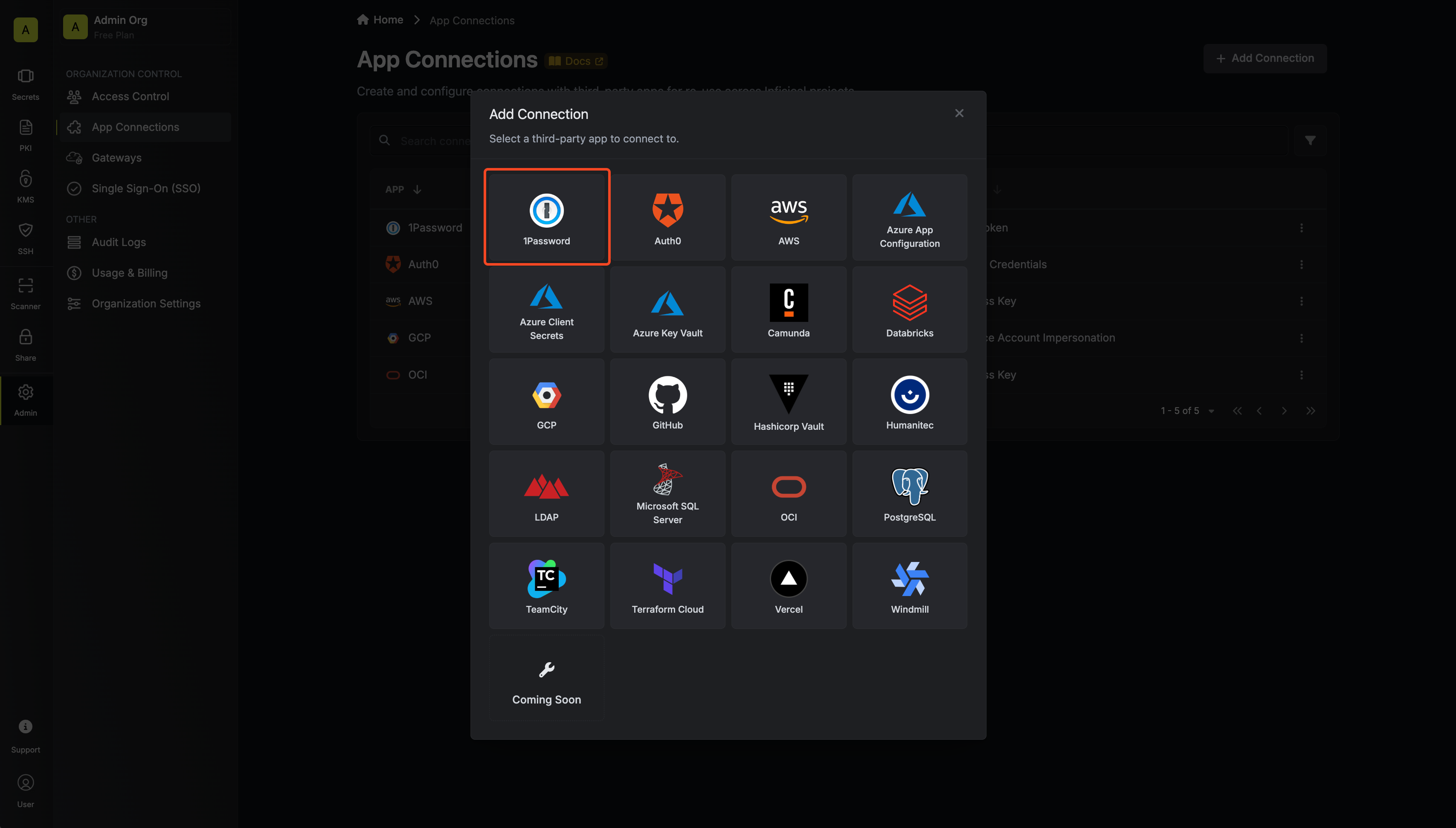
3
Fill out the form’s fields: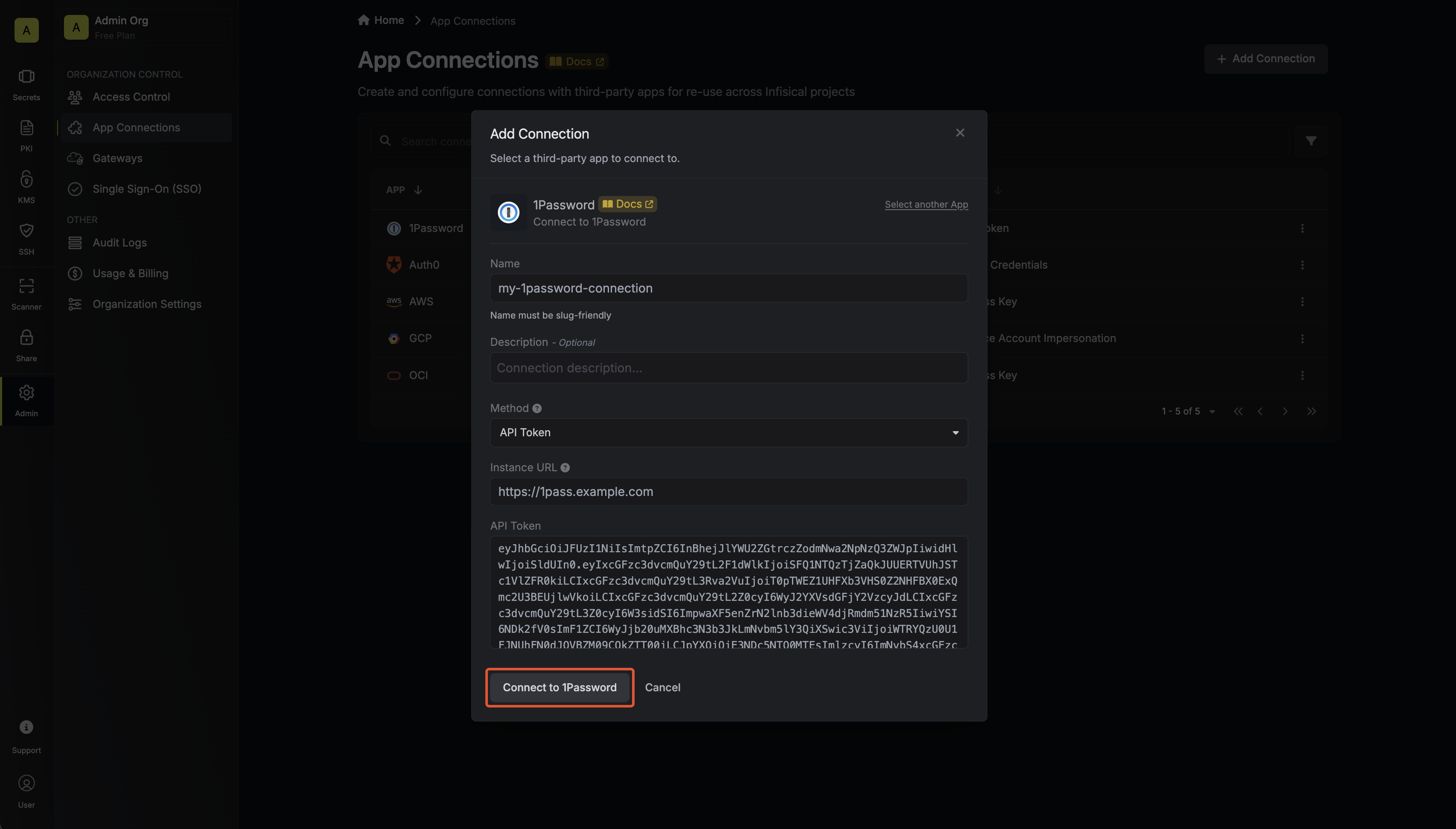
- Name: A descriptive name for the connection.
- Description (optional): A note for future reference.
- Instance URL: The URL where your 1Password Connect server is hosted.
- API Token: The access token you copied when deploying your 1Password Connect server
Your 1Password app connection is ready to use.
Step 3: Configure integrations
Now that your 1Password app connection is configured, you can use it to set up the following integrations:1Password Secret Sync
Sync secrets from Infisical to a 1Password vault.