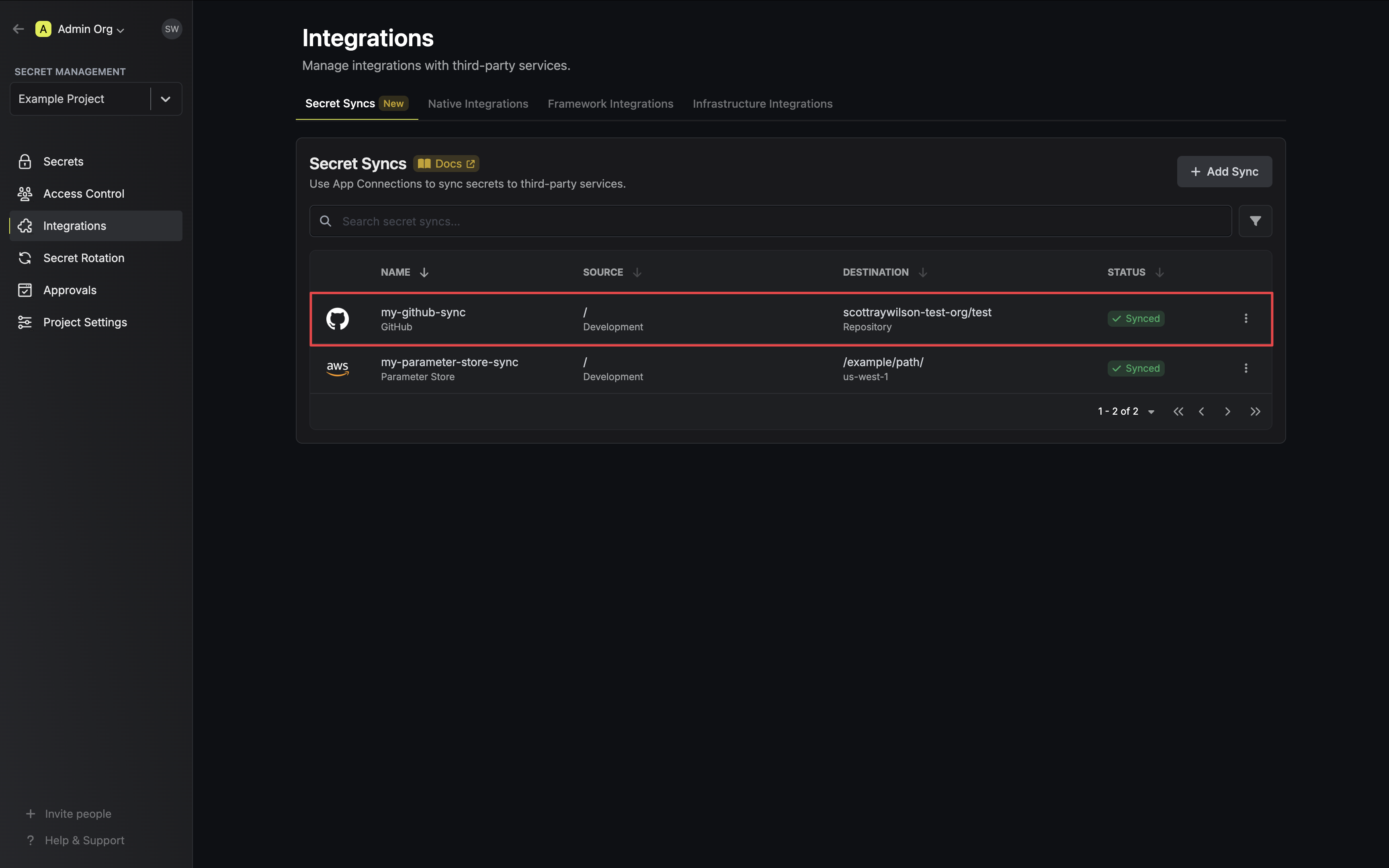
- Set up and add secrets to Infisical Cloud
- Create a GitHub Connection
- Ensure your network security policies allow incoming requests from Infisical to this secret sync provider, if network restrictions apply.
Secret types
A GitHub sync writes to one type of GitHub secret: Actions, Dependabot, or Codespaces. Each type needs its own permissions on the GitHub Connection, and how you grant them depends on the connection’s method:- GitHub App (Recommended)
- OAuth
- Personal Access Token
Actions secrets
Actions secrets
- To sync to a repository, set the repository permission Secrets to Read and write
- To sync to a repository environment, also set the repository permission Environments to Read and write, and Actions to Read-only
- To sync to an organization, set the organization permission Secrets to Read and write
Dependabot secrets
Dependabot secrets
- To sync to a repository, set the repository permission Dependabot secrets to Read and write
- To sync to an organization, set the organization permission Organization dependabot secrets to Read and write
Codespaces secrets
Codespaces secrets
GitHub Enterprise Server doesn’t include Codespaces, so you can’t sync Codespaces secrets through a GitHub Enterprise Server connection.
- To sync to a repository, set the repository permission Codespaces secrets to Read and write
- To sync to an organization, set the organization permission Organization codespaces secrets to Read and write
If you add a permission to an existing GitHub App, an owner of each installation has to approve the new permission on GitHub before Infisical can use it.
Create a GitHub sync
- Infisical UI
- API
-
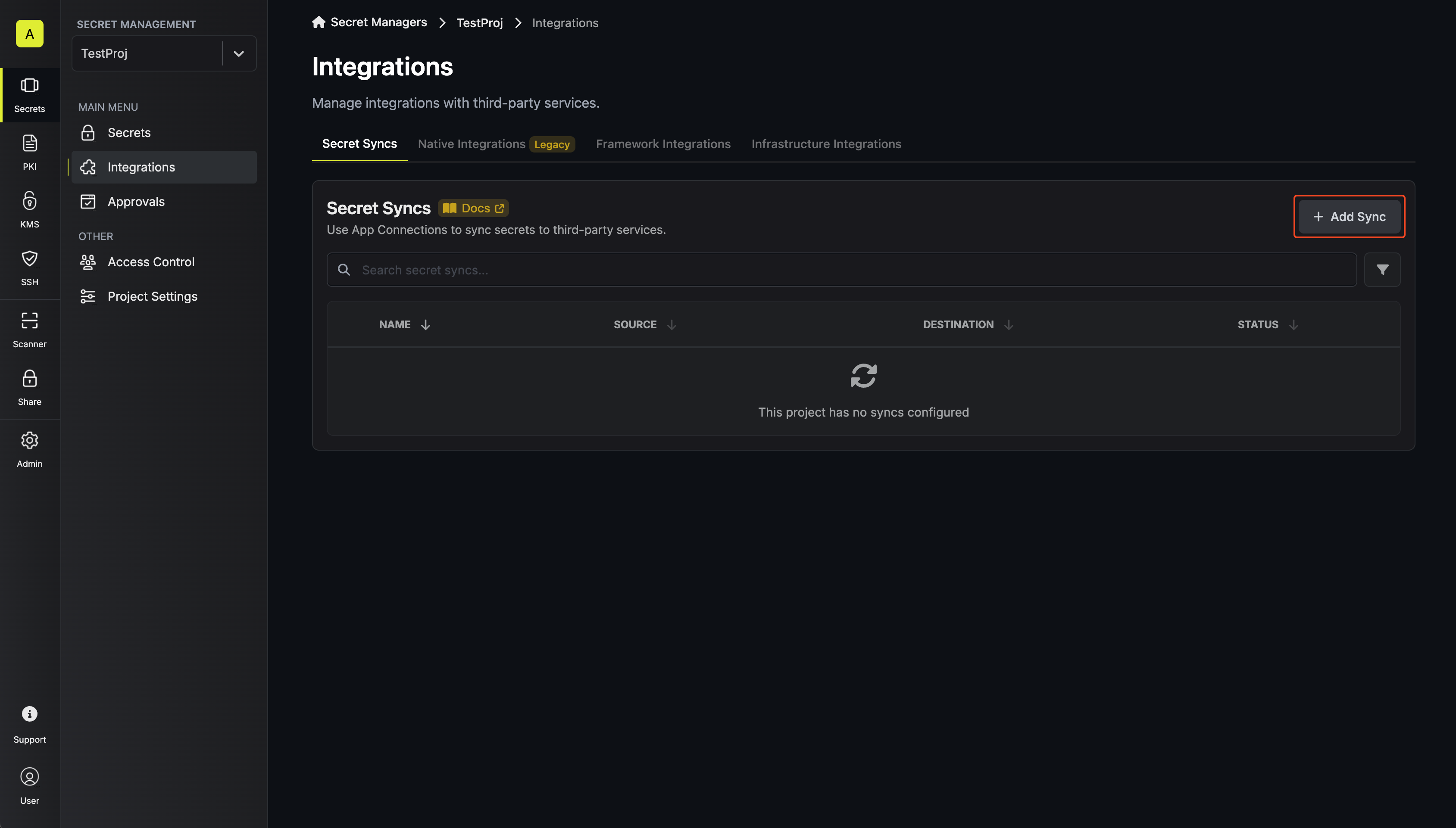
Navigate to Project > Integrations and select the Secret Syncs tab. Select the Add Sync button.
-
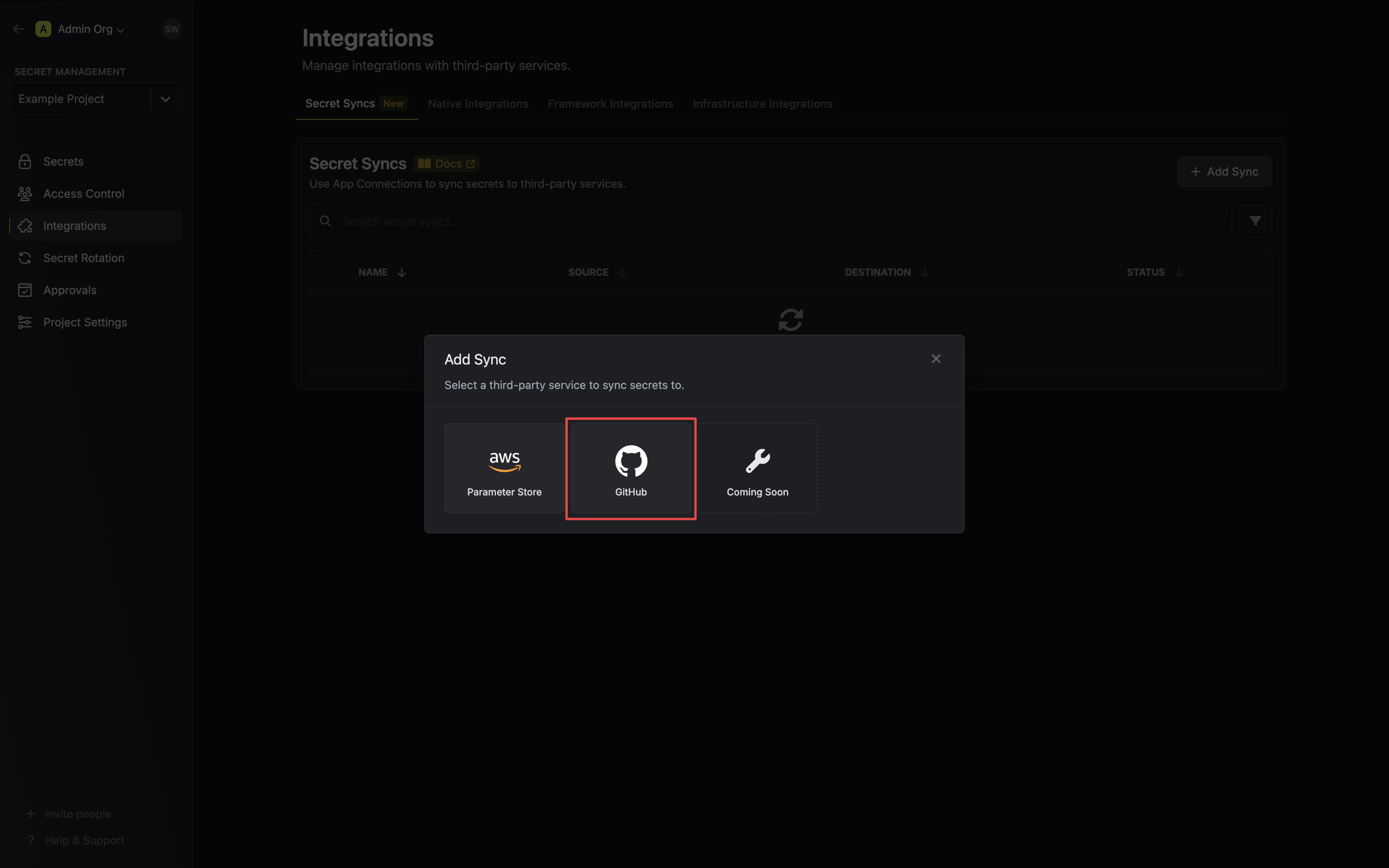
Select the GitHub option.
-
Configure the Source from where secrets should be retrieved, then click Next.
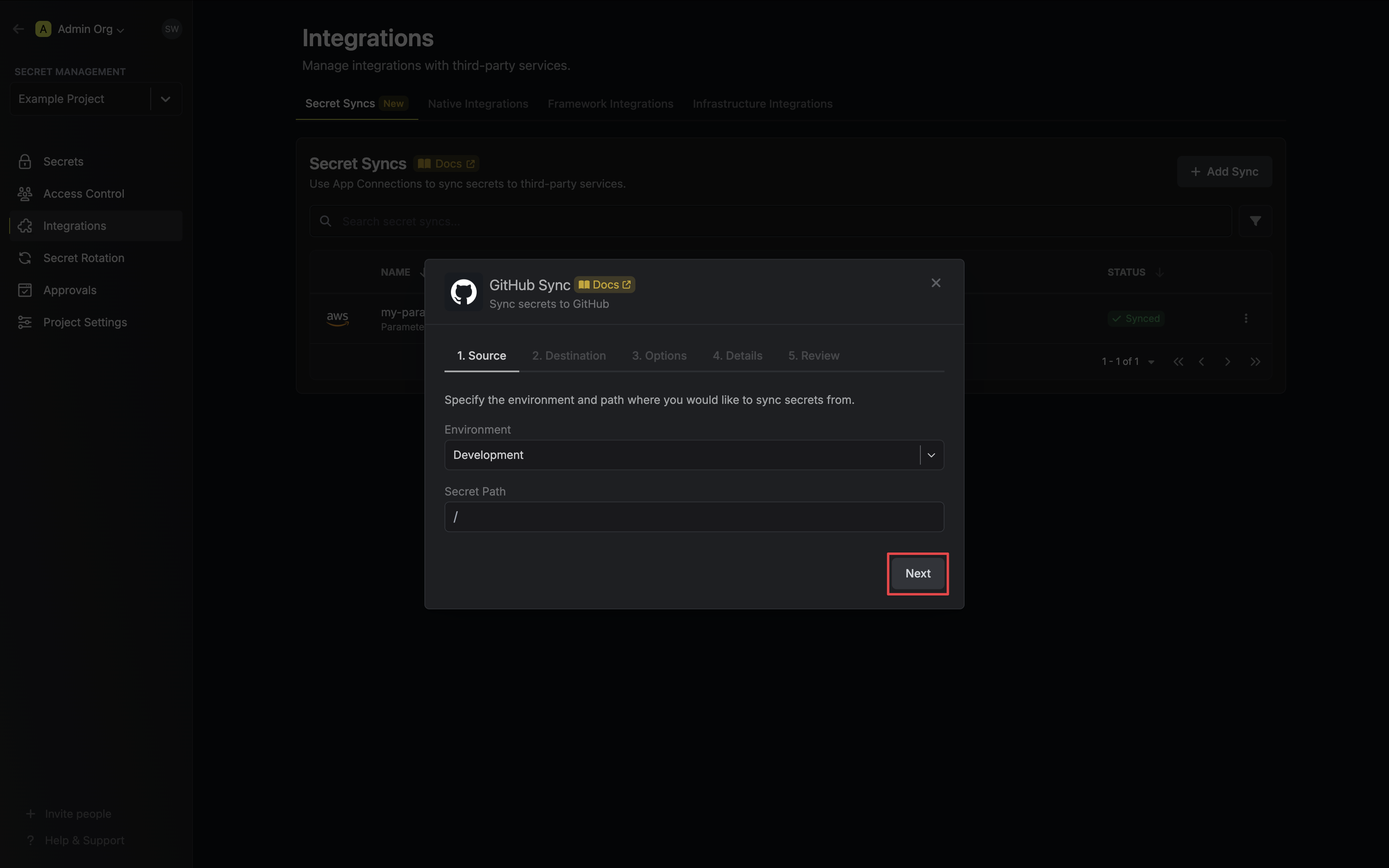
- Environment: The project environment to retrieve secrets from.
- Secret Path: The folder path to retrieve secrets from.
-
Configure the Destination to where secrets should be deployed, then select Next.
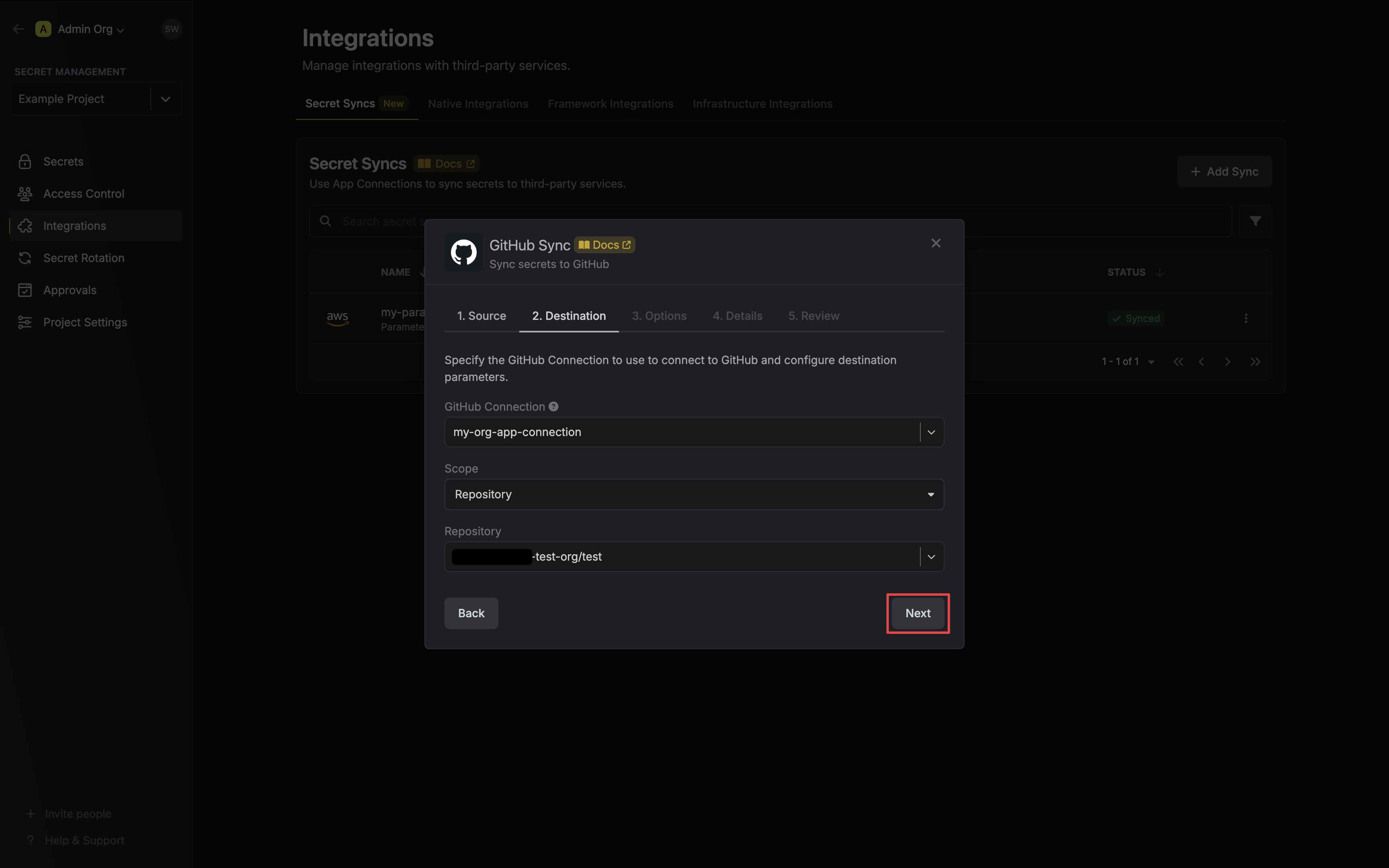
- GitHub Connection: The GitHub Connection to authenticate with
- Secret Type: The type of GitHub secret to sync to (defaults to Actions)
- Actions: Secrets for GitHub Actions workflows
- Dependabot: Secrets for Dependabot
- Codespaces: Secrets for GitHub Codespaces
- Scope: The GitHub secret scope to sync secrets to
- Organization: Sync secrets to a specific organization
- Repository: Sync secrets to a specific repository
- Repository Environment: Sync secrets to a specific repository’s environment (only for the Actions secret type)
Organization
- Organization: The organization to deploy secrets to.
- Visibility: Determines which organization repositories can access deployed secrets.
- All Repositories: All repositories of the organization. (Public repositories if not a Pro/Team account)
- Private Repositories: All private repositories of the organization. (Requires Pro/Team account)
- Selected Repositories: Only the selected Repositories.
- Selected Repositories: The selected repositories if Visibility is set to Selected Repositories.
Repository
- Repository: The repository to deploy secrets to.
Repository Environment
- Repository: The repository to deploy secrets to.
- Environment: The repository’s environment to deploy secrets to.
-
Configure the Sync Options to specify how secrets should be synced, then click Next.
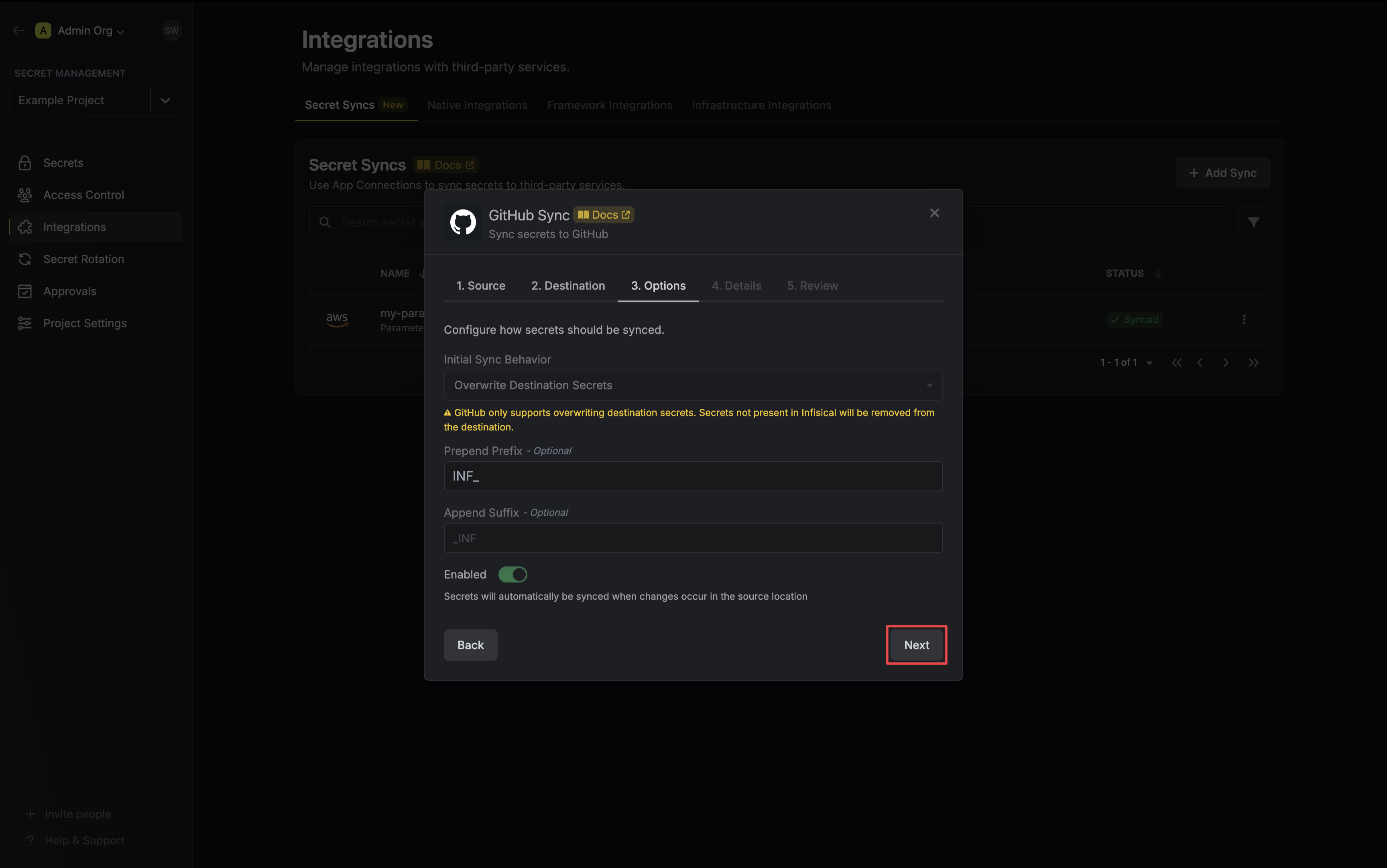
- Initial Sync Behavior: Determines how Infisical should resolve the initial sync.
- Overwrite Destination Secrets: Removes any secrets at the destination endpoint not present in Infisical.
GitHub does not support importing secrets. - Key Schema: Template that determines how secret names are transformed when syncing, using
{{secretKey}}as a placeholder for the original secret name and{{environment}}for the environment.
We highly recommend using a Key Schema to ensure that Infisical only manages the specific keys you intend, keeping everything else untouched.- Auto-Sync Enabled: If enabled, secrets will automatically be synced from the source location when changes occur. Disable to enforce manual syncing only.
- Disable Secret Deletion: If enabled, Infisical will not remove secrets from the sync destination. Enable this option if you intend to manage some secrets manually outside of Infisical.
- Initial Sync Behavior: Determines how Infisical should resolve the initial sync.
-
Configure the Details of your GitHub Sync, then click Next.
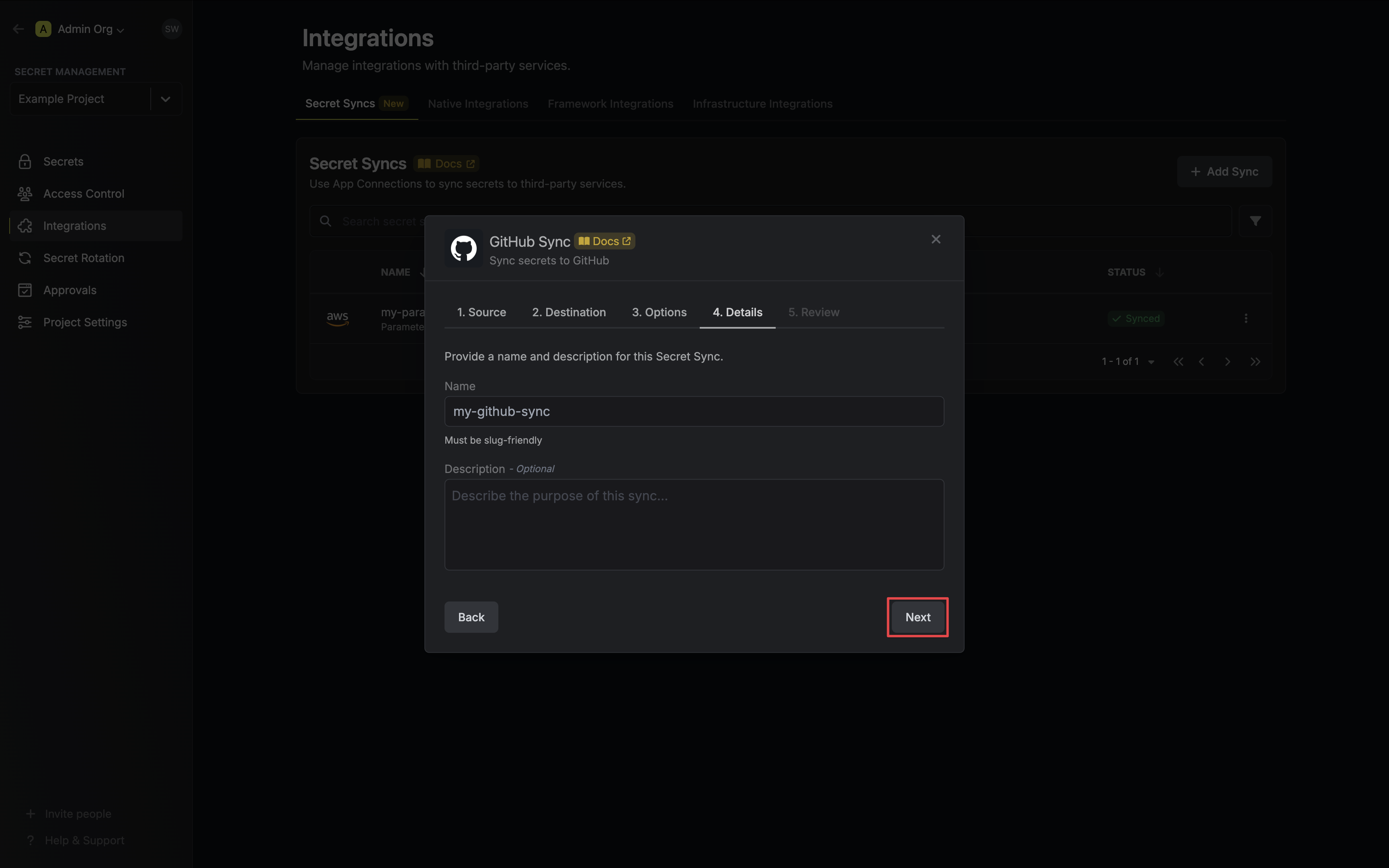
- Name: The name of your sync. Must be slug-friendly.
- Description: An optional description for your sync.
-
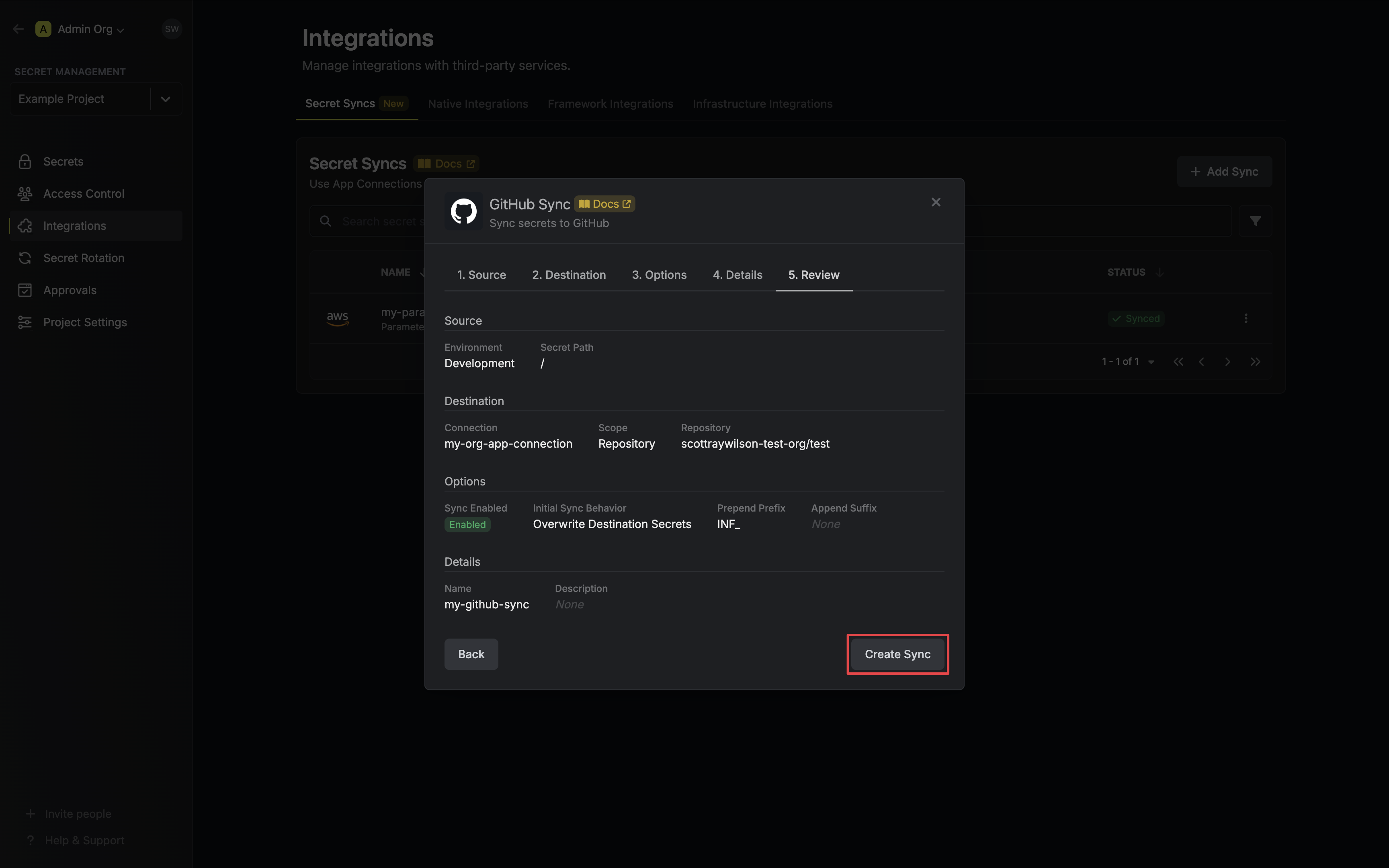
Review your GitHub Sync configuration, then click Create Sync.
-
If enabled, your GitHub Sync will begin syncing your secrets to the destination endpoint.