- Set up and add secrets to Infisical Cloud
- Create a Cloudflare Connection
- Infisical UI
- API
-
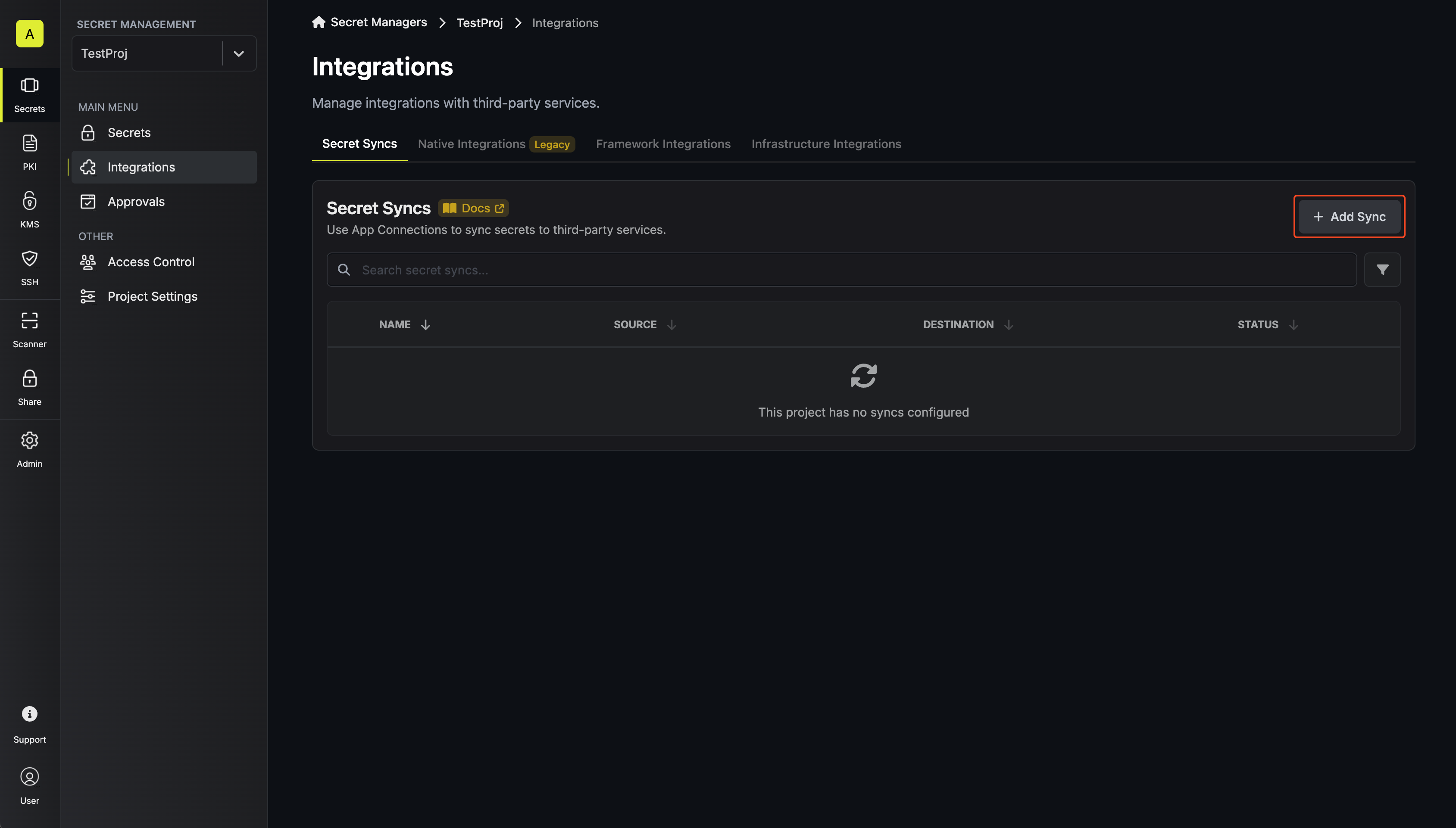
Navigate to Project > Integrations and select the Secret Syncs tab. Select the Add Sync button.
-
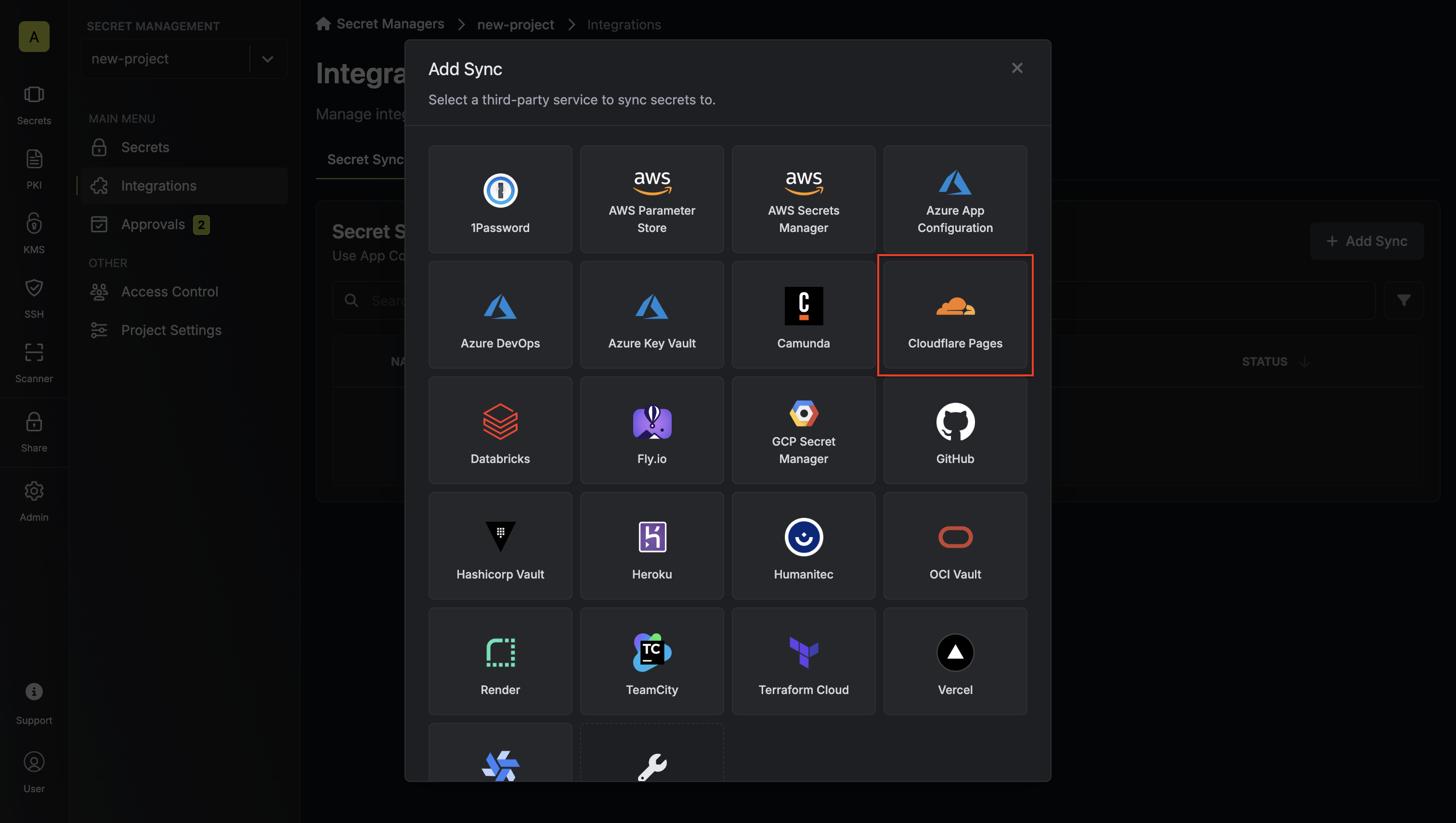
Select the Cloudflare Pages option.
-
Configure the Source from where secrets should be retrieved, then click Next.
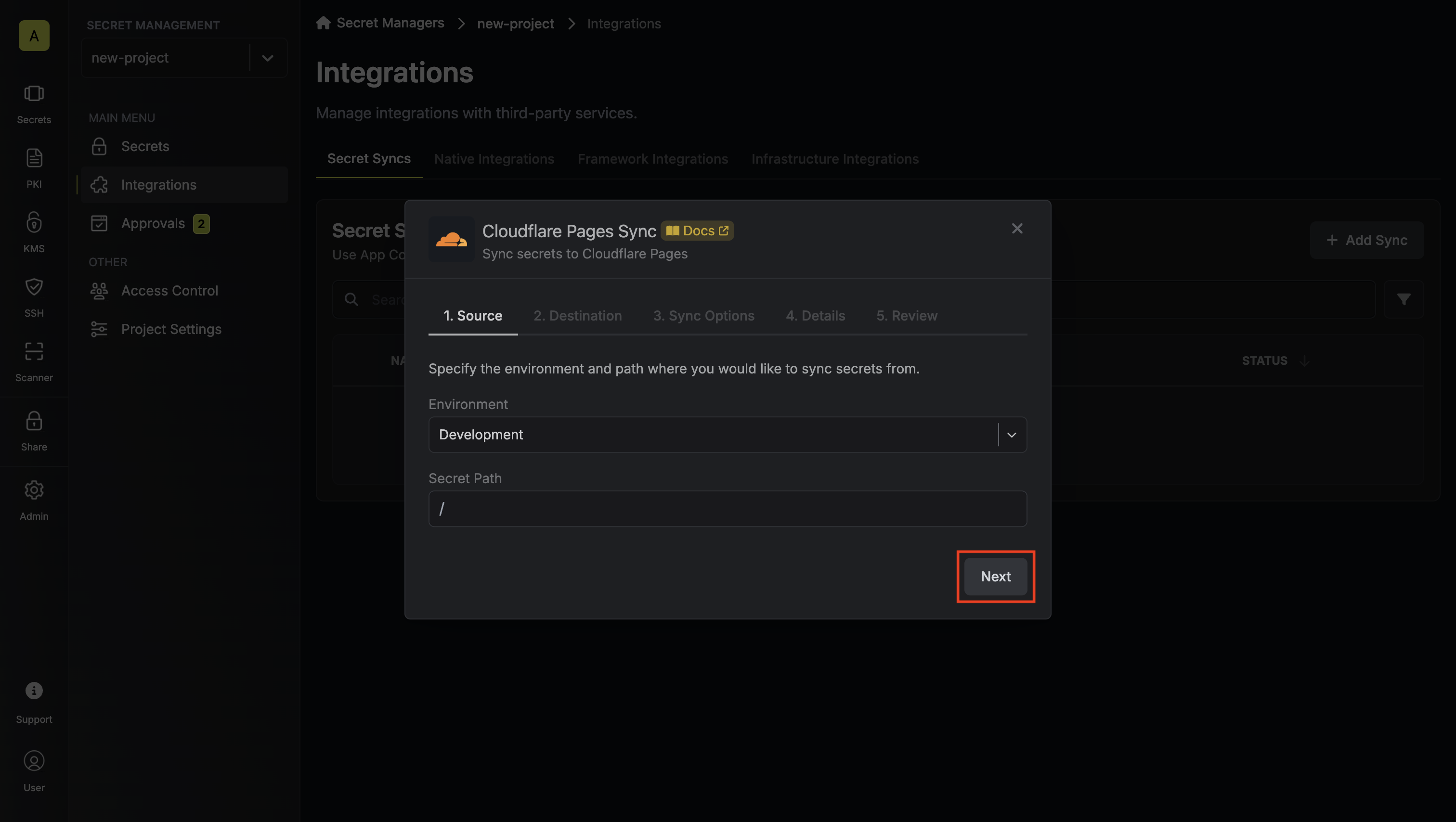
- Environment: The project environment to retrieve secrets from.
- Secret Path: The folder path to retrieve secrets from.
- Configure the Destination to where secrets should be deployed, then click Next.
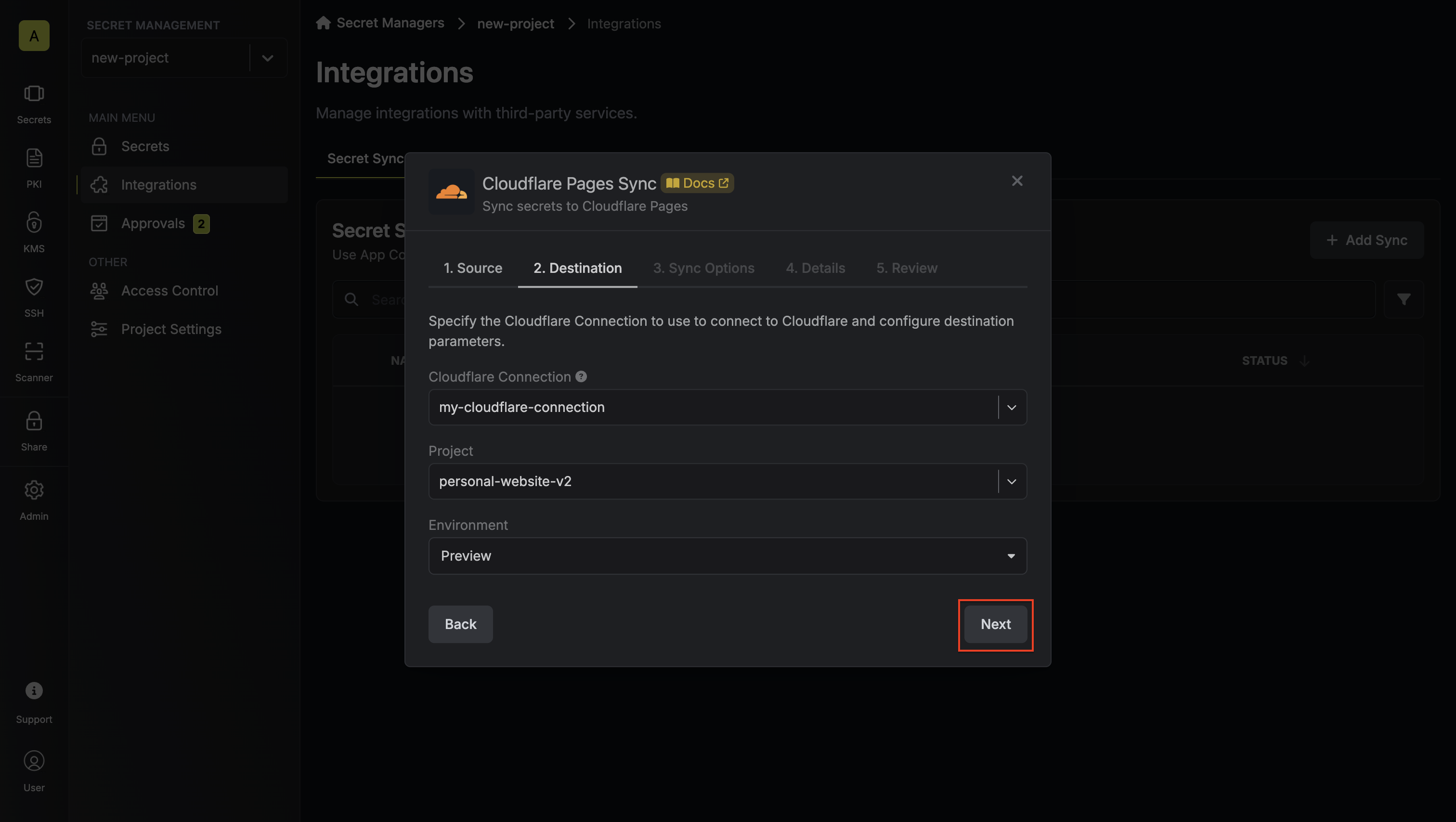
- Cloudflare Connection: The Cloudflare Connection to authenticate with.
- Cloudflare Pages Project: Choose the Cloudflare Pages project you want to sync secrets to.
- Environment: Select the deployment environment (preview or production).
- Configure the Sync Options to specify how secrets should be synced, then click Next.
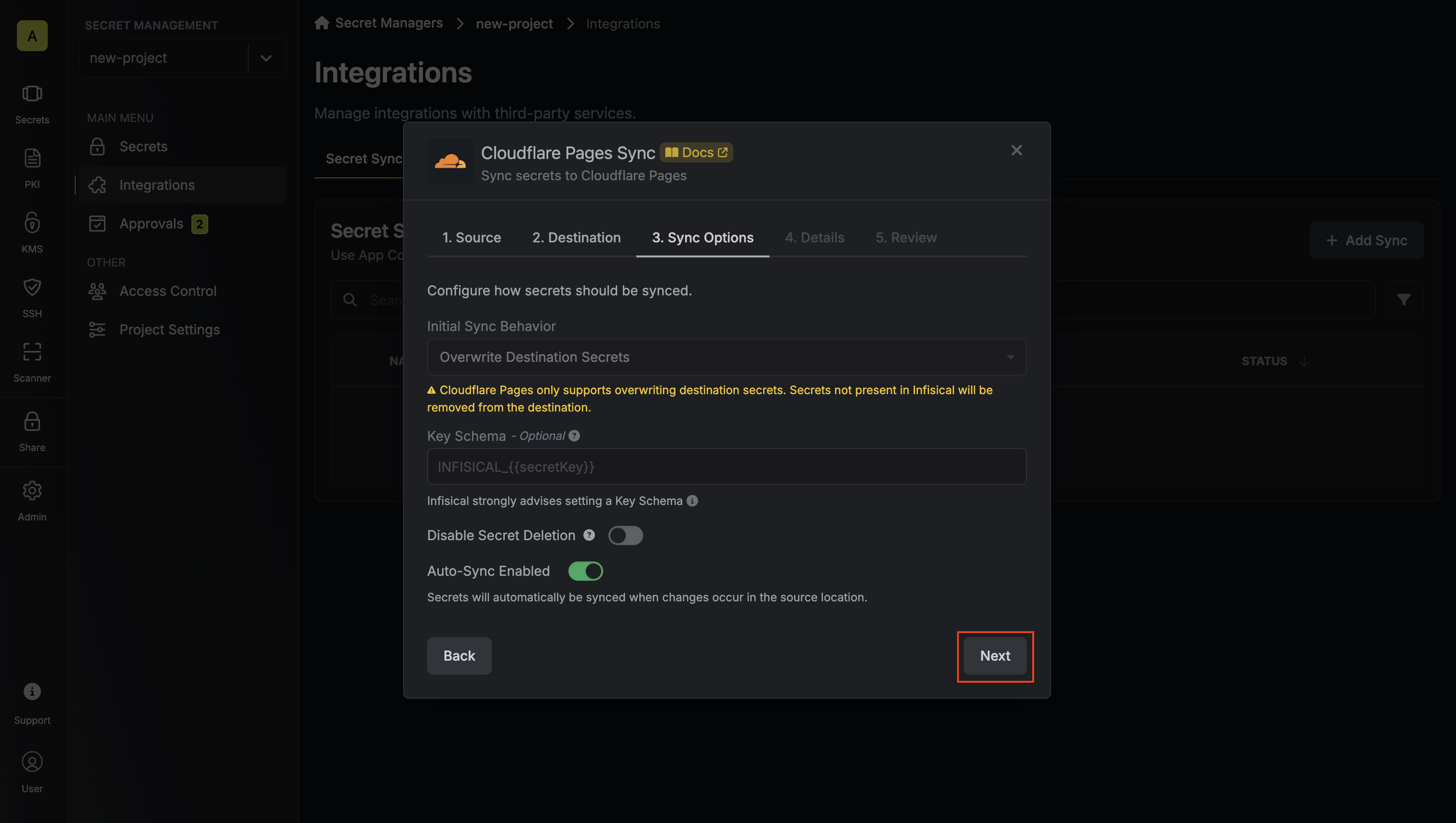
- Initial Sync Behavior: Determines how Infisical should resolve the initial sync.
- Overwrite Destination Secrets: Removes any secrets at the destination endpoint not present in Infisical.
- Key Schema: Template that determines how secret names are transformed when syncing, using
{{secretKey}}as a placeholder for the original secret name and{{environment}}for the environment. - Auto-Sync Enabled: If enabled, secrets will automatically be synced from the source location when changes occur. Disable to enforce manual syncing only.
- Disable Secret Deletion: If enabled, Infisical will not remove secrets from the sync destination. Enable this option if you intend to manage some secrets manually outside of Infisical.
- Variable type: How Cloudflare stores each synced secret
- Secret: Encrypted, so you can’t read the value in the Cloudflare dashboard
- Text: Plain text that you can read in the Cloudflare dashboard
- Configure the Details of your Cloudflare Pages Sync, then click Next.
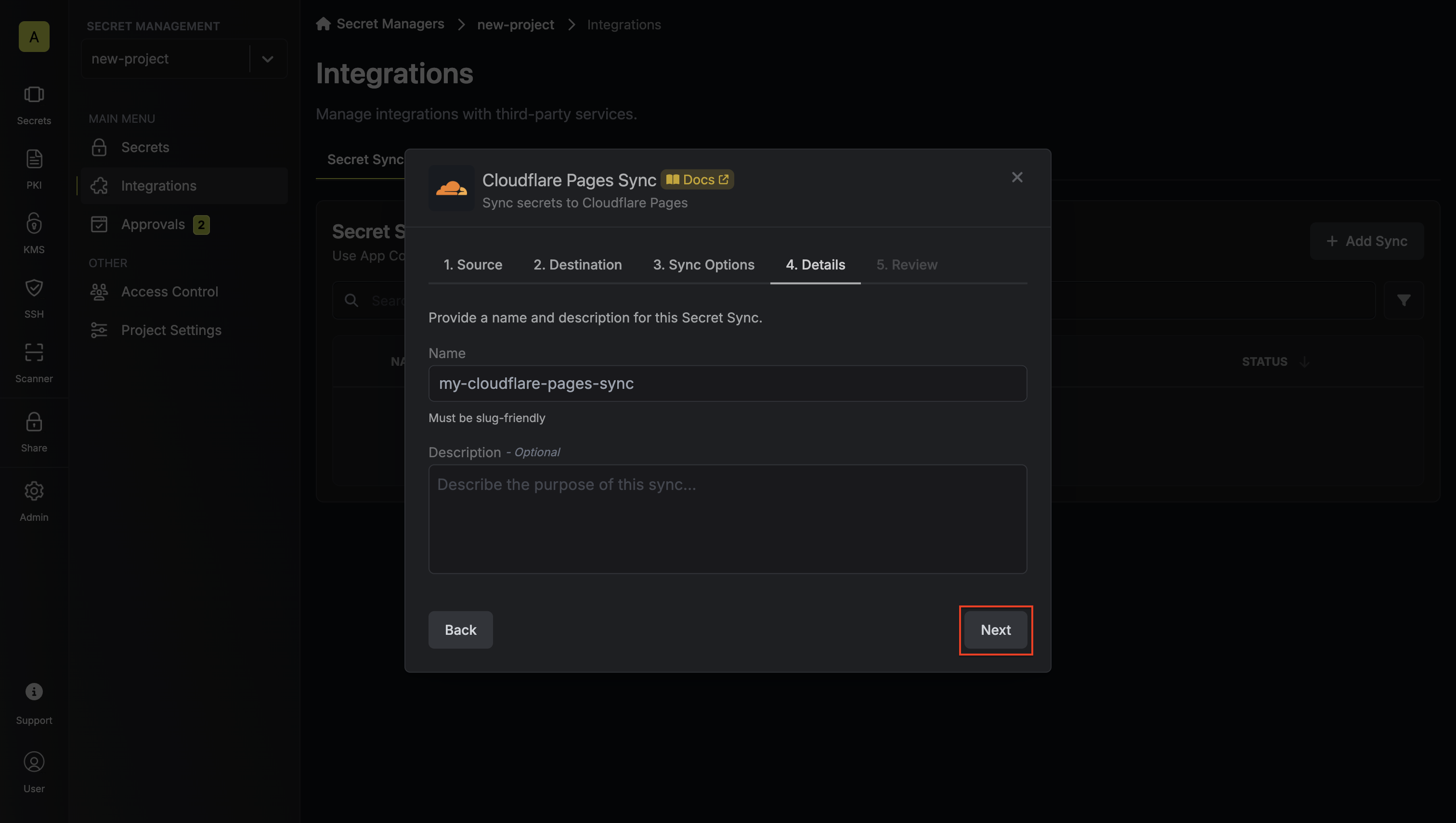
- Name: The name of your sync. Must be slug-friendly.
- Description: An optional description for your sync.
-
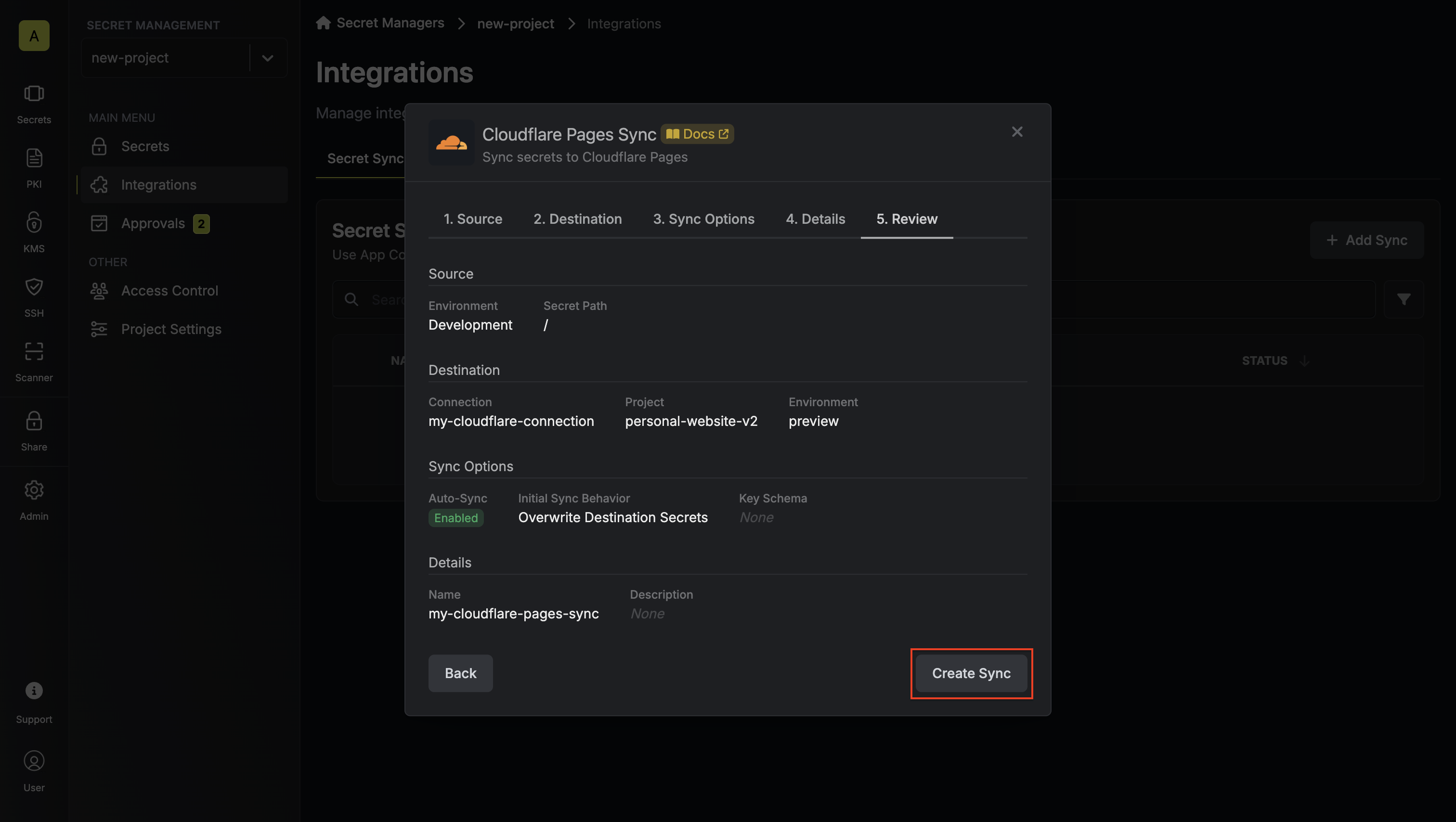
Review your Cloudflare Pages Sync configuration, then click Create Sync.
-
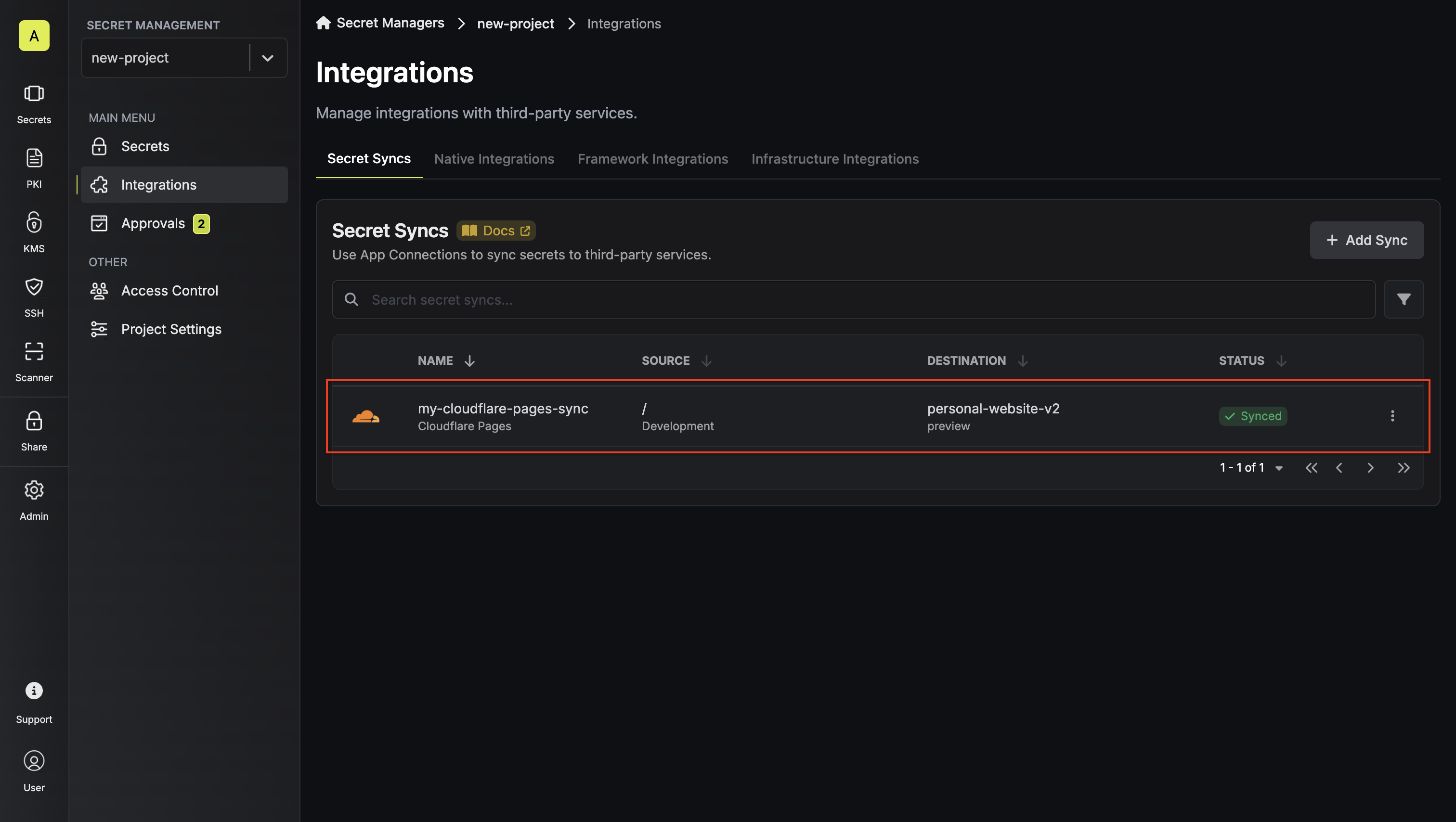
If enabled, your Cloudflare Pages Sync will begin syncing your secrets to the destination endpoint.