Sharing a secret
1
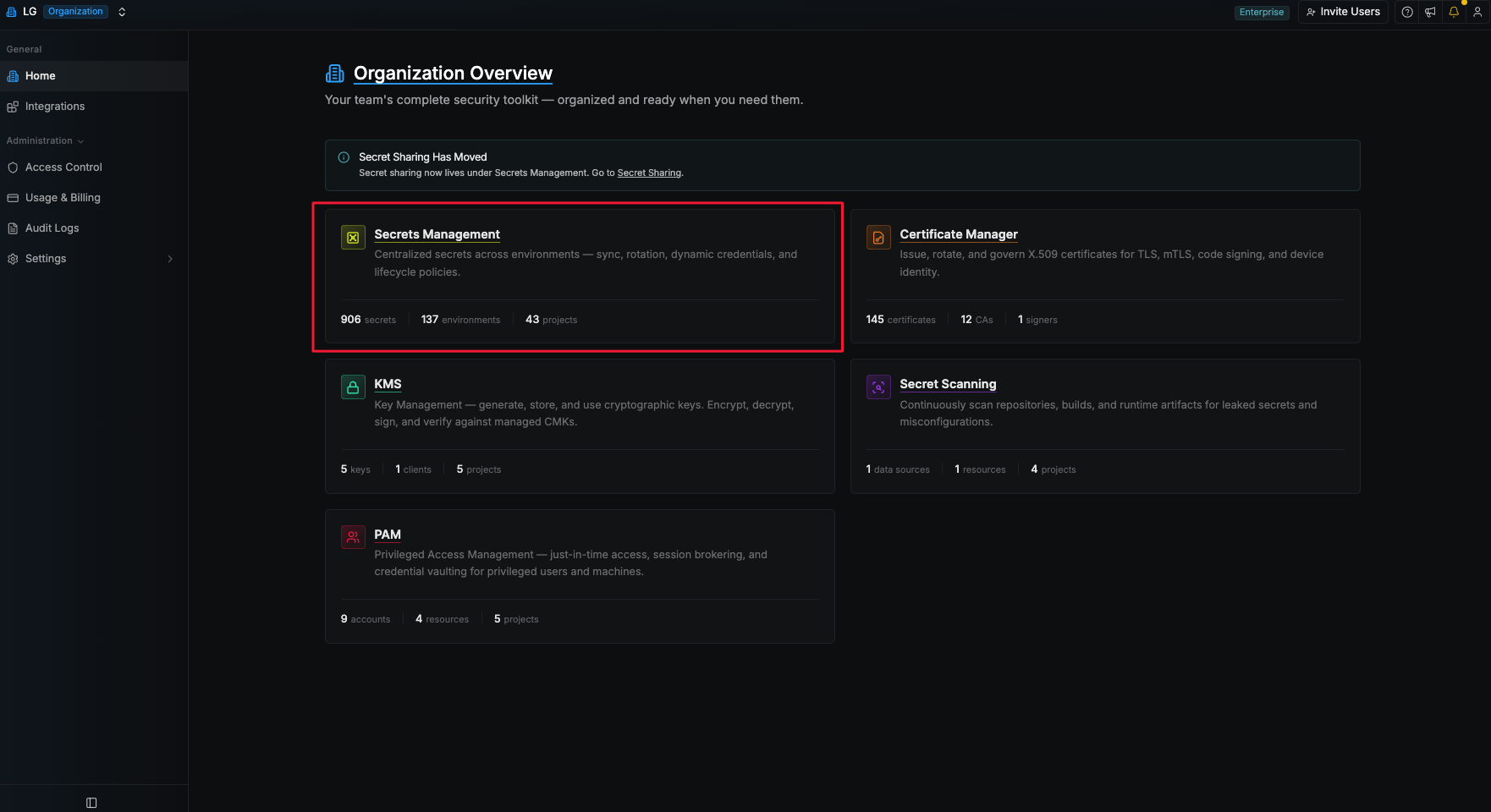
Navigate to the Secrets Management product
2
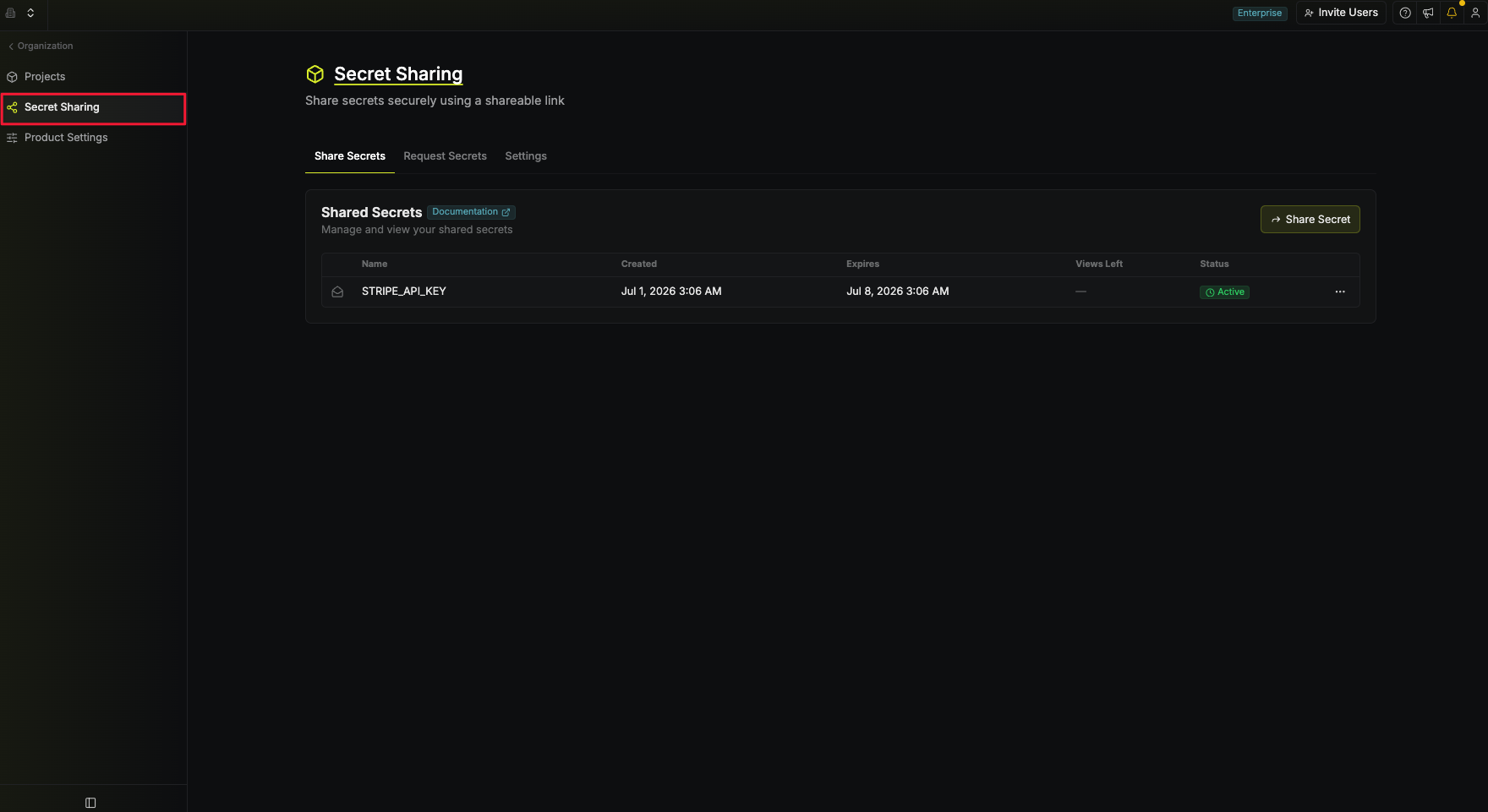
Navigate to the Secret Sharing tab
3
Configure Secret Share
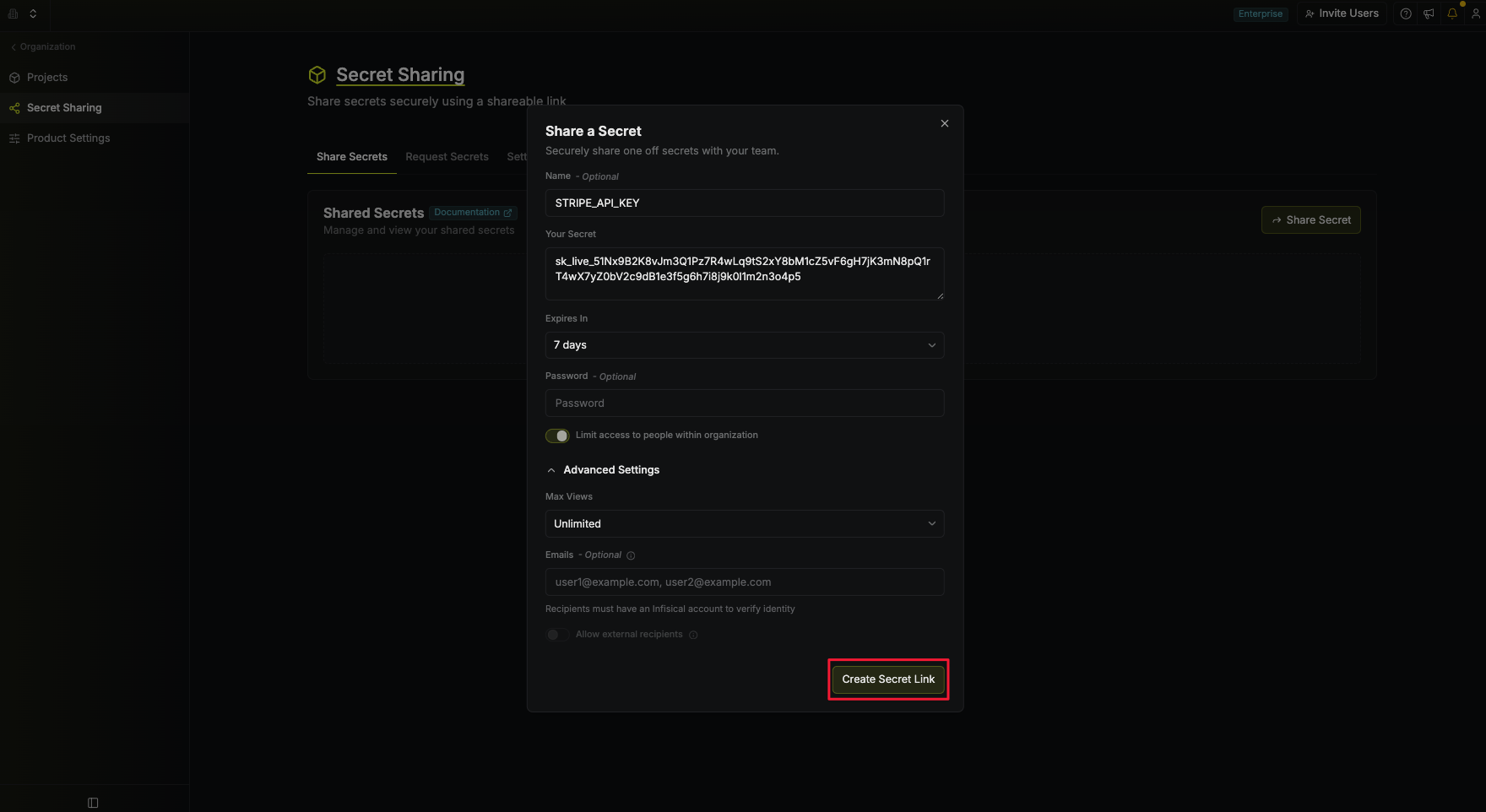
- Name (optional): A friendly name for the shared secret.
- Your Secret: The secret content.
- Expires In: How long the link stays valid.
- Password (optional): A password the viewer has to enter before the secret is shown.
- Limit access to people within organization: On by default. Only people in your organization can open the link, and they have to sign in to Infisical first. Turn it off to share with anyone who has the link.
- Max Views: How many times the secret can be viewed before it’s destroyed.
- Emails (optional): Who to send the link to. Each recipient gets it in their inbox once you create the secret. With Allow external recipients off, a recipient needs an Infisical account to prove who they are, though they don’t have to be in your organization.
- Allow external recipients (optional): Lets you add any email address, including people with no Infisical account. A password is required when this is on, and every recipient needs that password to open the secret. Turning on Limit access to people within organization turns this off.
4
Copy Link and Share Secret
After creating the shared secret, its link will be displayed. Share this with the intended recipients.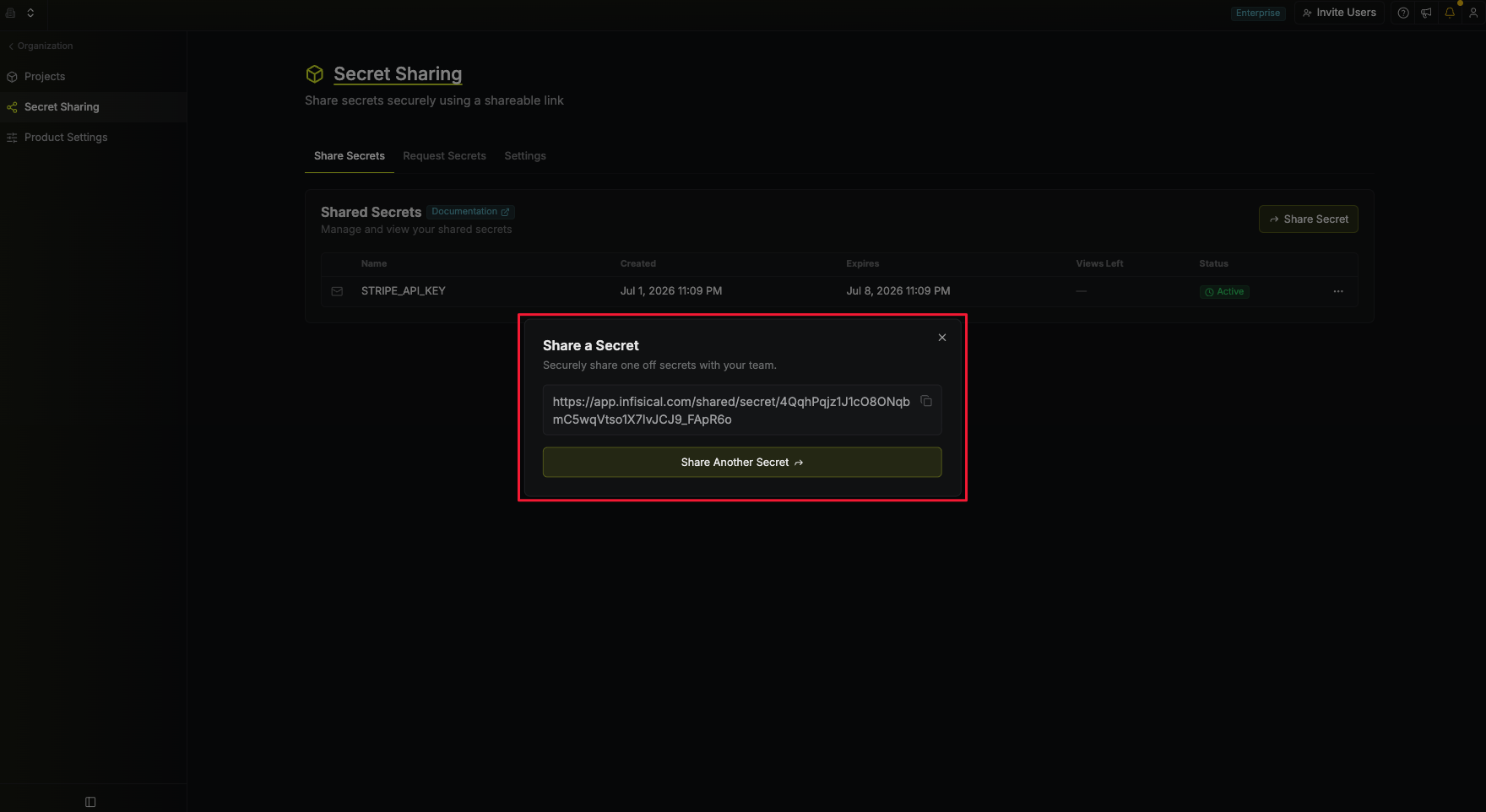
If no organization or email restrictions are set, anyone with this link can view the secret before it expires.
5
Access Shared Secret
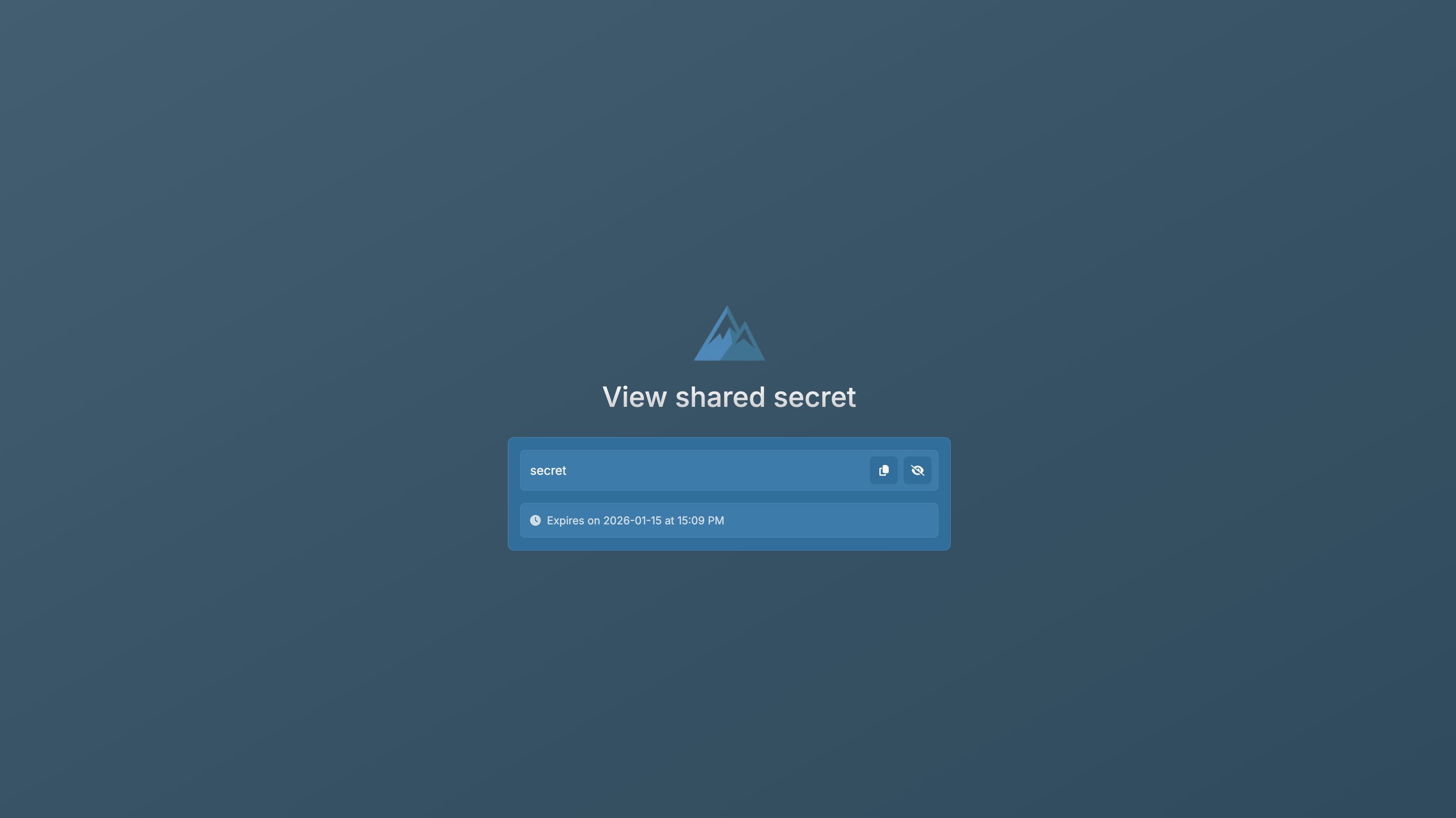
Visiting the secret link will display its contents.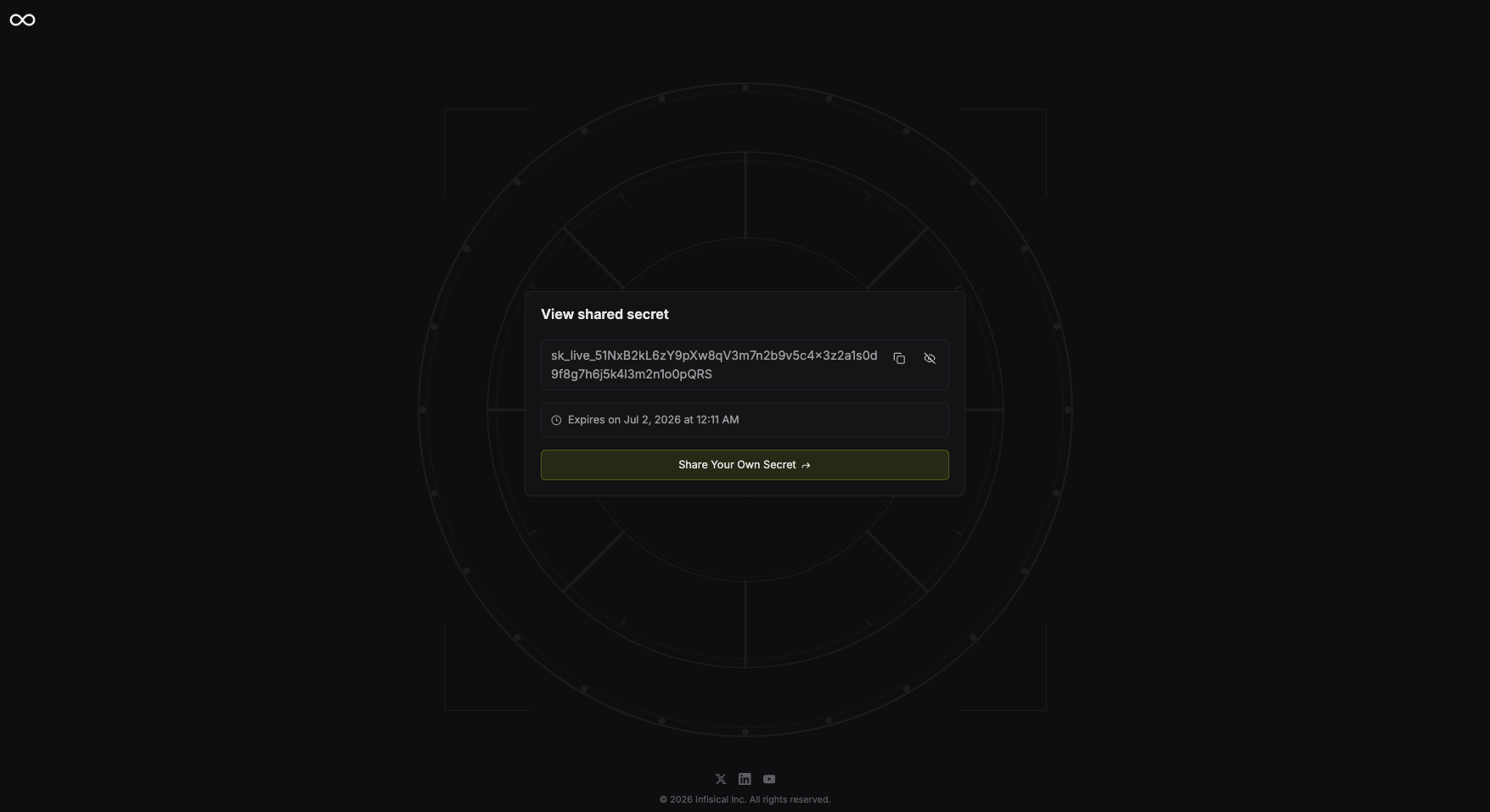
Deleting a shared secret
To delete a shared secret, hover over its row on the Secret Sharing page and select the trash icon.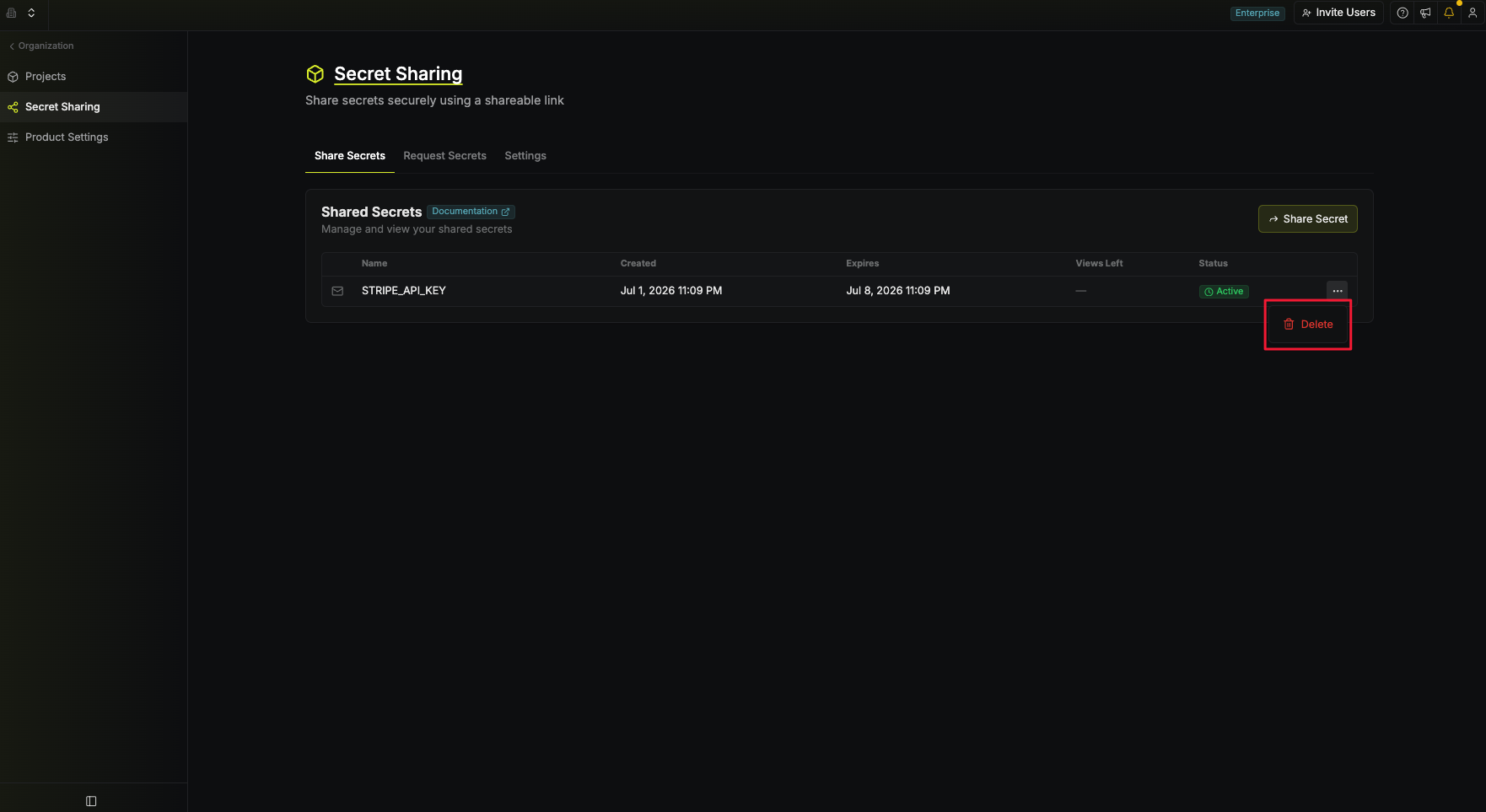
Requesting a secret
1
Navigate to the Secrets Management product
2
Navigate to the Secret Sharing page
3
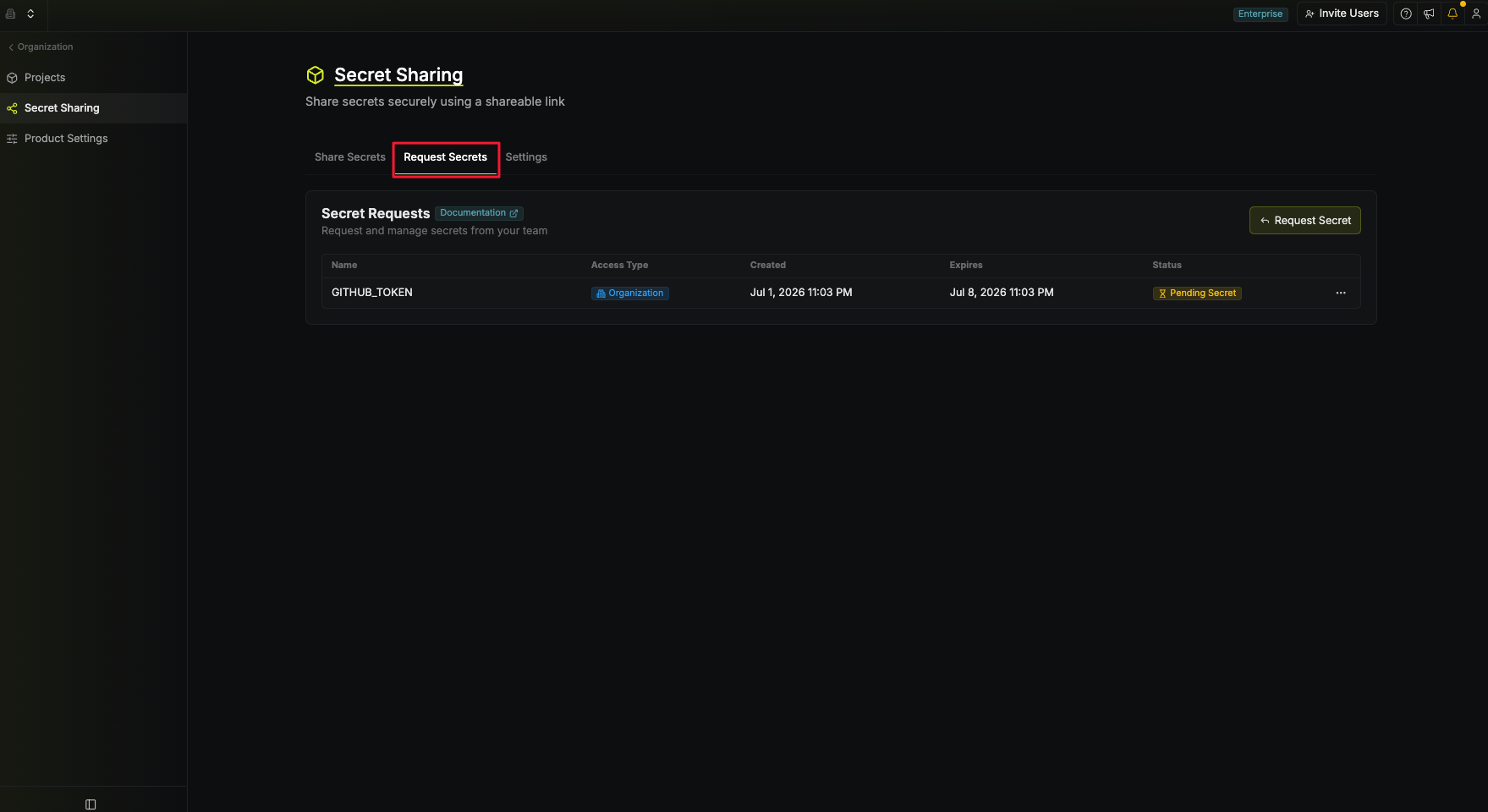
Navigate to the Request Secrets tab
4
Configure Secret Request
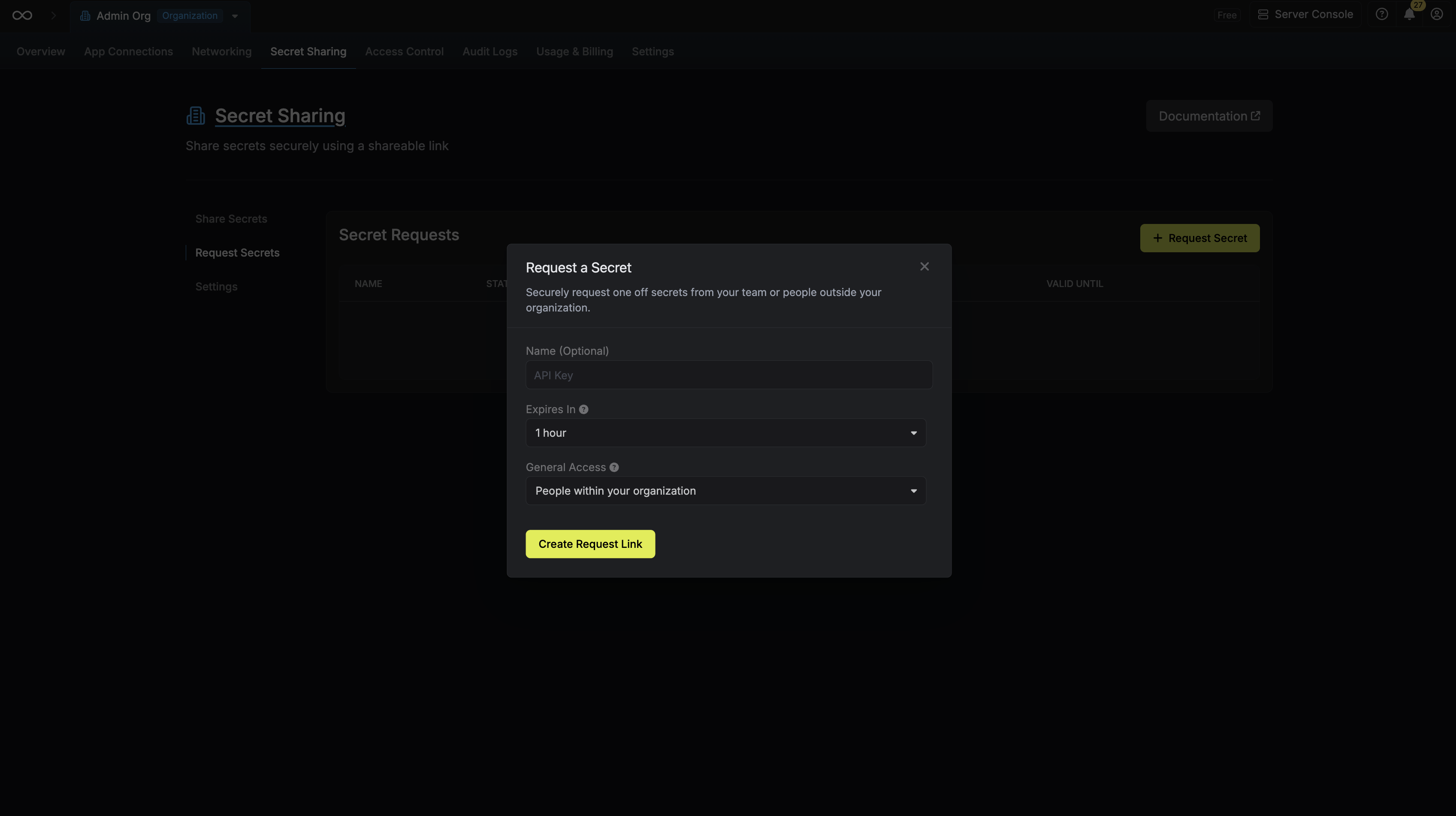
- Name (optional): A friendly name for the secret request.
- Expires In: The time it’ll take for the request to expire.
- General Access: Who can see the request. (e.g., Everyone, Organization Members)
5
Copy Link and Share Request
After creating the secret request, its link will be displayed. Share this with the intended recipients.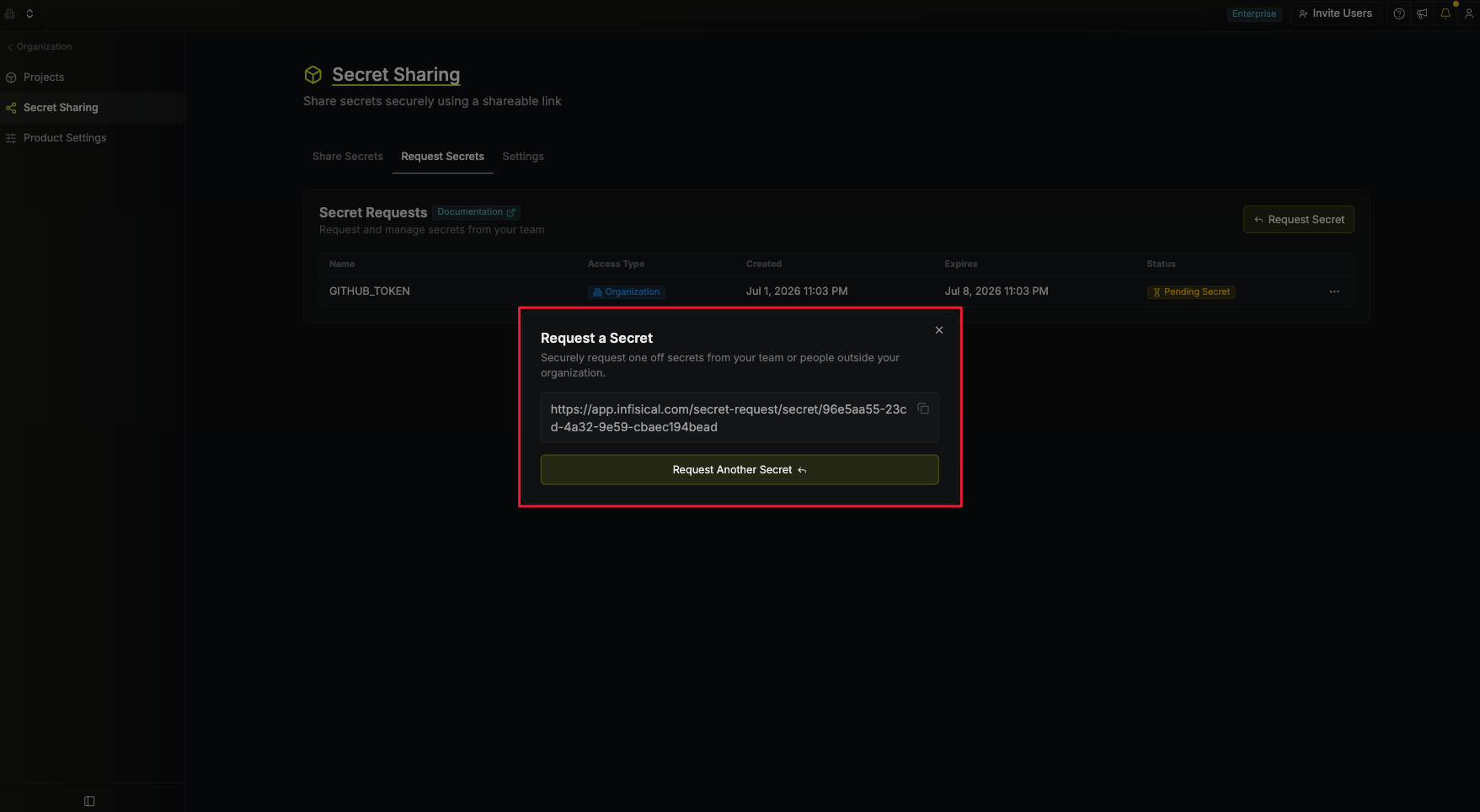
If no access restrictions are set, anyone with this link can view the request before it expires.
6
Access Secret Request
Visiting the secret request link will display a page for secret input.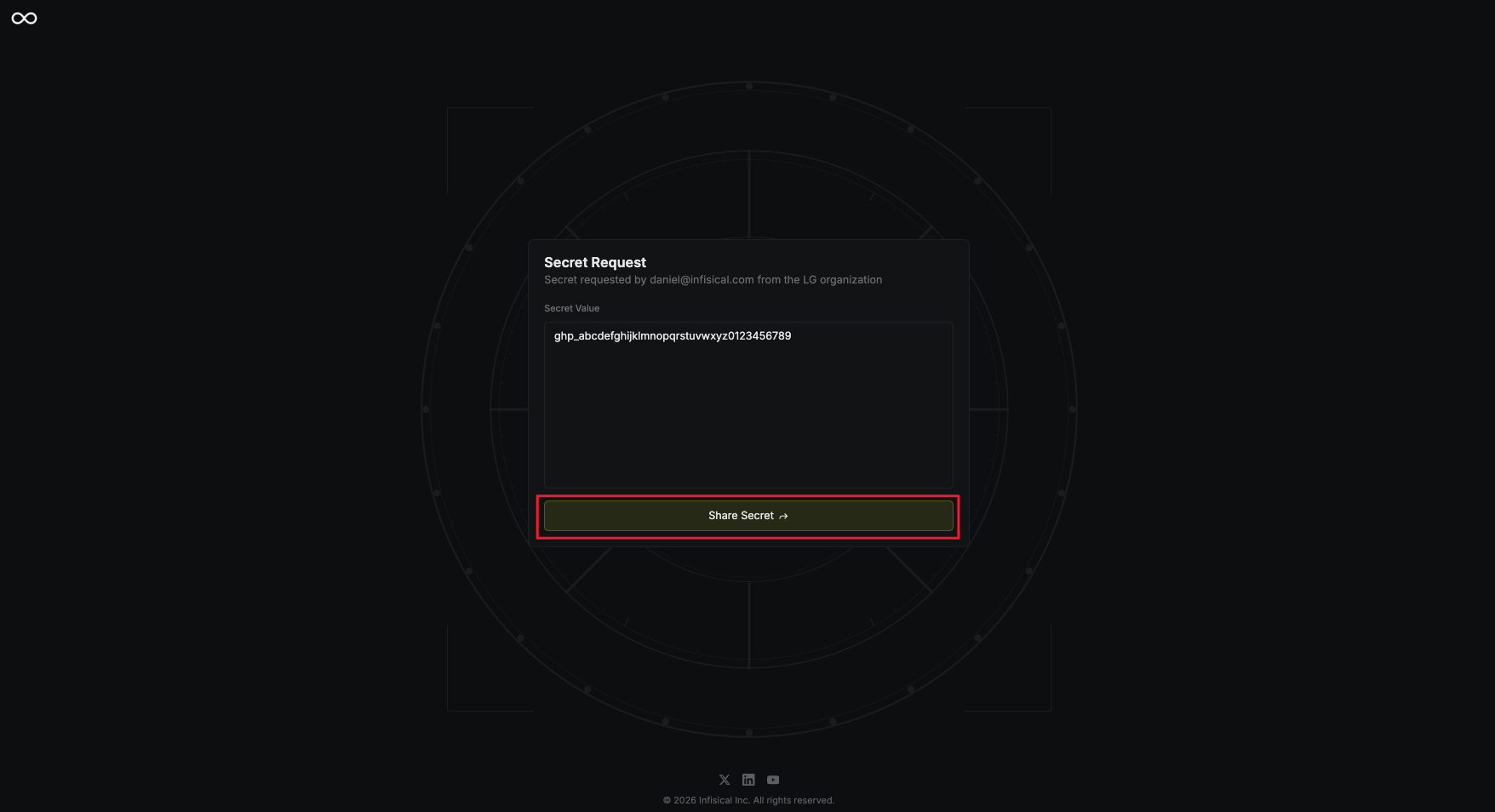
Custom branding
Custom branding for shared secret pages is a paid feature.If you’re using Infisical Cloud, then it is available under the Enterprise Tier. If you’re self-hosting Infisical, then you should contact sales@infisical.com to purchase an enterprise license to use it.
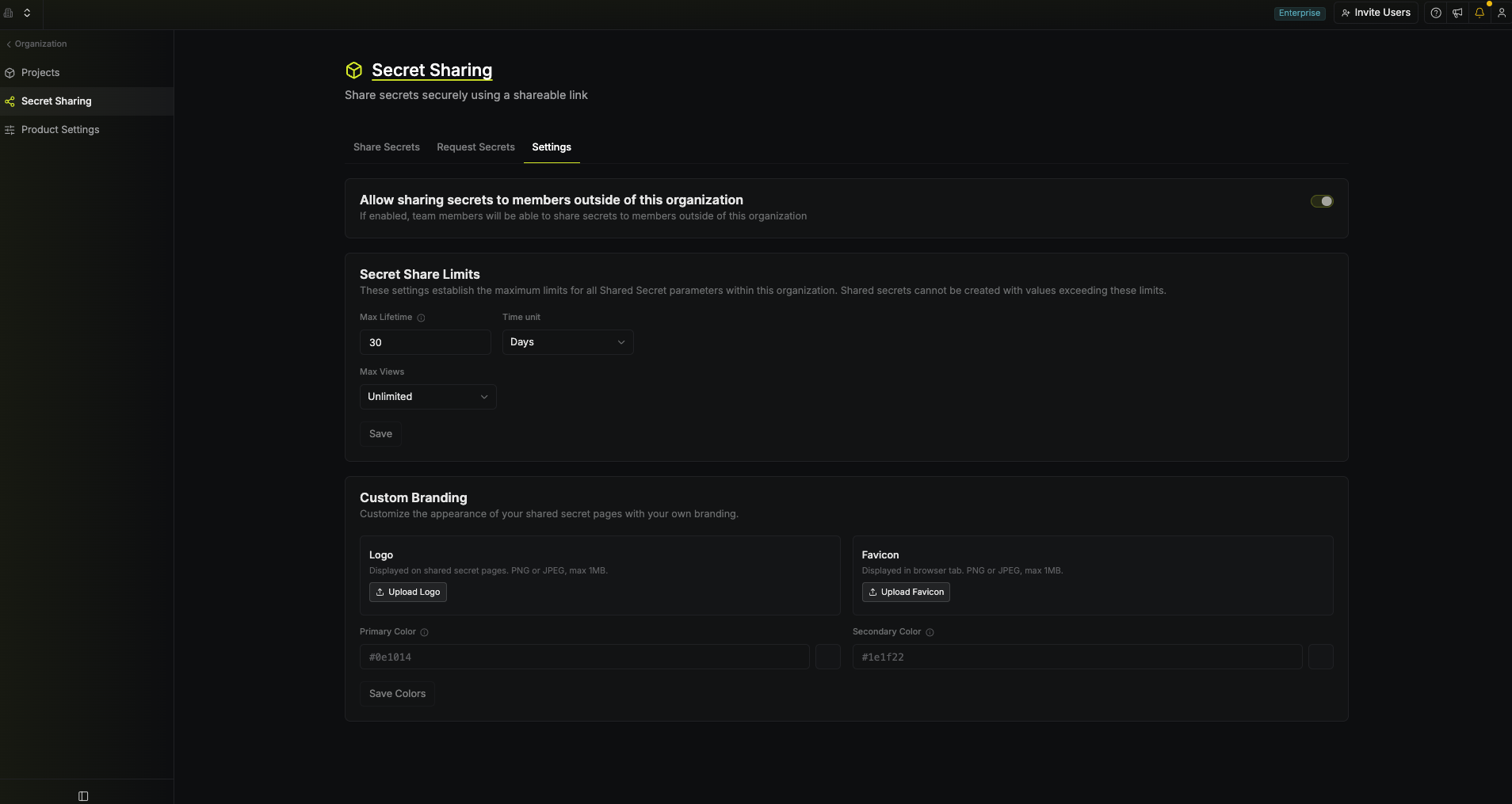 If custom branding is added, the shared secret page will display your custom logo and colors without any information about Infisical.