

Email 2FA
If 2-factor authentication is enabled in the Personal settings page, email will be used for MFA by default.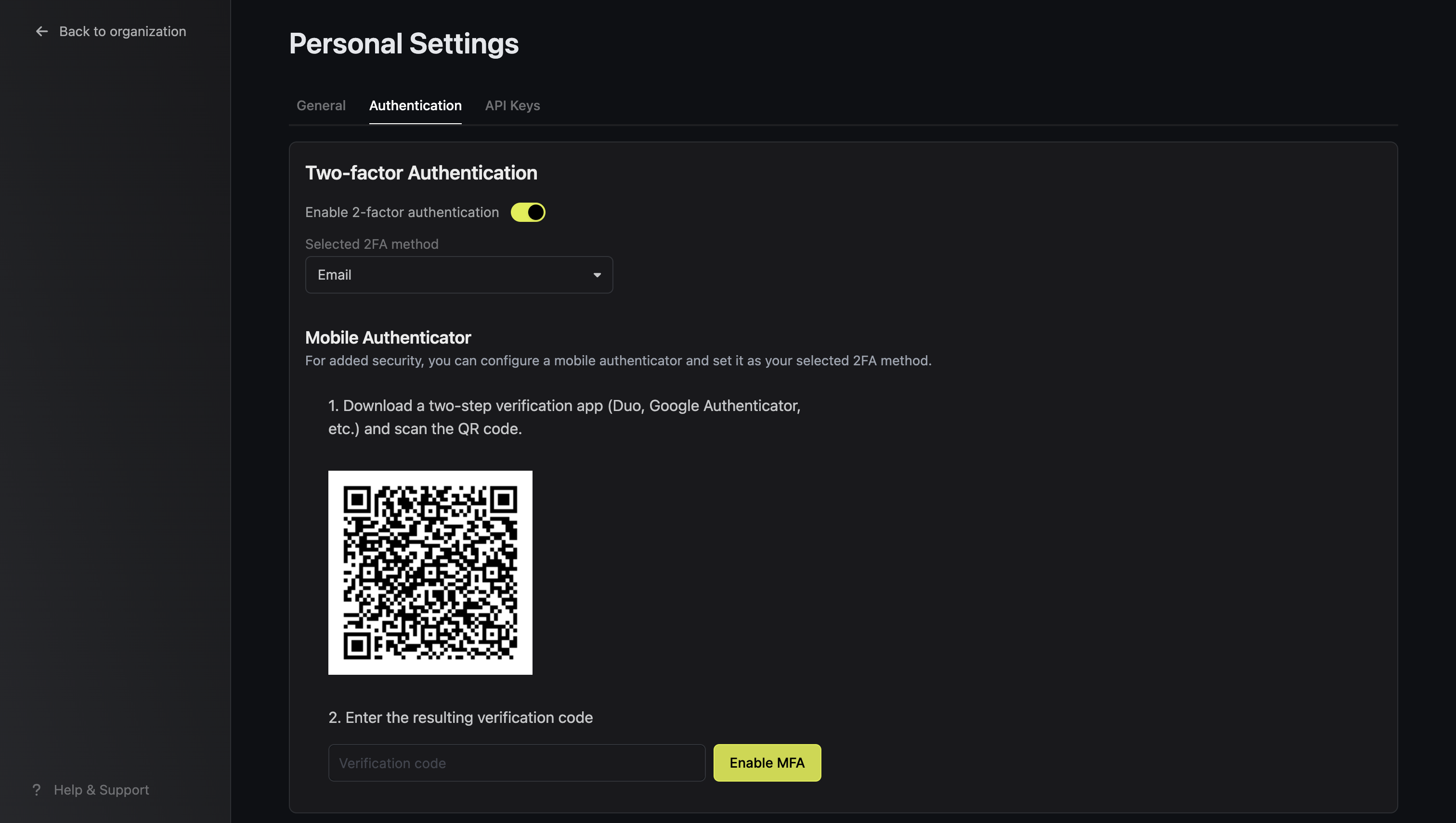
Mobile authenticator 2FA
You can use any mobile authenticator app (Authy, Google Authenticator, Duo, etc.) to secure your account. After registration with an authenticator, select Mobile Authenticator as your 2FA method.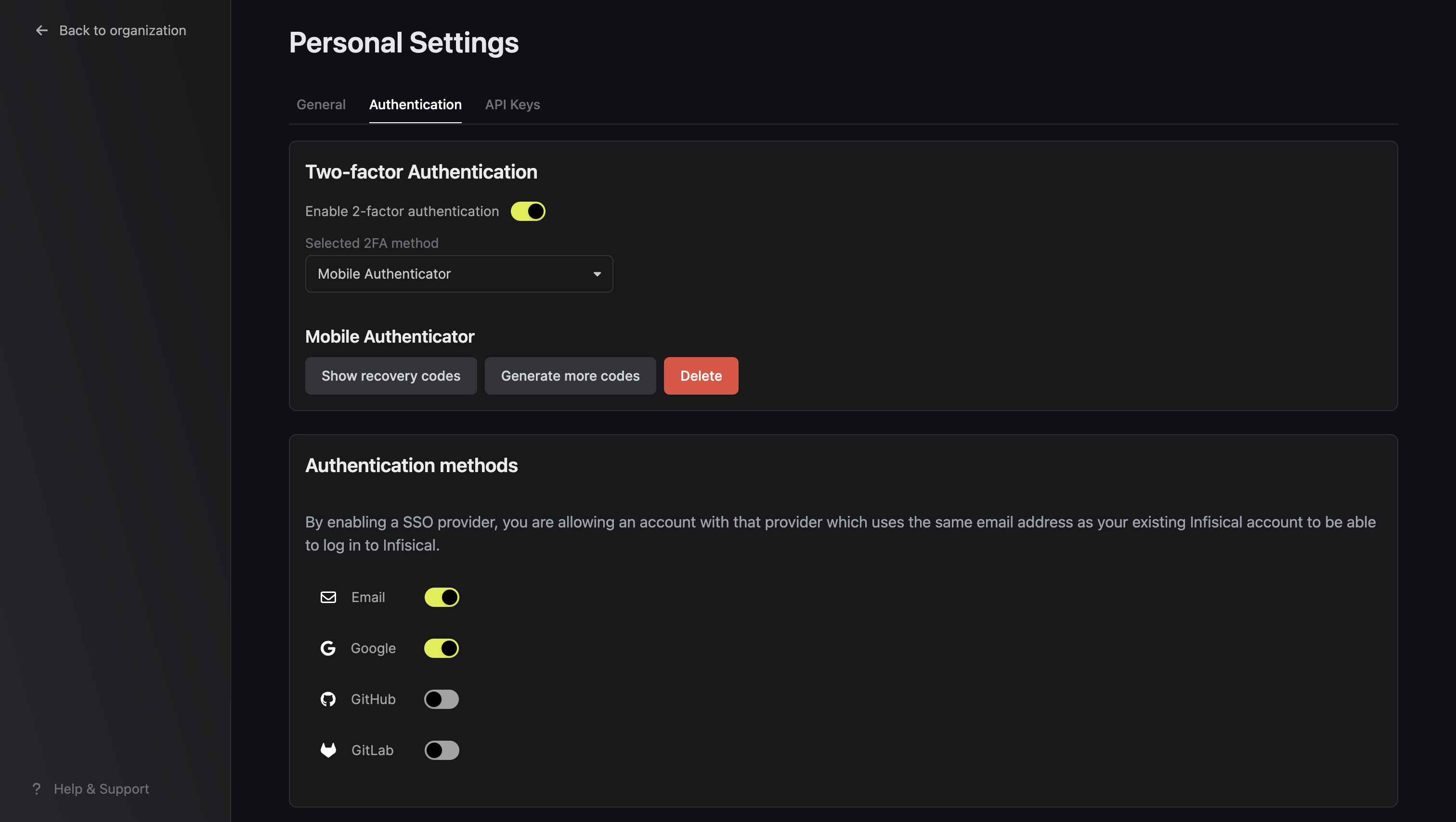
MFA for SSO logins
If your organization enforces MFA and your users sign in through SAML or OIDC SSO, you can let the MFA they completed at your identity provider count, so Infisical doesn’t prompt them again. Password, LDAP, and Google, GitHub, or GitLab logins are always prompted, so a break-glass account keeps Infisical MFA. The setting only takes effect while your organization enforces MFA, and then it also covers users who turned on MFA for their own account. Infisical trusts a login only if the identity provider’s signed response says MFA was completed:- For OIDC, the ID token’s
amrclaim includesmfa - For SAML, the assertion’s authentication context is a two-factor class, such as
MobileTwoFactorContractorSmartcardPKI, or the MFA attribute includesmfaormultipleauthn(Infisical readsauthnmethodsreferencesfor Entra ID andamrfor every other provider)
user-login event in the audit log shows the values the identity provider sent, so you can see why a login was or wasn’t prompted.
1
Configure your identity provider to send the signal. Okta OIDC and Entra ID send it without extra configuration. For Okta SAML, add an attribute statement named
amr with the value session.amr, as described in Okta SAML.2
In your organization, go to Settings > Security and turn on Enforce MFA.
3
Go to Settings > Single Sign-On (SSO) and, in the Enforcement card, turn on Trust IdP MFA.
If your identity provider lists the methods under another name, change MFA claim name in your OIDC configuration or MFA attribute name in your SAML configuration. If it uses other values or authentication contexts for MFA, add them under Additional MFA claim values or Additional MFA authentication contexts.
Entra ID MFA
Before proceeding make sure you’ve enabled SAML SSO for Entra ID.We also encourage you to have your team download and setup the
Microsoft Authenticator App prior to enabling MFA.
1
Open your Infisical Application in the Microsoft Entra Admin Center
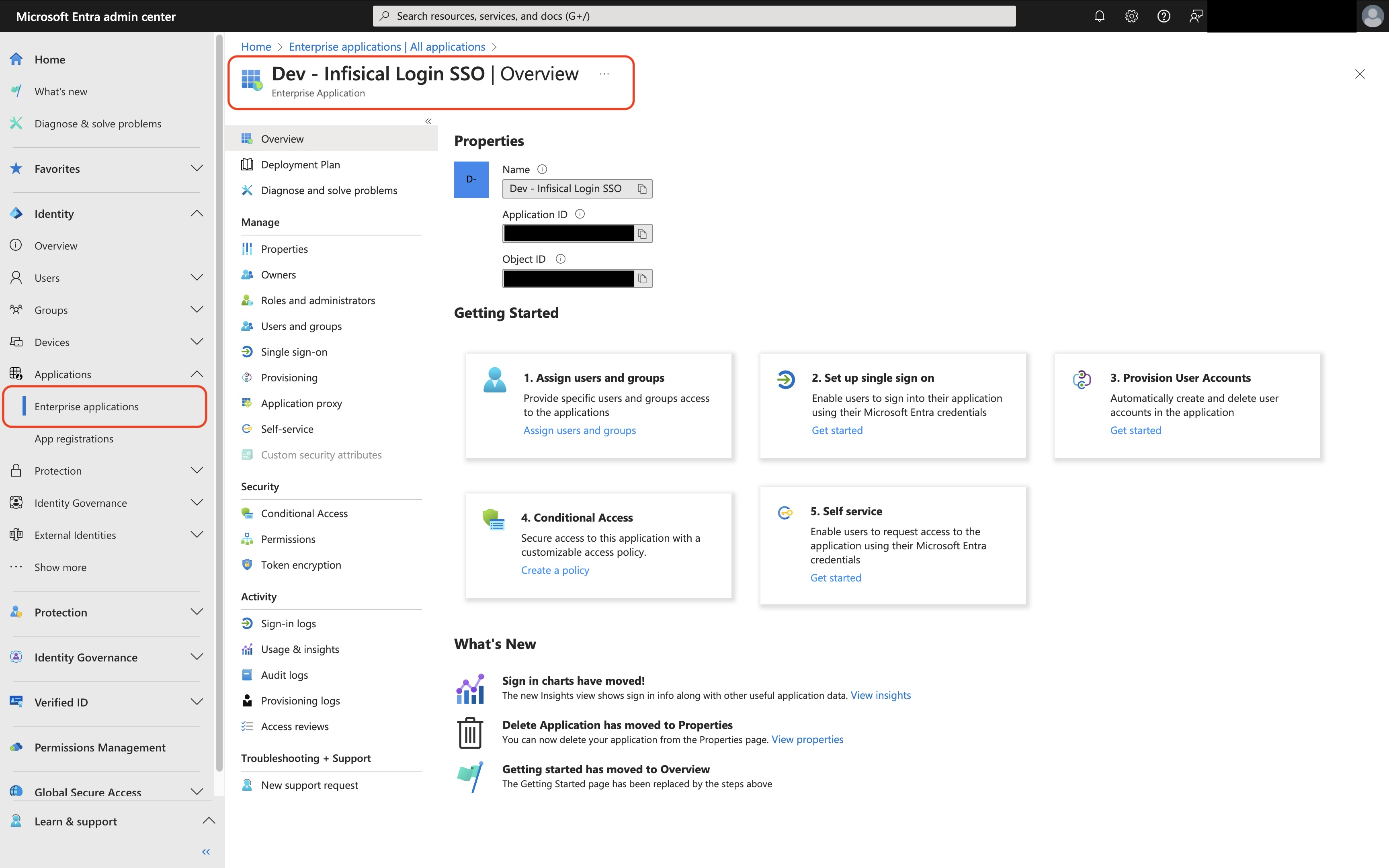
2
Tap on Conditional Access under the Security Tab
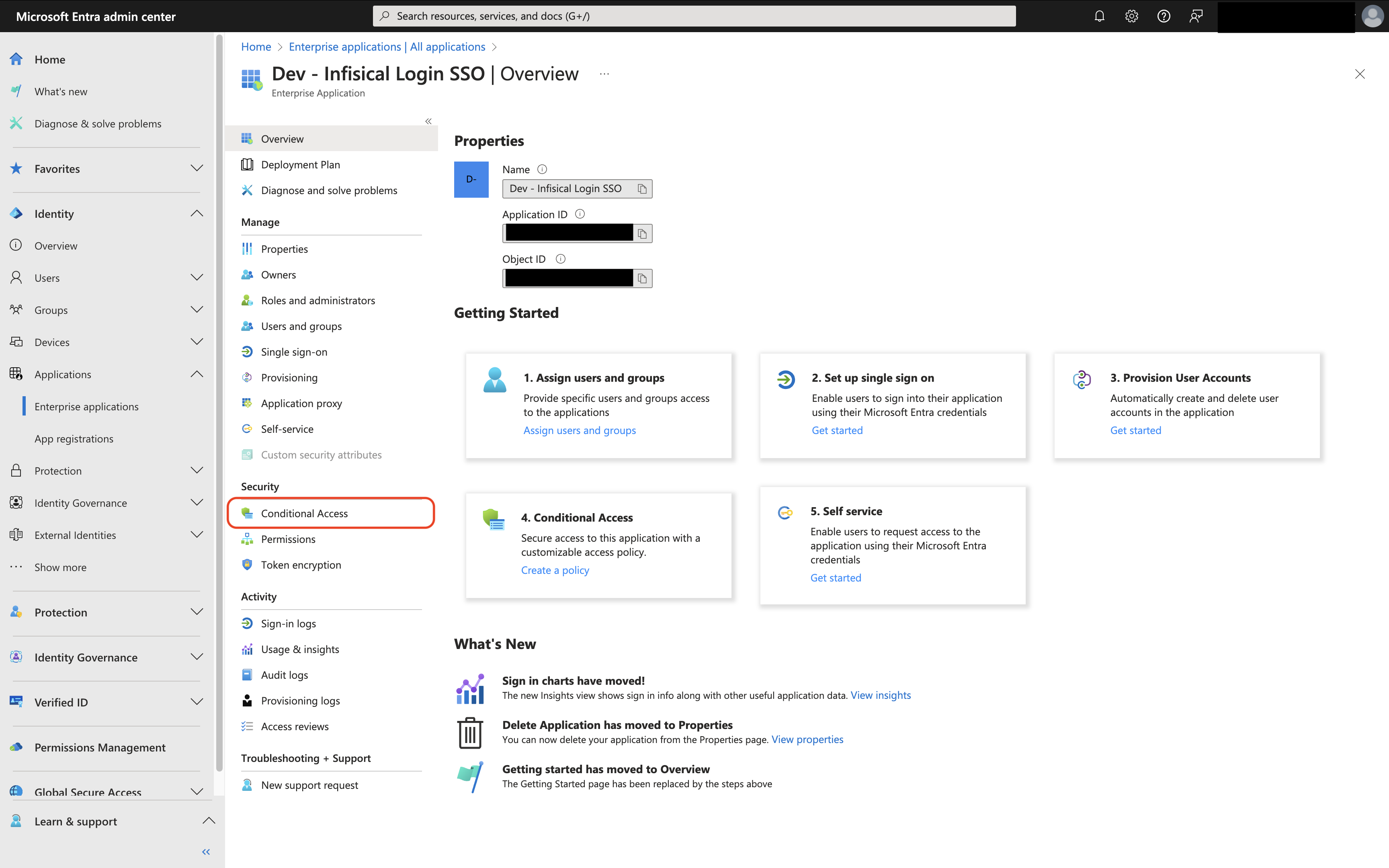
3
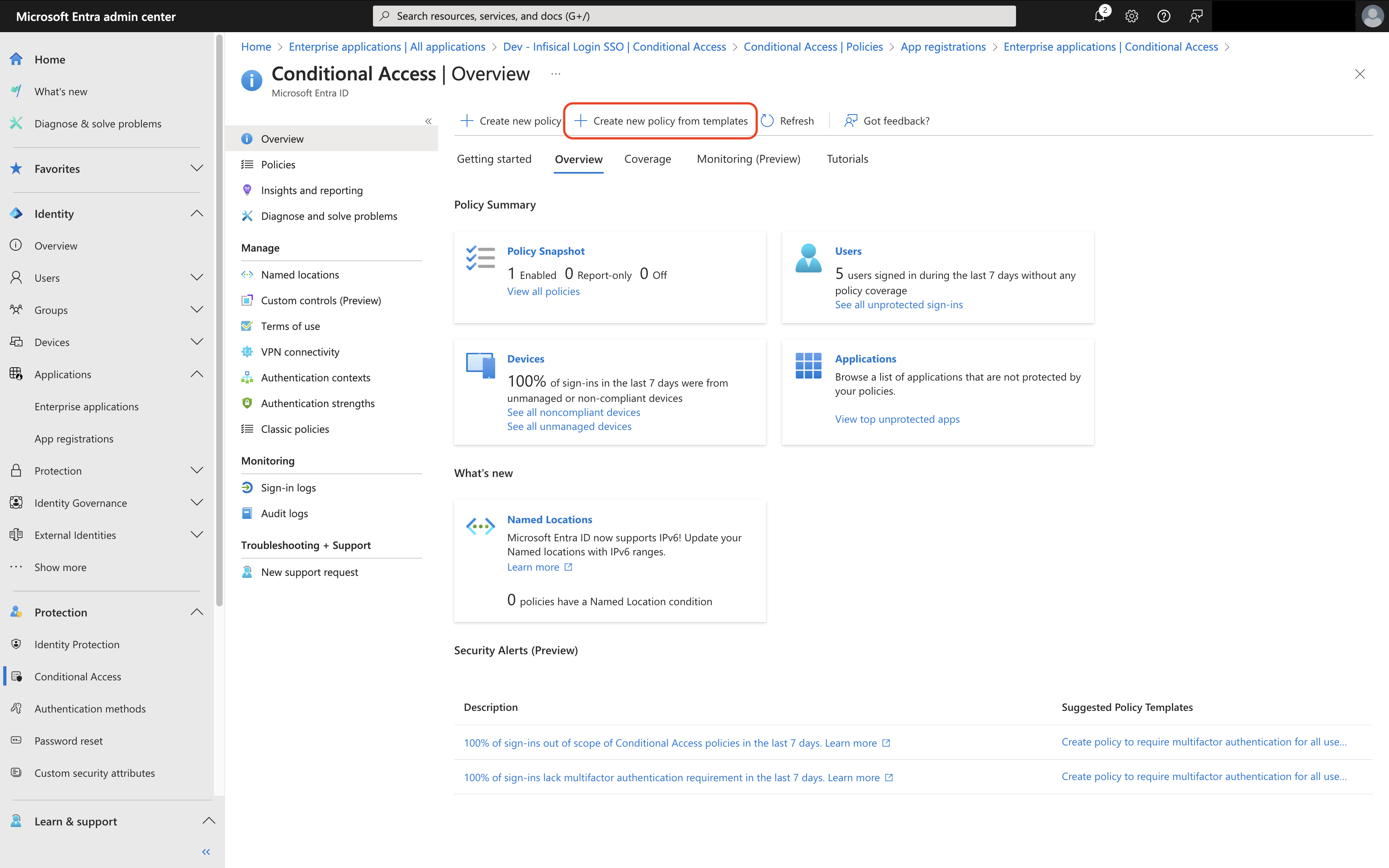
Tap on Create New Policy from Templates
4
Select Require MFA for All Users and Tap on Review + Create
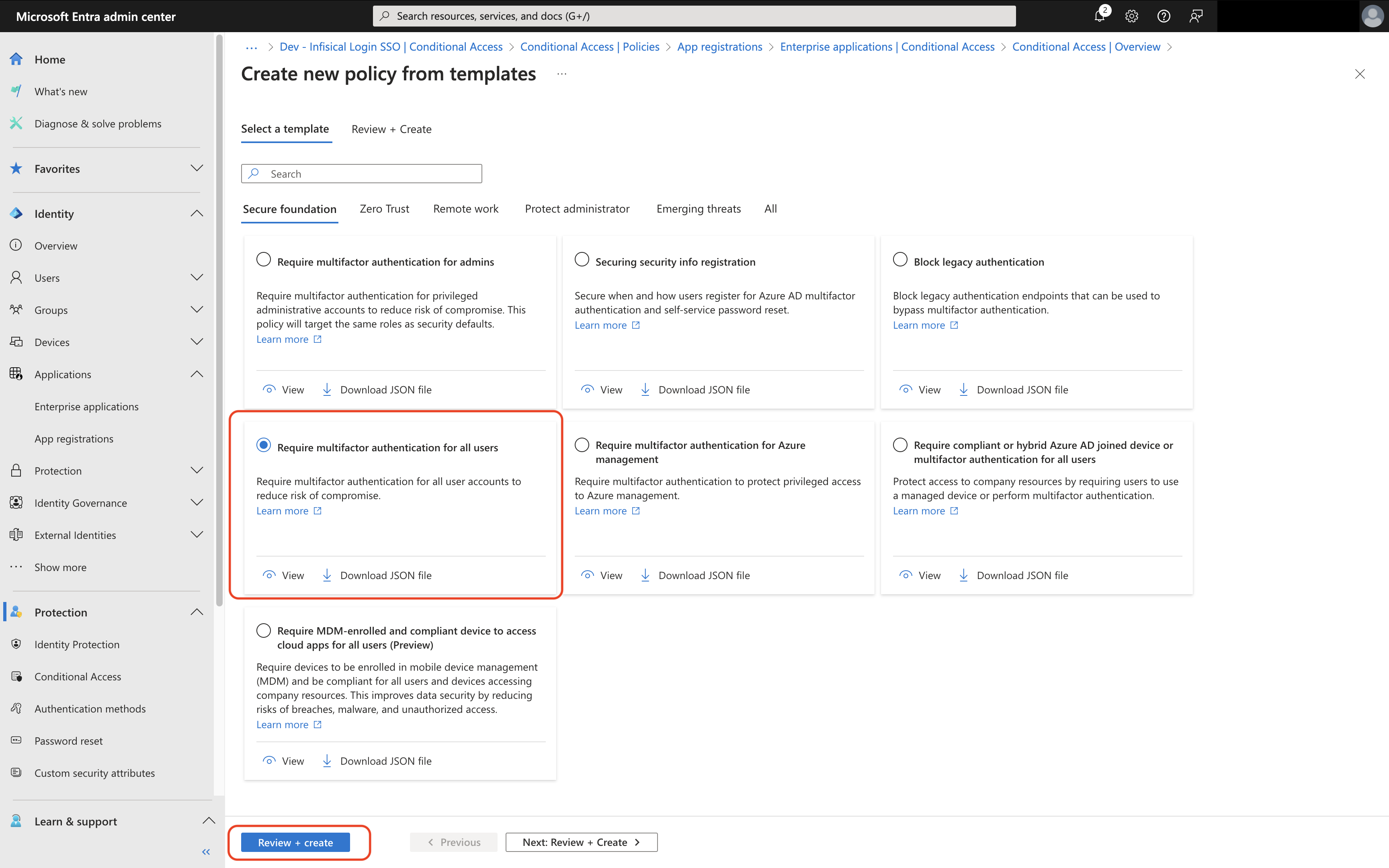
By default all users except the configuring admin will be setup to require
MFA. Microsoft encourages keeping at least one admin excluded from MFA to
prevent accidental lockout.
5
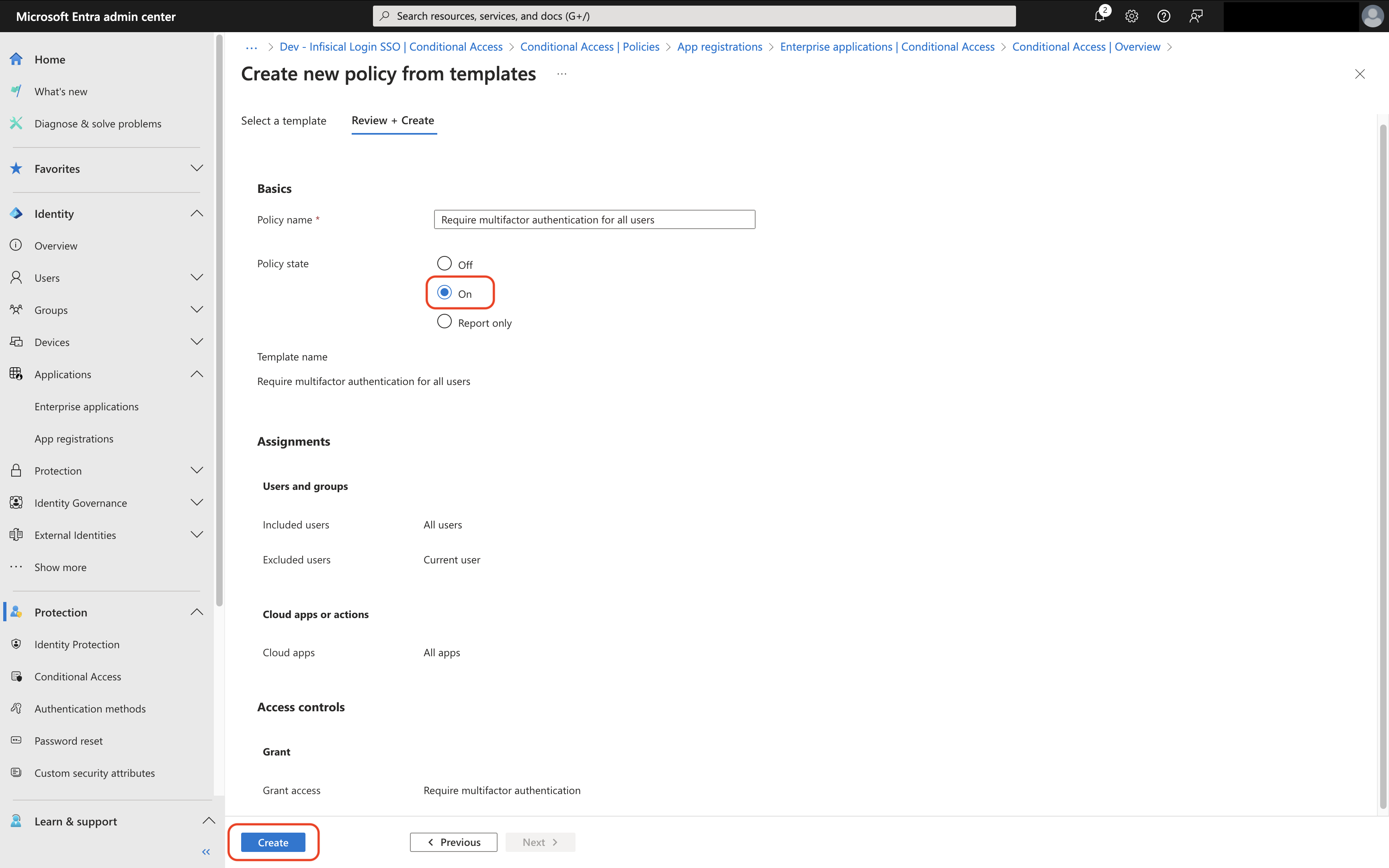
Set Policy State to Enabled and Tap on Create
6
MFA is now Required When Accessing Infisical
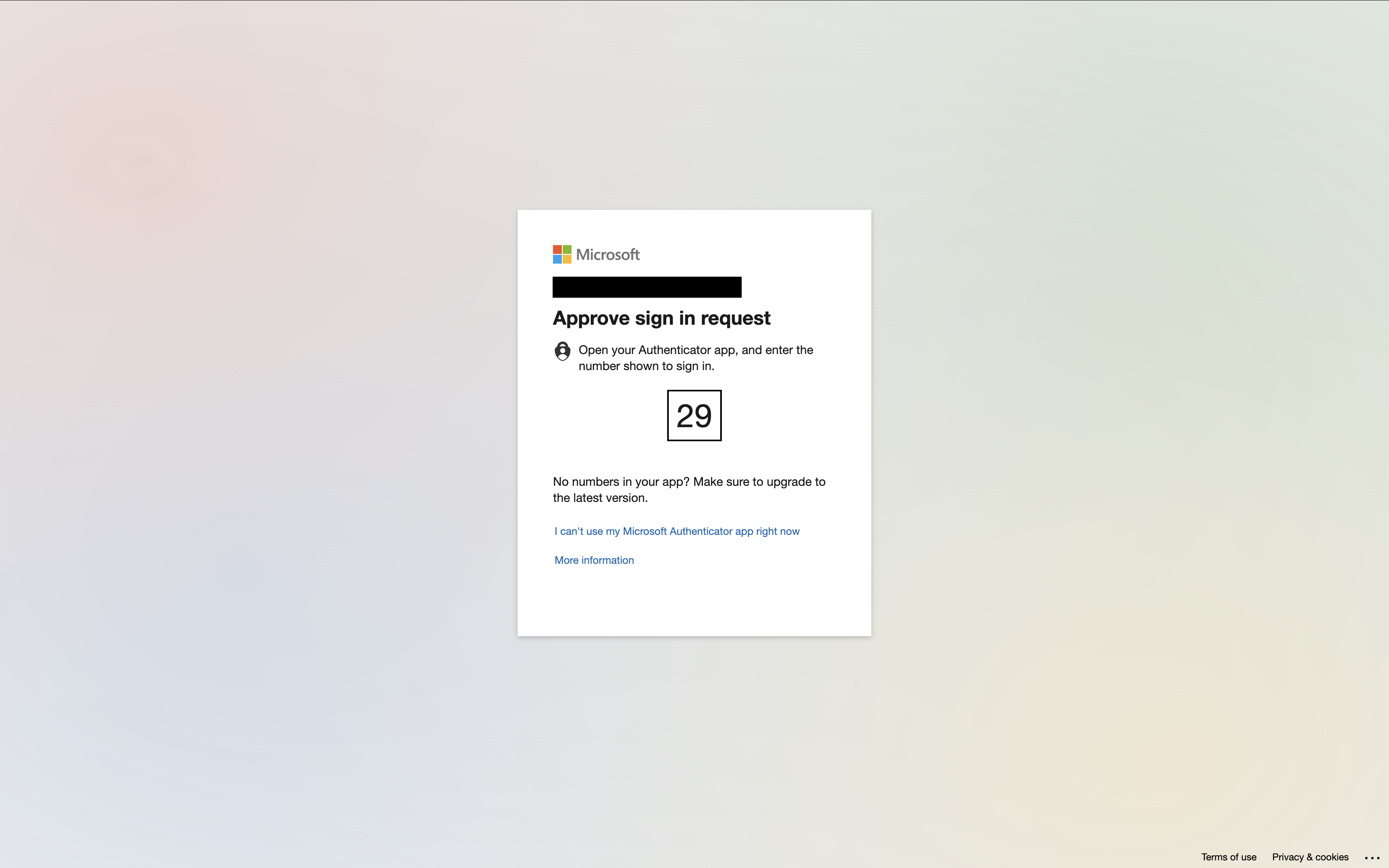
If users haven’t setup MFA for Entra / Azure they will be prompted to do
so at this time.