

/envars folder.
We also store user-specific secrets for micro-service 1 under /service1/users. With this folder structure in place, your applications only need to specify a path like /microservice1/envars to fetch secrets from there.
By extending this example, you can see how path-based secret storage provides a versatile approach to manage secrets for any architecture.
Managing folders
To add a folder, select Add New, then select New Folder.Folder names can only contain alphabets, numbers, and dashes
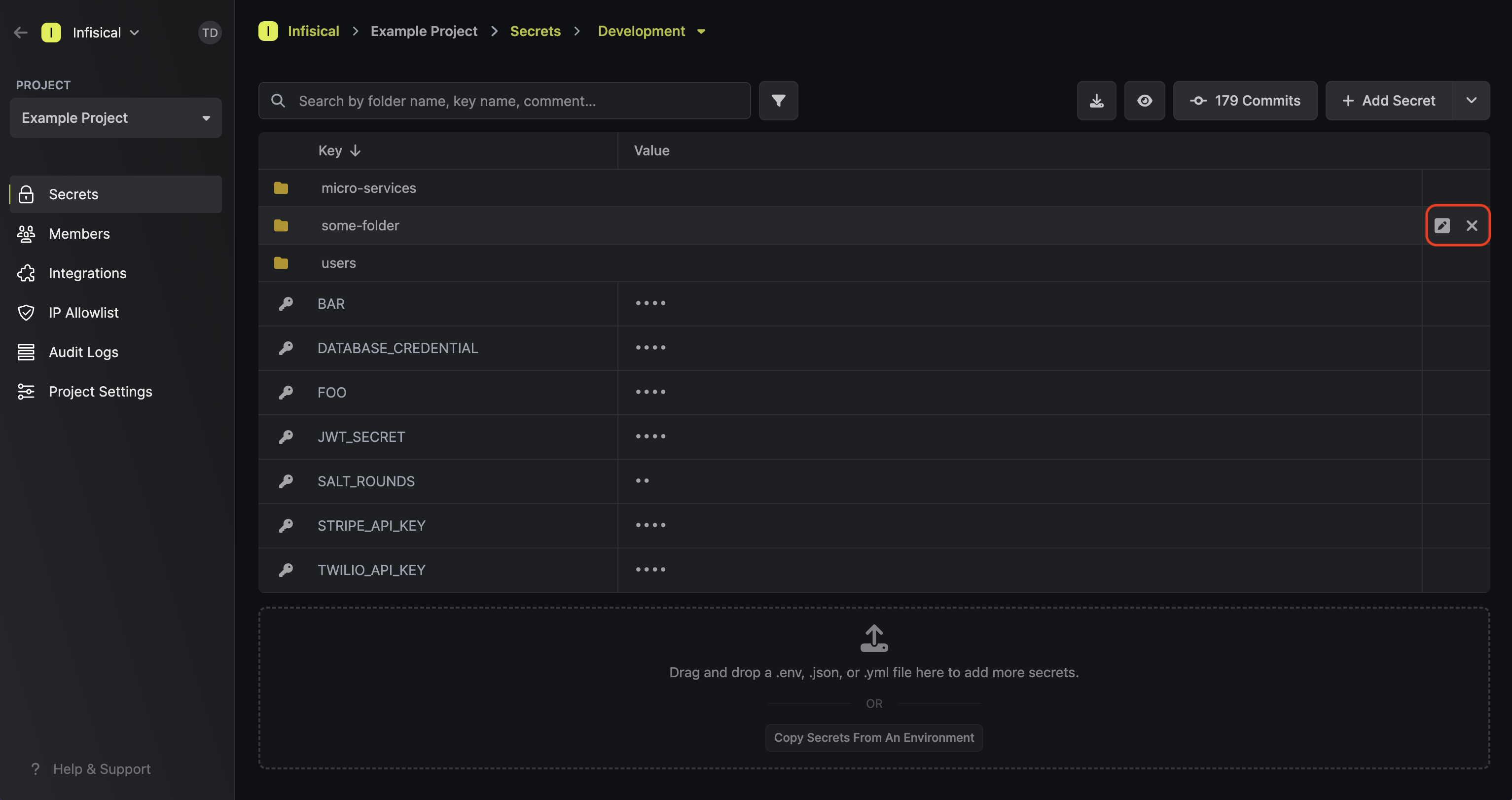
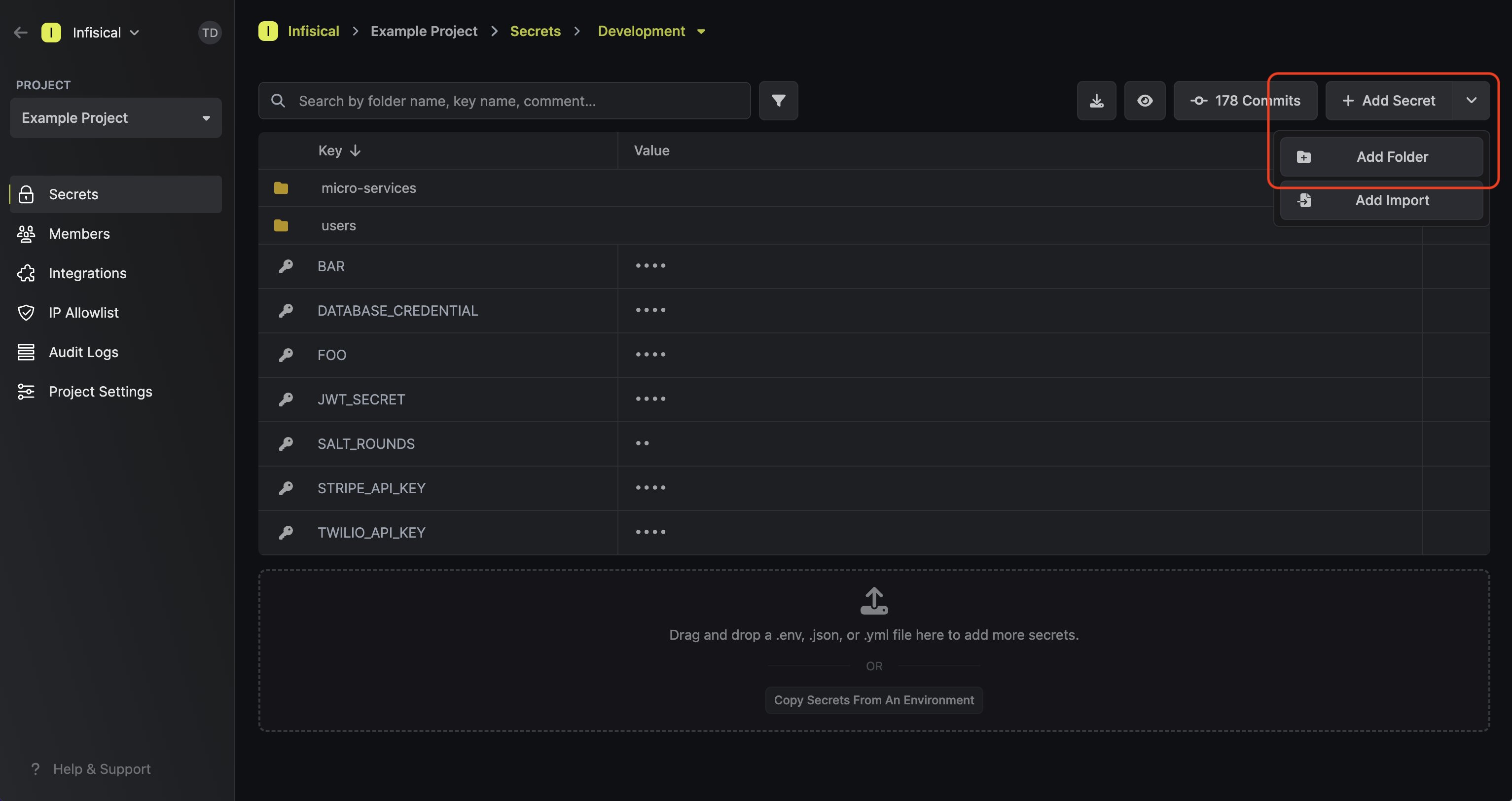 To delete a folder, hover over it and select the trash icon on the right.
Comparing folders
It’s possible to compare the contents of folders across environments in the Secrets Overview page. When you select a folder, the table shows the items inside it across environments. In the image below,/backend holds the same five secrets in Development, Staging, and Production. Where a check mark is missing, that secret isn’t set for that environment.

Replicating folder contents
To copy secrets or folders from one location to another, select Add New > More > Copy Secrets.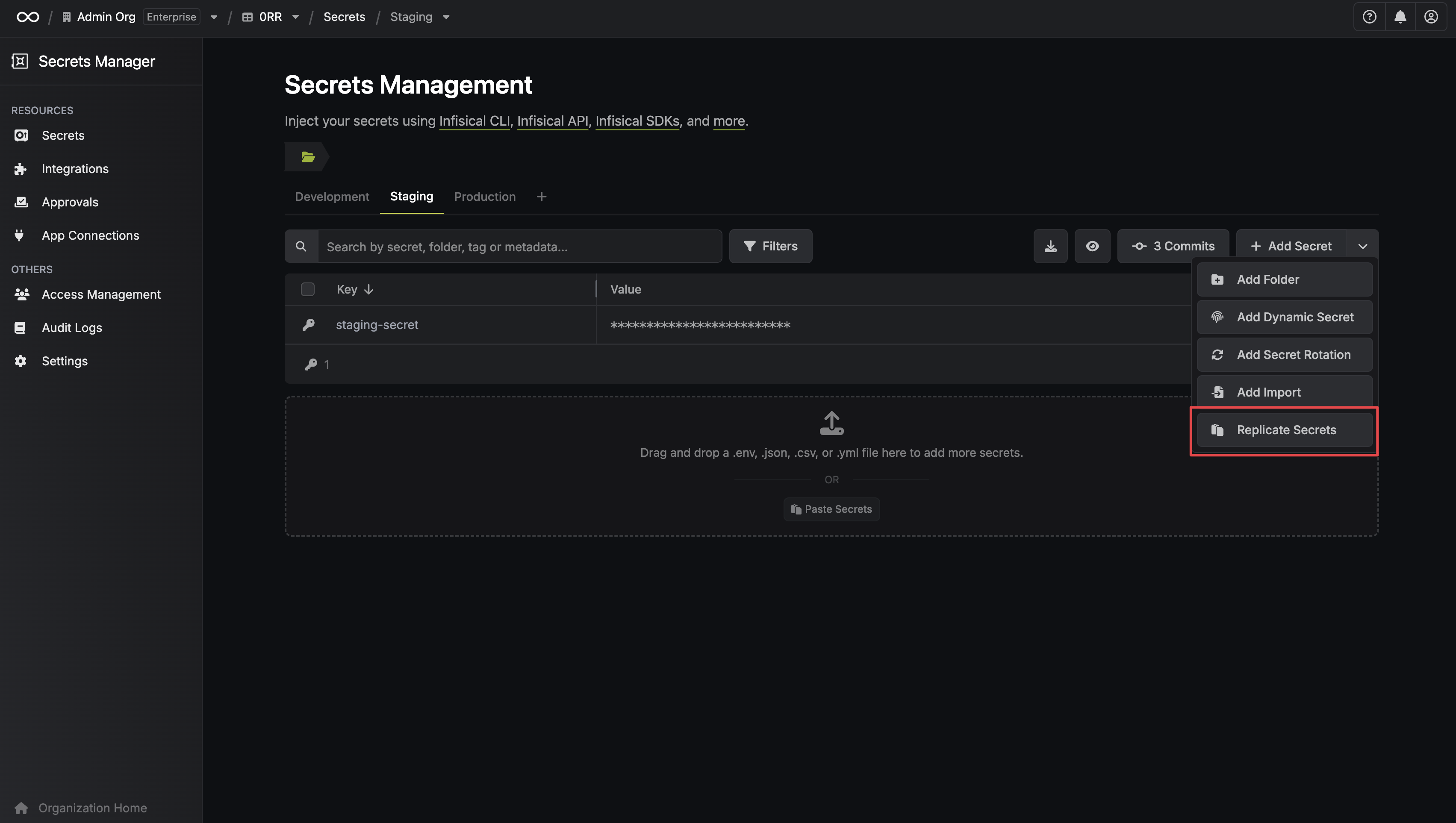 The Copy Secrets panel starts from the folder you’re looking at. Under Source, choose the environment and path to copy from. Under Destination, choose the environment and path to copy to.
In the source list, select individual secrets, or select a folder to copy the folder and its contents. The destination list previews the secrets the copy adds or changes.
The source path also decides where the copies land. Infisical strips it from the path of each selected secret and recreates what’s left under the destination path. Copying
/backend/API_KEY into /replicated gives you /replicated/backend/API_KEY when the source path is /, and /replicated/API_KEY when it’s /backend.
Keys are always copied. To choose which other properties come with them, select Properties and check or clear Secret value, Comment, Tags, Metadata, and Multi-line encoding.
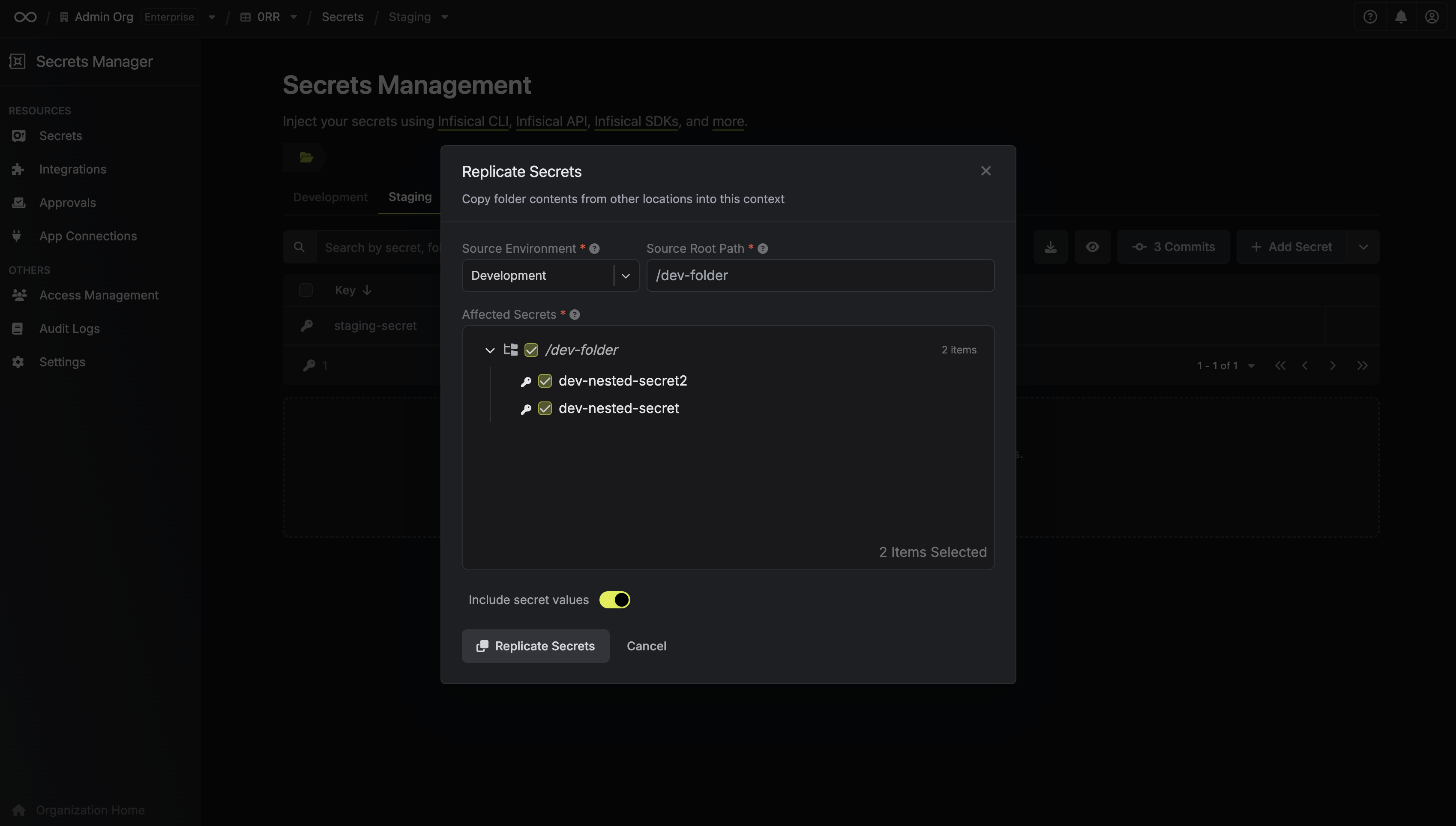 Select Copy. If any selected secrets already exist at the destination, select Overwrite conflicts or Skip conflicts in the dialog that follows. To overwrite them without the dialog, turn on Overwrite existing secrets before you select Copy.
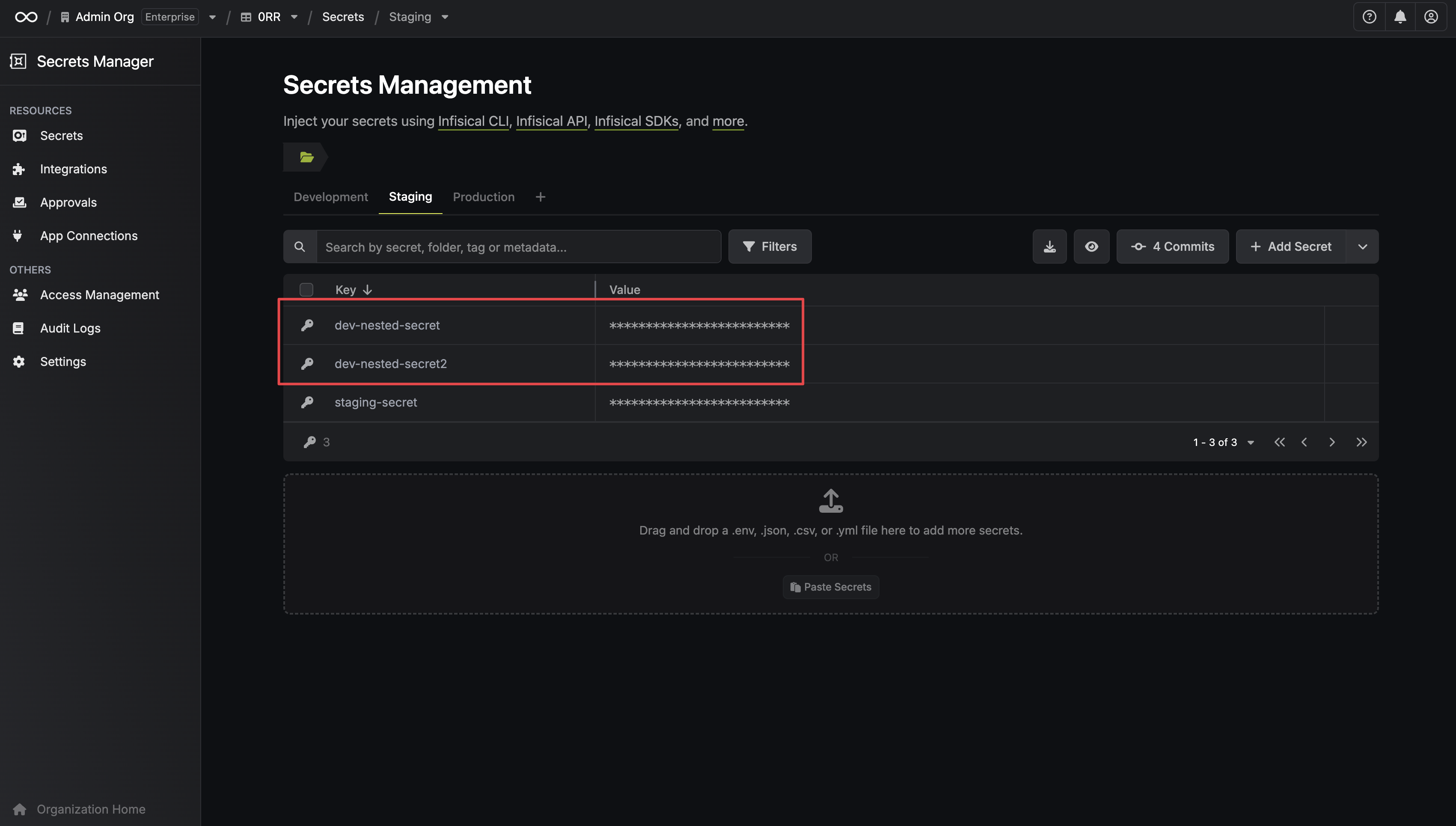 Here
LOG_LEVEL and PORT were copied from the root of Development into /replicated in Staging.