

Concept
Infisical can connect to DigiCert using the ACME-compatible CA integration to issue certificates back to your end-entities. DigiCert CertCentral supports the ACME protocol and requires External Account Binding (EAB) for all ACME registrations. You’ll need to obtain the ACME Directory URL, a Key Identifier (KID), and an HMAC Key from your DigiCert CertCentral account before registering the ACME CA in Infisical.Guide to connecting Infisical to DigiCert
1
Retrieve ACME credentials from DigiCert CertCentral
Log in to your DigiCert CertCentral account and navigate to Automation > ACME Directory URLs in the left sidebar. Select Add ACME Directory URL at the top of the page.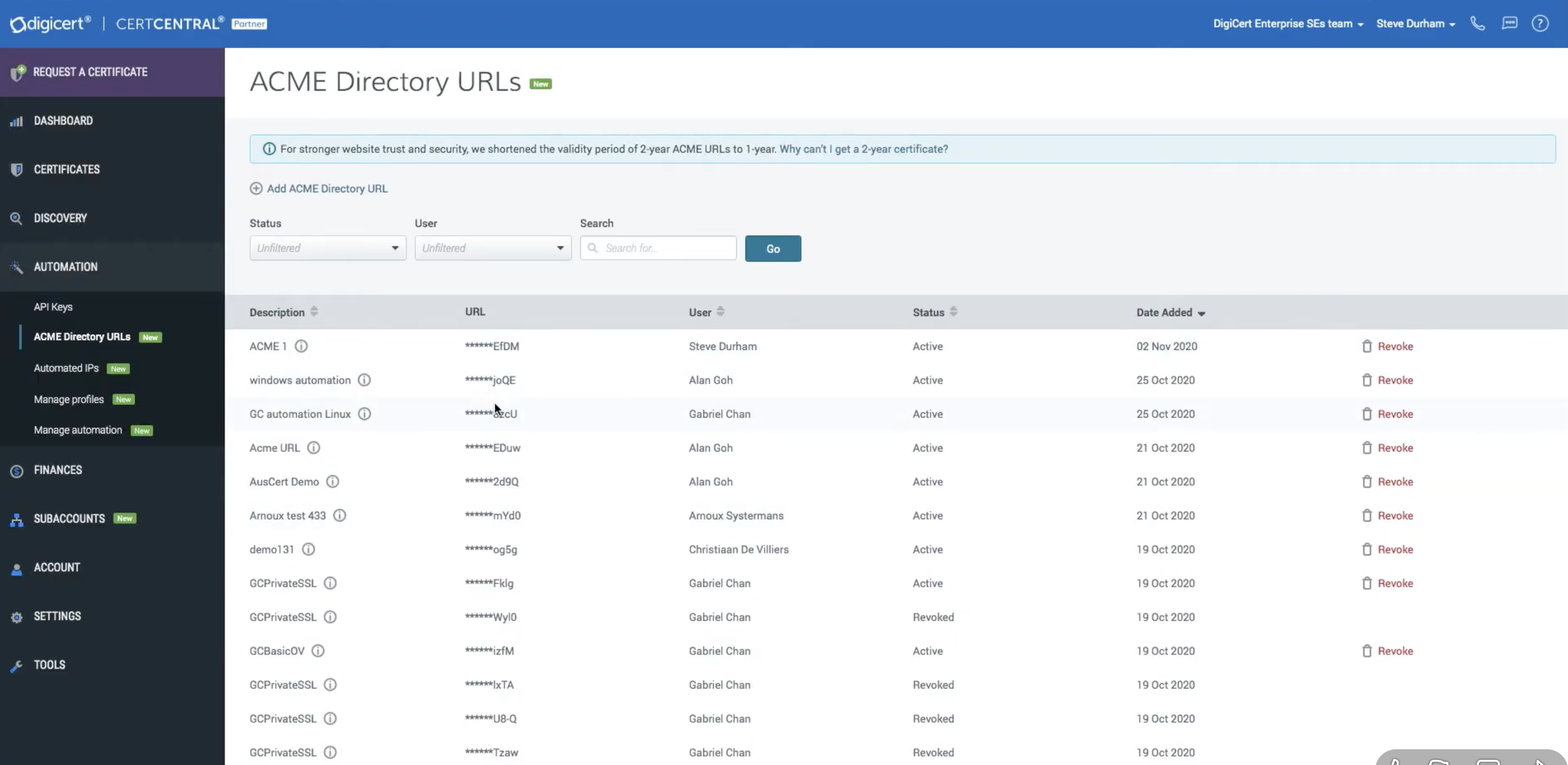 In the modal that appears, configure the following options:
In the modal that appears, configure the following options:- Name: A friendly name for the credential set.
- Product: The certificate product to use.
- Division: The division to associate with issued certificates.
- Organization: Required for OV/EV certificates.
- Validity period: The certificate validity duration.
- ACME Directory URL: A unique URL generated for your ACME requests.
- Key Identifier (KID): Identifies your CertCentral account.
- HMAC Key: Used for authentication and encryption.
These credentials are only displayed once. Make sure to copy and save them in a secure location before dismissing the modal. If you lose your credentials, you will need to revoke them and generate new ones.
2
Create an External CA in Infisical
Follow the steps in the ACME-compatible CA integration guide to create an External CA in Infisical with the ACME CA type. When filling out the form, use the values from DigiCert:
- Directory URL: Paste the ACME Directory URL from DigiCert.
- EAB Key Identifier (KID): Paste the Key Identifier from DigiCert.
- EAB HMAC Key: Paste the HMAC Key from DigiCert.
What’s next
Now that your DigiCert CA is configured, set up the infrastructure to issue certificates:Certificate Profiles
Create a profile that references your DigiCert CA.
Applications
Create an Application, attach a profile, and configure enrollment.
Enrollment Methods
Choose how certificates are requested — API, ACME, EST, or SCEP.
Quick Start
Issue your first certificate end-to-end.
Import existing certificates
Bring certificates you already hold in CertCentral under Infisical management.