> ## Documentation Index
> Fetch the complete documentation index at: https://infisical.com/docs/llms.txt
> Use this file to discover all available pages before exploring further.
# PostgreSQL discovery
> Scan PostgreSQL instances for login roles and import them into PAM.
PostgreSQL discovery scans a set of PostgreSQL instances, enumerates the roles that can log in, stages them for review, and lets you import them into PAM as [PostgreSQL accounts](/docs/documentation/platform/pam/accounts/postgresql). You list the instances to scan and the [PostgreSQL accounts](/docs/documentation/platform/pam/accounts/postgresql) to scan with.
All scan traffic is tunneled through an Infisical [Gateway](/docs/documentation/platform/gateways/overview).
A PostgreSQL scan connects entirely through the Gateway:
1. Each target you list is one instance to scan. Hostnames are resolved by the gateway in the target network.
2. Each target is probed on the ports of your credential accounts, so unreachable ones are skipped before any login is attempted.
3. For each reachable host, discovery picks a credential account: it first tries an account whose stored host matches the target, otherwise it tries each account in turn until one connects.
4. Discovery reads the roles defined on the instance.
5. Each role that can log in is staged as a PostgreSQL account scoped to that instance. If two instances each have a role named `postgres`, Infisical stages each role as a separate account.
Hosts that no credential can reach or authenticate to are reported on the run and skipped; the rest of the scan still completes.
## Prerequisites
Before creating a PostgreSQL discovery source, make sure you have:
* A [Gateway](/docs/documentation/platform/gateways/overview) (or Gateway pool) with network access to the instances you want to scan.
* One or more [PostgreSQL accounts](/docs/documentation/platform/pam/accounts/postgresql) in PAM to use as credential accounts. Discovery connects to each instance as one of these accounts, using its port, database, and TLS settings.
* The [Product Admin](/docs/documentation/platform/pam/concepts/access-control#product-membership) role on your PAM project.
The PostgreSQL role used for the scan only needs permission to log in to the target instance. It doesn't need superuser privileges or additional grants to list the roles on that instance.
The PostgreSQL accounts used for scanning must authenticate with a password. AWS IAM authentication isn't supported because each token is valid only for a specific host, port, and user, so it can't be reused to scan other instances.
## Step 1: Create a source
Go to **Privileged Access Manager > Discovery** and select **Add Source**.
Choose **PostgreSQL**, then select **Next**.
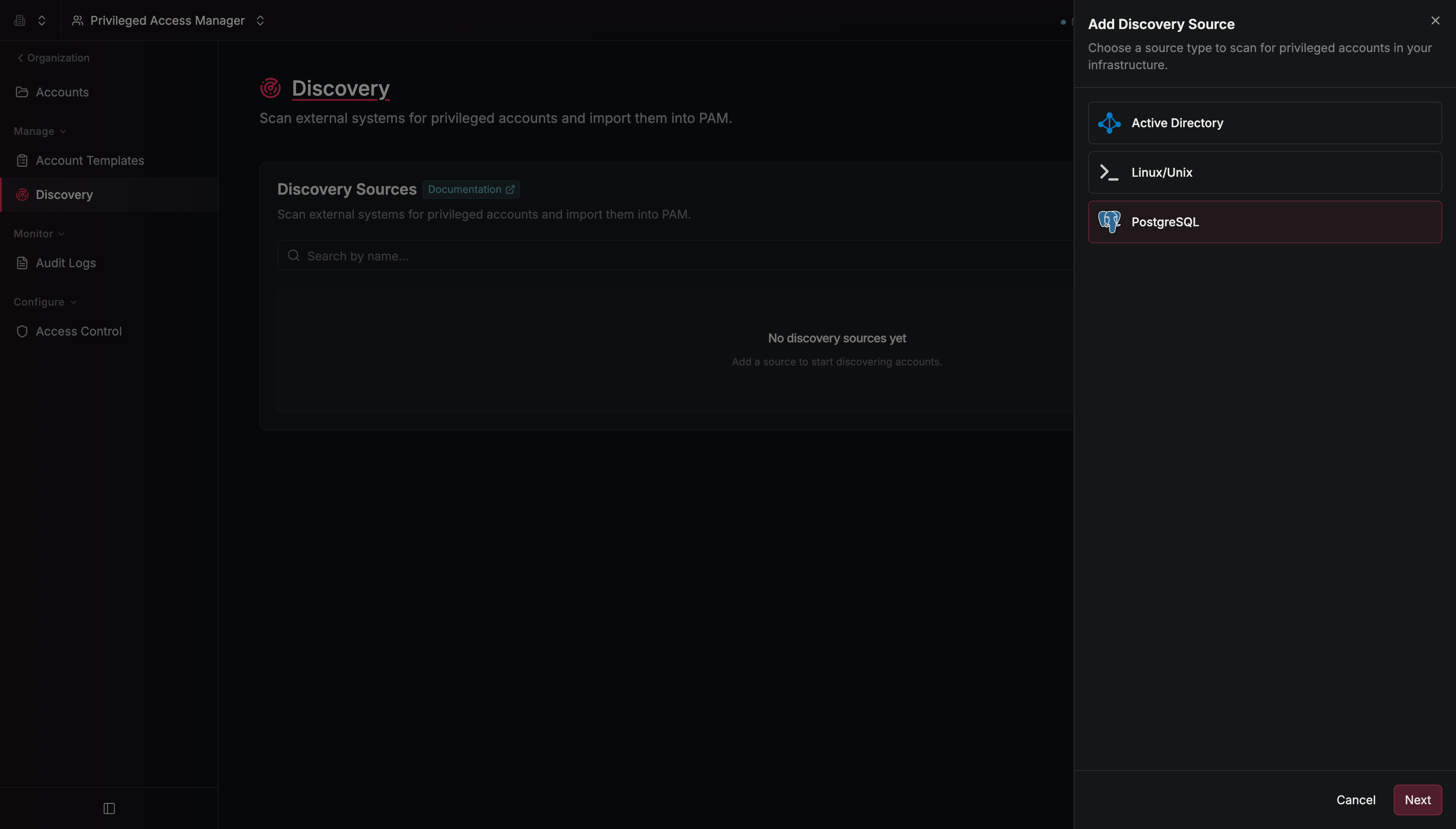 Configure the source:
| Field | Description |
| ----------------------- | ------------------------------------------------------------------------------------------------------------------------------------------------ |
| **Name** | A descriptive name (e.g., `prod-databases`) |
| **Credential Accounts** | One or more [PostgreSQL accounts](/docs/documentation/platform/pam/accounts/postgresql) used to connect and scan |
| **Gateway** | The [Gateway](/docs/documentation/platform/gateways/overview) or Gateway pool that scan traffic tunnels through |
| **Scan Schedule** | How often to scan automatically: **Manual**, **Daily**, or **Weekly** |
| **Targets** | IP addresses or hostnames of the instances to scan, one per line or comma-separated. Hostnames are resolved by the gateway in the target network |
Configure the source:
| Field | Description |
| ----------------------- | ------------------------------------------------------------------------------------------------------------------------------------------------ |
| **Name** | A descriptive name (e.g., `prod-databases`) |
| **Credential Accounts** | One or more [PostgreSQL accounts](/docs/documentation/platform/pam/accounts/postgresql) used to connect and scan |
| **Gateway** | The [Gateway](/docs/documentation/platform/gateways/overview) or Gateway pool that scan traffic tunnels through |
| **Scan Schedule** | How often to scan automatically: **Manual**, **Daily**, or **Weekly** |
| **Targets** | IP addresses or hostnames of the instances to scan, one per line or comma-separated. Hostnames are resolved by the gateway in the target network |
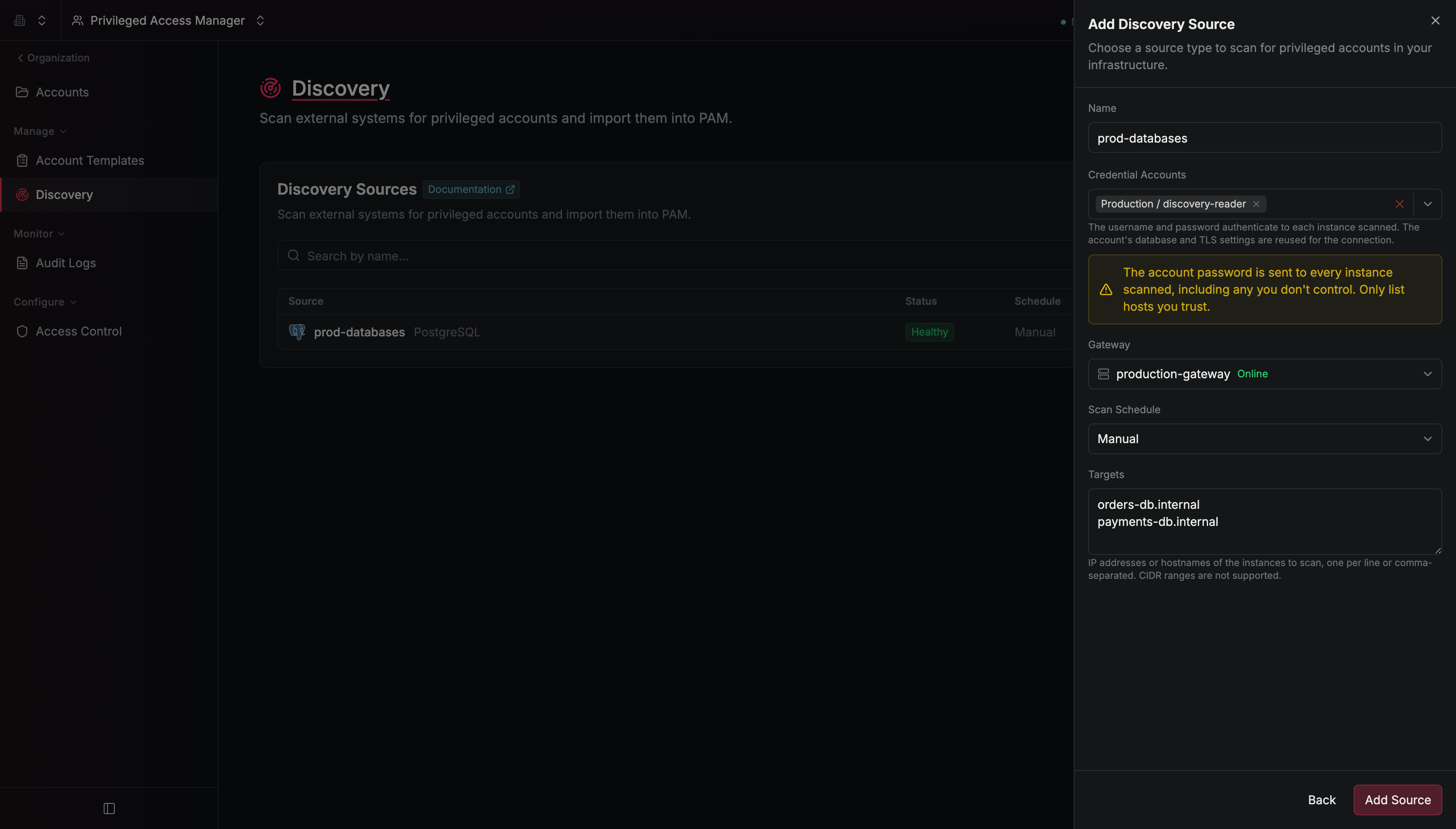 Select **Add Source**. The source appears in the Discovery table.
Discovery only finds roles that can log in to the scanned instance. Group roles that exist purely to hold privileges can't open a session, so discovery doesn't consider them accounts and ignores them. Discovery also ignores PostgreSQL's own built-in roles.
Roles are cluster-wide rather than per-database, so the database your credential account connects to doesn't change which roles are found.
## Step 2: Run a scan
To trigger a scan manually, select **Scan Now** from the source's row menu or its detail panel. Scans run in the background, and a source can only have one scan running at a time.
Select **Add Source**. The source appears in the Discovery table.
Discovery only finds roles that can log in to the scanned instance. Group roles that exist purely to hold privileges can't open a session, so discovery doesn't consider them accounts and ignores them. Discovery also ignores PostgreSQL's own built-in roles.
Roles are cluster-wide rather than per-database, so the database your credential account connects to doesn't change which roles are found.
## Step 2: Run a scan
To trigger a scan manually, select **Scan Now** from the source's row menu or its detail panel. Scans run in the background, and a source can only have one scan running at a time.
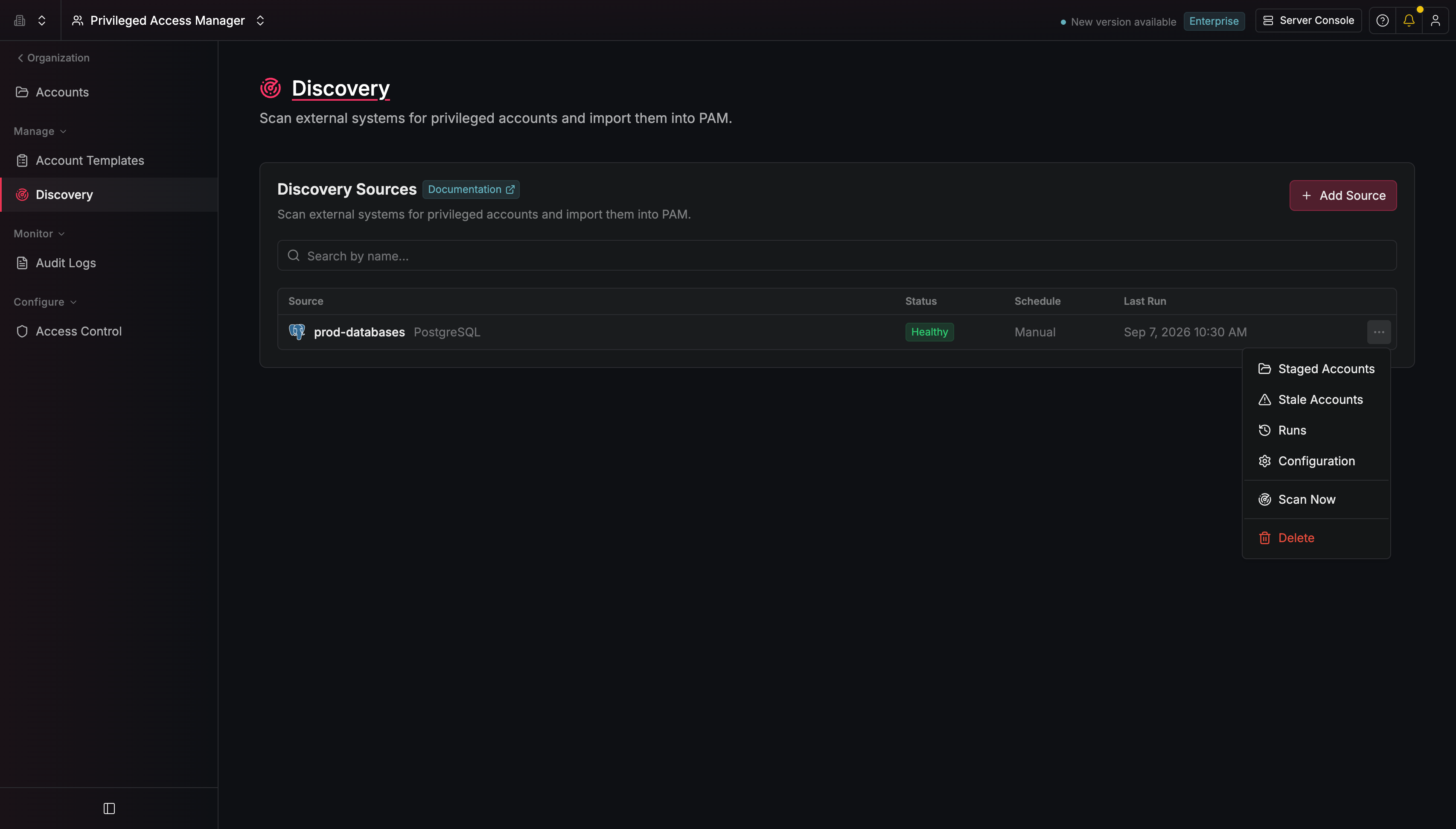 If the source is on a **Daily** or **Weekly** schedule, Infisical also scans it automatically when its interval has elapsed. **Manual** sources are only scanned when you trigger them.
## Step 3: Import accounts
In the **Discovery Sources** table, select the source to open its detail panel.
From the source's **Staged Accounts** tab, select the accounts you want and select **Import Accounts**:
If the source is on a **Daily** or **Weekly** schedule, Infisical also scans it automatically when its interval has elapsed. **Manual** sources are only scanned when you trigger them.
## Step 3: Import accounts
In the **Discovery Sources** table, select the source to open its detail panel.
From the source's **Staged Accounts** tab, select the accounts you want and select **Import Accounts**:
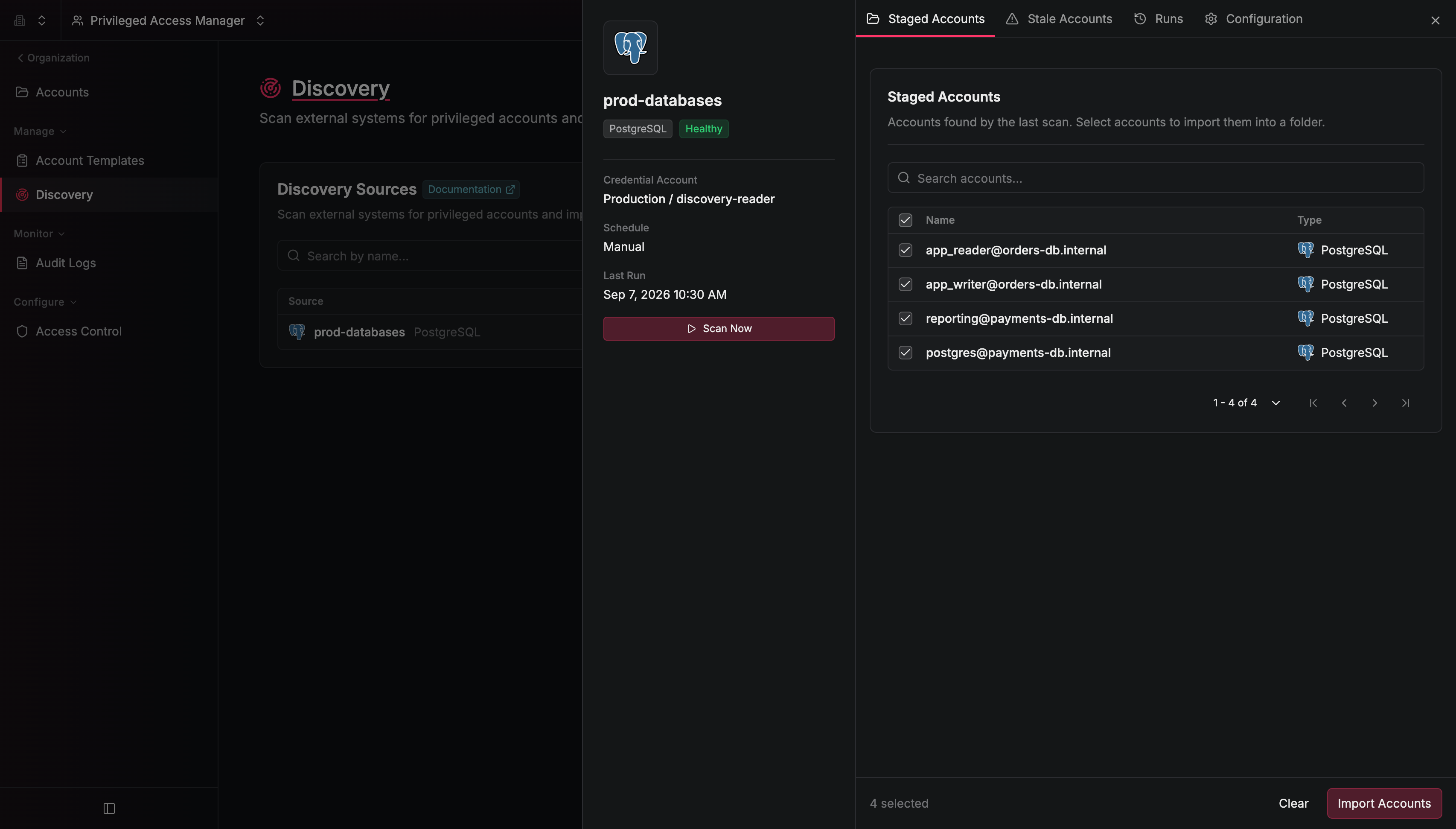 Configure the import settings:
| Field | Description |
| ----------------------- | ---------------------------------------------------------------------------------------- |
| **Destination Folder** | The [folder](/docs/documentation/platform/pam/folders/overview) to import the accounts into |
| **PostgreSQL Template** | A [PostgreSQL account template](/docs/documentation/platform/pam/templates/overview) to apply |
Configure the import settings:
| Field | Description |
| ----------------------- | ---------------------------------------------------------------------------------------- |
| **Destination Folder** | The [folder](/docs/documentation/platform/pam/folders/overview) to import the accounts into |
| **PostgreSQL Template** | A [PostgreSQL account template](/docs/documentation/platform/pam/templates/overview) to apply |
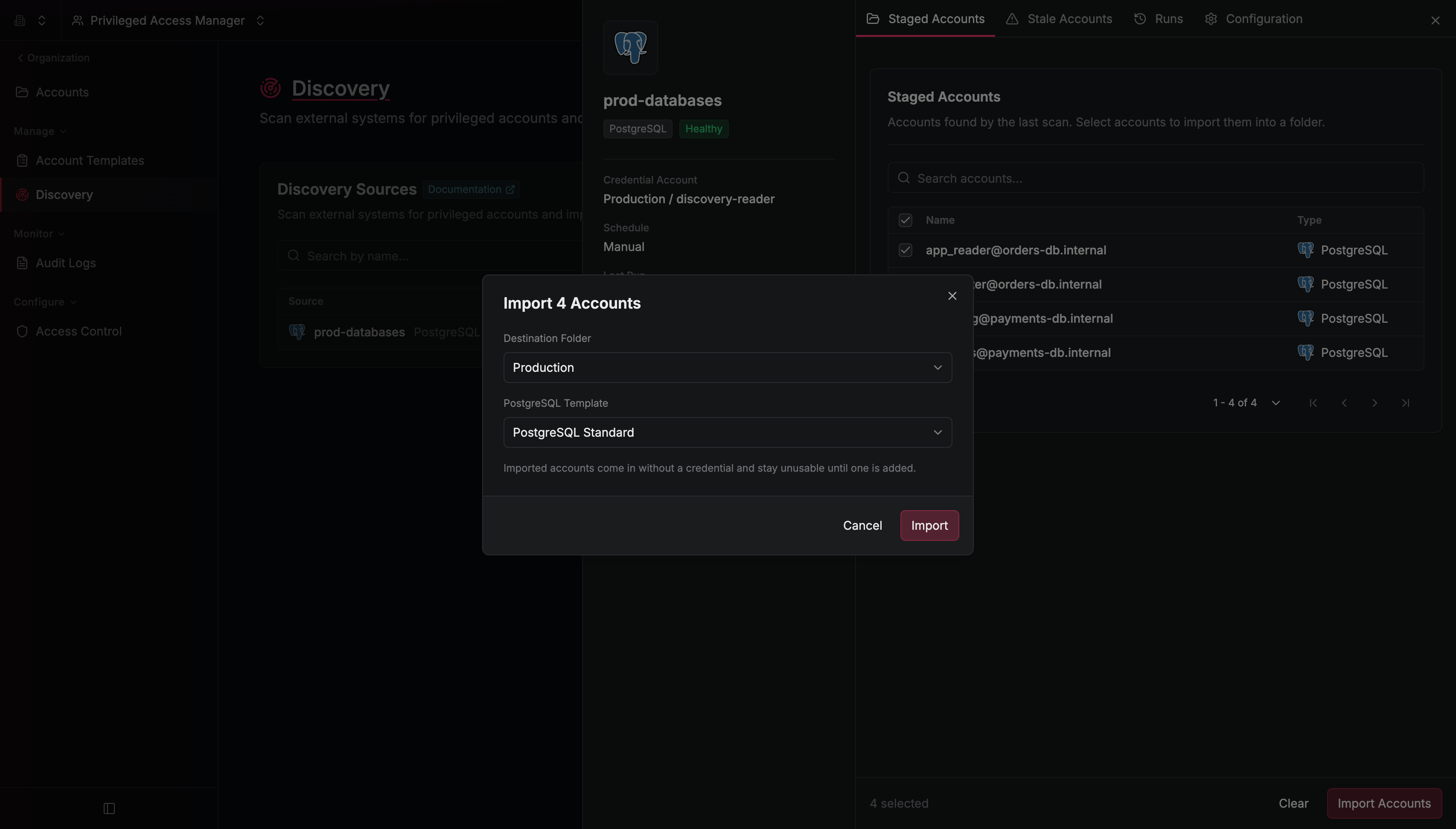 Then, select **Import**.
Once imported, the accounts become regular PAM PostgreSQL accounts in the chosen folder and inherit their template's rules.
Imported accounts don't include user credentials because the discovery scan doesn't retrieve passwords from PostgreSQL.
After importing, open each account in PAM and enter the password for its PostgreSQL user. You must add the password before you can use PAM to connect to the PostgreSQL instance as that user.
## Next steps
Understand staging, importing, and schedules.
Learn about the account type used to authenticate scans.
Then, select **Import**.
Once imported, the accounts become regular PAM PostgreSQL accounts in the chosen folder and inherit their template's rules.
Imported accounts don't include user credentials because the discovery scan doesn't retrieve passwords from PostgreSQL.
After importing, open each account in PAM and enter the password for its PostgreSQL user. You must add the password before you can use PAM to connect to the PostgreSQL instance as that user.
## Next steps
Understand staging, importing, and schedules.
Learn about the account type used to authenticate scans.